
NagataPress is an AI translation plugin for WordPress and WooCommerce. It translates your pages with the AI provider you choose (or with an AI assistant you already pay for) and keeps every translation in your own WordPress database.
Rather not read the whole guide? Let your AI assistant read it.
The NagataPress skill gives your AI assistant (Claude, ChatGPT, Codex and others) this documentation in a form it can work with. Ask in your own words and it answers for your site, step by step.
What it is for:
- Translating with your own assistant. It runs the batches of section 5.3 the way NagataPress checks them: every number, price and link marker is kept, and your glossary and brand context are followed, so far fewer translations are refused.
- Connecting your AI tool. The steps for Claude, ChatGPT, Codex, Cursor, VS Code, Gemini CLI and the other tools of the MCP card, and what to do when the connection fails.
- Answers from this guide. Setup, license, languages, SEO, WooCommerce, the language switcher, WP-CLI, hooks, migration and troubleshooting.
Or copy a ready prompt for any AI chat:
Read https://nagatapress.com/skill/nagatapress-skill.md and follow it to help me with NagataPress on my WordPress site. Safe to install. The skill is plain text (Markdown and one small YAML file): no scripts, no data from your site, no keys. You can open the ZIP and read every file. It does not change your other skills or your own instructions, and your assistant reads it only when NagataPress comes up. To update, install the new version the same way and remove the old one if both are listed.
It does not connect your assistant to your site. To let it translate, connect it first as section 5.3 describes. Without a connection it still answers your questions.
How to install
| Where you use AI | How |
|---|---|
| Claude (claude.ai and the desktop app) | Open Customize > Skills, click +, choose Upload a skill and pick the ZIP, then switch the skill on. Code execution must be on (Settings > Capabilities; on Team and Enterprise plans an owner switches it on for the workspace). |
| Claude Code | Unzip so that ~/.claude/skills/nagatapress/SKILL.md exists (or .claude/skills/nagatapress/ inside a project). A running session picks it up; if not, run /reload-skills. |
| Codex (CLI, IDE extension, ChatGPT desktop app) | Unzip so that ~/.agents/skills/nagatapress/SKILL.md exists (or .agents/skills/nagatapress/ inside a repository). Type $ to see it; restart Codex if it does not appear. |
| ChatGPT with Skills (Business, Enterprise, Edu) | Open Skills from your profile menu, choose to add a new skill, then Upload from your computer and pick the ZIP (or the unzipped folder, if the dialog asks for a folder). Your workspace admin may have to allow personal skills first. A skill added in the desktop app is not shared with the web app, so add it where you use ChatGPT. |
| ChatGPT without Skills, or any assistant that takes a link | Paste the link of the one-page version (https://nagatapress.com/skill/nagatapress-skill.md) into the chat and ask the assistant to follow it. In ChatGPT you can also create a Project, add the files of the ZIP as project files and write in its instructions: “Before answering anything about NagataPress, read SKILL.md in the project files and follow it.” |
| Other tools that read Agent Skills | Put the nagatapress folder where the tool keeps its skills. |
Then just ask, for example: “Translate my site into German with NagataPress” or “Why does /de/contact/ still show English?”
This guide covers version 1.3.18. It follows the order of a typical setup: install the plugin, activate the license, choose languages, connect a translator, translate, review, and then tune SEO, WooCommerce and the language switcher. The last sections are reference material: settings, migration, WP-CLI, troubleshooting and privacy.
Conventions. Names of screens, menu items, buttons and fields are written in bold, spelled exactly as in the English interface. Bold also marks the first words of some list items and the questions of the FAQ. Addresses, commands and code are written in code style. Example addresses use example.com. If your WordPress site uses another language, the plugin screens appear in that language when a translation is bundled (Czech, Slovak, German, French, Spanish, Polish and Brazilian Portuguese).
1. What NagataPress does
This section explains how NagataPress produces translated pages, what it translates, and when it is the right tool.
1.1 How it works
NagataPress works on the finished page. When a visitor opens a translated address, WordPress and your theme or page builder build the page in the original language, as they always do. NagataPress then replaces each piece of text with its stored translation, adjusts links and SEO tags for the language, and sends the page on.
Because it works on the rendered output, it does not matter where the text comes from: the block editor, the classic editor, a page builder, a plugin or a theme template.
Translations are created once, by an AI provider or by your own AI assistant, and stored in a table of your WordPress database. A page view only reads that table. No AI provider is called while visitors browse. The translations stay in your database when you deactivate or delete the plugin.
1.2 What gets translated
- Page and post text: titles, content, excerpts, and the text of menus, widgets, headers and footers as they appear on the page.
- Page builder content: Elementor, Bricks, Breakdance, Oxygen, Beaver Builder, Divi, WPBakery, Cornerstone, Zion Builder and SiteOrigin Page Builder content, the block editor (Gutenberg), and the text, text area, editor and URL fields of Advanced Custom Fields.
- Taxonomy names: categories, tags, and WooCommerce product categories, tags and attributes.
- Forms and buttons: placeholders, submit button captions, and the
alt,titleandaria-labelattributes. - SEO texts: the page title, the meta description, Open Graph and Twitter texts, and structured data (JSON-LD). See section 8.
- URL slugs: translated words in page addresses. See section 4.3.
- WooCommerce: product pages, cart, checkout, the thank-you page, My account, search results, the 404 page and customer emails. See section 9.
- Content loaded after the page: HTML that WordPress sends later (AJAX fragments, and REST API responses requested with
?lang=or from a translated page) is translated from the stored translations when they exist. A small inline script on translated pages also swaps short labels that JavaScript draws after the page has loaded (a mini cart or a notice, for example), using the translations of that page. It matches whole texts, and also texts in which a script writes another price or number after the page has loaded (a plugin that shows prices by country or currency, for example): the price or number is replaced by a placeholder for the lookup, and the live value is put back into the translation.
Left in the original language on purpose:
- Scripts, styles, and the content of
code,pre,textareaand SVG elements. - Visitors' comments.
- The WordPress admin bar.
- The banners of common cookie consent plugins.
- Anything you exclude yourself (section 7.5), and any element with the CSS class
notranslate. - Text nodes shorter than three characters (counted in characters, so a two-character Chinese or Japanese label is not translated either), numbers, symbols, three capital letters on their own (such as
EUR,FAQorNEW), the currency words Kč, zł, Ft, lei and kr on their own, and text that starts with a web address or an email address. Attribute values and meta tag texts are skipped when they are a single basic Latin character, a number, or made only of digits and punctuation. - The editors of page builders (Bricks, Elementor, Divi, Beaver Builder, Oxygen, Breakdance, Brizy and others), their preview frames and the AJAX and REST calls they make. You edit the page in the source language there (section 15.7).
- A page with more than 1,200 text segments, which is served untranslated (developers can change the limit, section 11.4). A page that is too large for one of the translation steps is served untranslated as well (section 15.2).
1.3 What you stay in control of
- Every translation can be corrected by hand in the visual editor, and a manual edit is never overwritten by a later automatic run (section 7).
- A glossary fixes the translation of important terms, and a list of terms is never translated (section 7).
- You pick the provider and the model, and NagataPress shows an estimate before a large run (sections 5 and 6).
- The translations are rows in your own database. Nothing is stored in a NagataPress cloud.
1.4 When NagataPress is the right fit
NagataPress translates your content one to one: every page exists in every language, with the same structure. It can replace WPML or Polylang on such a site. If you need pages that exist only in some languages, or different content for each language, it is not the right fit.
1.5 Terms used in this guide
| Term | Meaning |
|---|---|
| Source language | The language your site is written in. |
| Target language | A language you translate into. |
| Segment | One piece of text that is translated: a sentence, a heading, a menu label, a button caption. A long text node (over 280 characters) is also split into sentences. |
| Stored translation | A segment and its translation for one pair of languages, saved in your database. The same text on many pages is translated once. |
| Provider | The AI service that translates: Claude (Anthropic), OpenAI, Google Gemini, OpenRouter or Mistral AI. |
| Bulk run | A background job that translates all your pages into one language. |
| MCP | Model Context Protocol. It lets an AI assistant connect to your site and do the translating (section 5.3). |
2. Requirements and installation
This section lists what your site needs, how to install the plugin and where to find each screen.
2.1 Requirements
| Requirement | Details |
|---|---|
| WordPress | 5.3 or newer (tested up to 7.1). |
| PHP | 7.4 or newer. The plugin uses the DOM (libxml), mbstring and OpenSSL extensions. |
| License | An active NagataPress license. A 14-day free trial is available. |
| Translator | An API key from Anthropic (Claude), OpenAI, Google (Gemini), Mistral AI or OpenRouter, or an AI assistant that speaks MCP (section 5). |
| Background jobs | WP-Cron (or a system cron that calls it). For large sites WP-CLI is recommended (section 14). Your server must be able to request your own pages for the page check of a bulk run. |
| Web server | Apache, LiteSpeed or Nginx. |
| Only for translating through your own assistant (MCP) | HTTPS (Application Passwords and OAuth both need it) and pretty permalinks (OAuth needs them). WordPress 6.9 or newer is needed only for the WordPress Abilities option. |
2.2 Install the plugin
- In the WordPress admin, go to Plugins > Add New > Upload Plugin.
- Choose the NagataPress ZIP file and click Install Now. (You can also upload the unzipped
nagatapressfolder to/wp-content/plugins/.) - Click Activate Plugin.
- A NagataPress item appears in the admin sidebar. Open it.
On activation NagataPress creates its database tables and flushes the rewrite rules. On Apache and LiteSpeed, while the URL format is Subdirectory (the default), it also adds a small block to .htaccess, between the lines # BEGIN NagataPress and # END NagataPress, so that language addresses such as /de/ reach WordPress. The block is emptied when you choose another URL format, and removed when you deactivate the plugin. Nginx needs no such block, only the standard WordPress routing.
Once a license is active, new versions are offered on the Plugins screen like any other update.
2.3 Find your way around
The NagataPress menu in the WordPress sidebar lists these screens. The plugin's own navigation, on the left of every NagataPress screen, groups them under Workspace, Configuration and Data. The names are the same in both places.
| Screen | Group | What it is for |
|---|---|---|
| Overview | Workspace | Status tiles, active languages, license, site configuration (domain, source language, plan), the switch that shows translations to visitors, auto-translate, translation cache, translation style, word count and cost estimate. |
| Bulk translation | Workspace | Follow a running translation job, or, on a site that translates over MCP, the progress and recent activity of your assistant and the table of shop texts (section 6.4). |
| Languages | Workspace | Languages, URL format, URL slugs, exclusions, settings per language, language switcher and the pages where it is hidden. |
| Scheduled posts | Workspace | Translate posts before they publish. |
| AI Provider | Configuration | Provider, model and API key, monthly costs, translation through your own assistant. |
| WooCommerce emails | Configuration | Customer emails in the customer’s language, the switch for the test cart of the shop texts, and the cleanup of old translations with customer data. Shown only when WooCommerce is active. |
| Settings | Configuration | Delete translations, look of the screens. |
| Glossary | Configuration | Fixed translations for specific terms. |
| SEO | Configuration | The translated sitemap and the redirect rules. |
| Translations | Data | Manage and delete stored translations. |
| Migration | Data | Import from WPML, TranslatePress and Polylang. |
| License | Data | Activate, check and deactivate the license. |
A status bar at the top of each screen shows the license plan, the translator in use (AI), the state of the bulk job (Bulk), the number of stored translations, and a Purge cache button, which asks you to confirm.
On the Overview, a mascot suggests the next step (set up the AI provider, add a language, start a translation). Its cross or Later button hides it for a week. The mascot can be switched off for good in Settings (section 11.1).
Most controls save themselves the moment you use them. When you change a field that is saved with the button of its own form (the switch Show translations to visitors on the Overview, the language switcher cards on Languages, Scheduled posts and WooCommerce emails), a bar at the bottom of the screen says Unsaved changes. Save to apply, or discard to revert., with the buttons Discard and Save changes. Save changes submits the form that holds the change.

2.4 Quick start
- Activate your license (section 3).
- Connect a translator (section 5).
- Add your target languages and choose the URL format (section 4).
- Click Count words on the Overview to see the size of your site and an estimate (section 6.2).
- Click Translate for one language on Languages and let the run finish (section 6.3).
- Open a translated page, check it with the editor (section 7) and place the language switcher (section 10).
Give your AI assistant the NagataPress skill and it can guide you through these steps.
3. Activate your license
A license key switches on everything that creates translations and serves them to visitors. This section covers activation, what the License screen shows, how the plugin keeps checking the license, and what keeps working when a license ends.
3.1 Activate the license
- Open NagataPress > License. (The Overview has the same field in its License card.)
- Paste your license key into the field. The placeholder shows the shape of a key,
XXXX-XXXX-XXXX-XXXX. - Click Activate License, or press Enter.
- Wait for the confirmation Valid license. The button turns into Deactivate and the field becomes read-only. It shows your key with every letter and digit hidden except the last four. Reload the screen to see the plan details in the table.
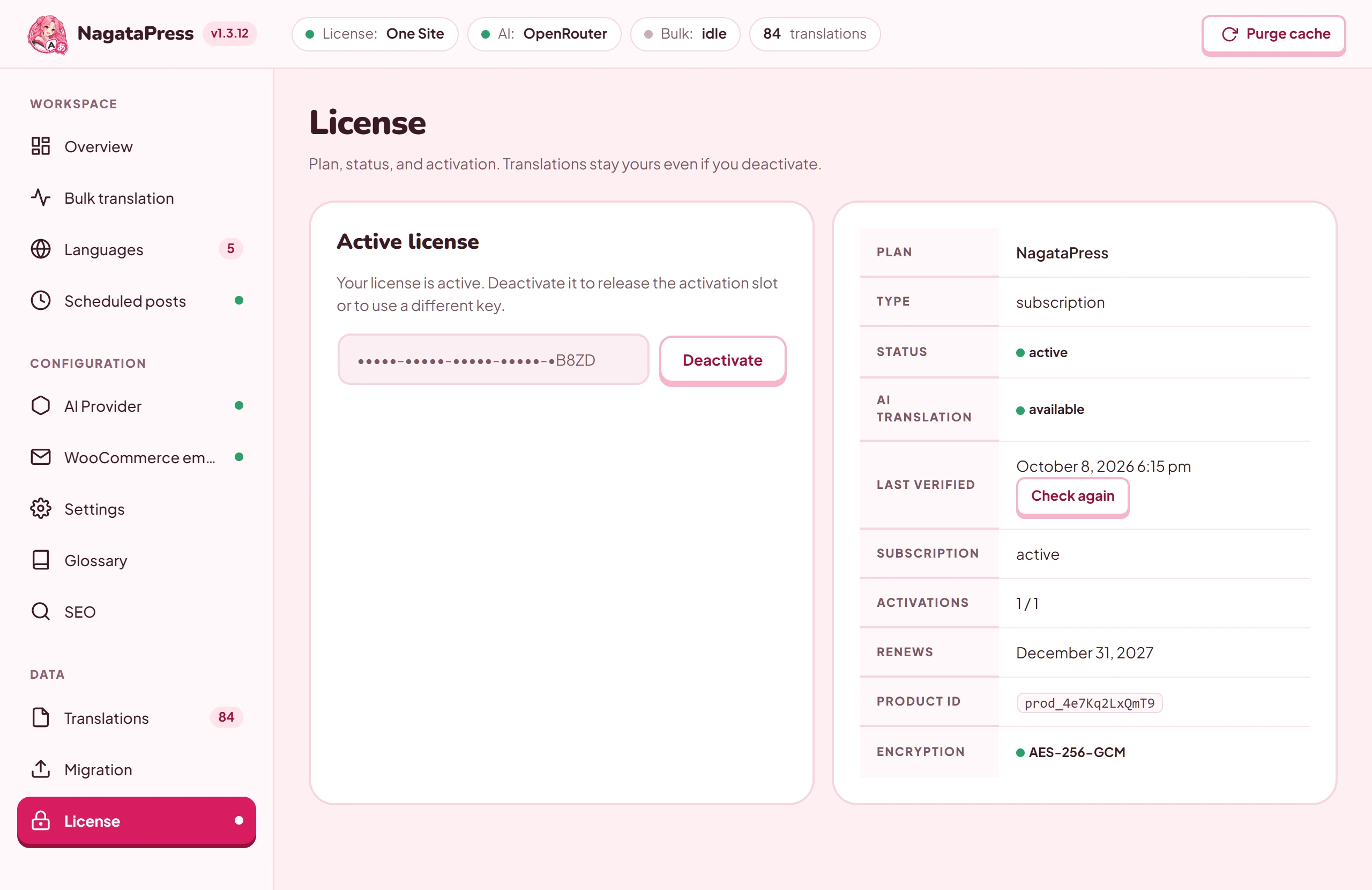
When you activate, NagataPress sends the key, the host name of your site and its address to the NagataPress license server. The server answers with the plan, the status and the dates of the license, and the plugin stores that answer in your database. The key itself is stored encrypted (AES-256-GCM), and the screens show only its last four characters.
The first activation also creates the language settings of the site: the Source Language is taken from the language of your WordPress site, the URL format is Subdirectory, and the list of target languages is empty. Check them in section 4. Until a license has been activated for the first time, Languages shows License required instead of the language options. After Deactivate the languages stay and can be changed; visitors get the original language only (section 3.5).
You can get a license, or start the free trial (14 days), on nagatapress.com. A trial license works like any other. Its Type reads Demo / trial, and the Trial until row shows when it ends.
If activation fails, the message comes from the license server:
| Message | What to do |
|---|---|
| Please enter a license key | The field was empty. |
| License key not found. | Copy the key again from your purchase confirmation and check it for typing errors. |
| Invalid license key format. | The key does not have the expected shape. Copy it again, complete and without spaces. |
| This license has reached its activation limit. Deactivate it on another site first. | The key is already active on as many sites as the plan allows. The message lists the sites (Active on: …). Deactivate the license on one of them (section 3.5). |
| This license has expired. or This license has been disabled. Please contact support. | See section 3.4. |
| License service temporarily unavailable, please try again later. | Try again after a while. |
| Connection error: … | Your server could not reach the license server. Check that outgoing HTTPS requests from the server are allowed. |
3.2 The License screen
The License screen has two cards. The first one holds the key field and the Activate License or Deactivate button. The second one, Plan, is a table. The rows Plan, Type, Status and Encryption are always shown; with no license they read Free, One site, not active and a dash. Encryption reads AES-256-CBC (legacy) for a key stored by a very old version. Every other row appears only when it has something to show.
| Row | What it shows |
|---|---|
| Plan | The plan name reported by the license server. |
| Type | Lifetime, Demo / trial, Unlimited, One site, or the type the license server reports. |
| Status | A badge with the status the license server reported, for example active or expired. It reads not active when no key is stored. |
| AI translation | available, or paused followed by the reason. See section 3.4. |
| Last verified | Date and time of the last answer from the license server, or not yet, with a Check again button. When the server has been unreachable it adds the time since which this is so. |
| Subscription | The status of the subscription, for a subscription license. |
| Activations | How many sites use the license, out of how many the license allows (or unlimited). |
| Validity | Lifetime, for a lifetime license. |
| Valid until, Trial until or Renews | The end date of a one-time license, the end of a trial, or the end of the current paid period of a subscription. |
| Product ID | The identifier of the product the license belongs to. |
| Encryption | AES-256-GCM: how the stored key is encrypted. |
3.3 How the license is checked
NagataPress checks the license with the license server at these moments:
- once a day, by WP-Cron;
- when you open the License screen and the last check is more than an hour old;
- when you click Check again;
- when you start AI work as an administrator (a translation run, for example) and the stored answer is negative or older than 36 hours. This happens at most once in ten minutes.
A server that cannot be reached never counts as an invalid license. The last answer then holds for 7 days after the last successful check, and the plugin tries again three hours later. After the server has been unreachable for a day, a warning appears on the NagataPress screens. After more than 7 days without a successful check, new AI work pauses with the message that the license could not be verified, until a check succeeds.
A check never removes your key. Only Deactivate does.
3.4 When a license ends or cannot be verified
Visitors are never affected by a license that has ended. Translations that are already stored keep being served to them. What stops is new AI work.
| Stays available | Paused while AI translation is paused |
|---|---|
| Serving stored translations to visitors | Bulk translation runs (starting and resuming) |
| Editing translations by hand in the visual editor | Auto-translate on publish |
| Glossary, excluded terms, language and switcher settings | Pre-translation of scheduled posts |
| Deleting translations, Purge cache | The queue of WooCommerce email texts |
| Translating new words for URL slugs | |
| The AI buttons of the visual editor | |
The MCP tools that hand out and store batches and that correct stored translations (the status tool, nagatapress_get_translations and the setup tools of section 5.4 still answer; the status tool names the reason) |
|
| WP-CLI translation commands | |
| The row actions Translate and Fix translation and the bulk action Translate with NagataPress on the post lists (they are not shown) | |
| Fix identical, Refresh archives, Reset and Retry errors (they answer with the pause message) |
A notice on the NagataPress screens says why AI translation is paused. On the WordPress Dashboard and the Plugins screen the same notice can be dismissed for a week, and it returns when the state of the license changes. A warning appears seven days before a one-time license ends.
Buttons, WP-CLI and the MCP tools refuse new AI work with the message "AI translation is paused:" followed by one of these reasons and a hint on what to do. The AI translation row shows paused and the same reason with a capital first letter, without that prefix. The reasons are:
| Reason shown | What it means | What to do |
|---|---|---|
| the NagataPress license has expired | The subscription or license period ended. | Renew. The notice has a Renew or upgrade link to the pricing section of nagatapress.com. |
| the NagataPress license has been disabled | The license was disabled by NagataPress. | Use Contact support in the notice. |
| the NagataPress license is not active on this site | The license server does not recognize the license of this site. | Open the License screen and activate a valid key. |
| the (plan name) period has ended | A one-time license reached its end date. The plan name is the one the license server reports. | Switch to a subscription or a lifetime license to translate new content. |
| the NagataPress license could not be verified for more than 7 days | The license server could not be reached. | Check that your server can make outgoing HTTPS requests, then click Check again. |
| no NagataPress license is activated on this site | No key is stored. | Activate a key (section 3.1). |
3.5 Deactivate or move a license
- Open NagataPress > License.
- Click Deactivate and confirm Are you sure you want to deactivate this license?.
- Wait for License deactivated.
Deactivating releases the activation slot at the license server (if the server cannot be reached, the data on your site is cleared anyway) and removes the key and all license data from this site. Your translations, languages and other settings stay. Because a stored key is needed to serve translated pages, visitors see the original language only until you activate a license again, and the floating language switcher and the hreflang tags are gone for that time. A switcher that you placed with the [nagatapress] shortcode is still drawn, and its links open the pages in the original language. Language addresses, redirects and the translated sitemap are not switched off, but the pages behind them show the original language.
To move a license to another site, deactivate it here first, then activate it on the other site.
4. Choose your languages
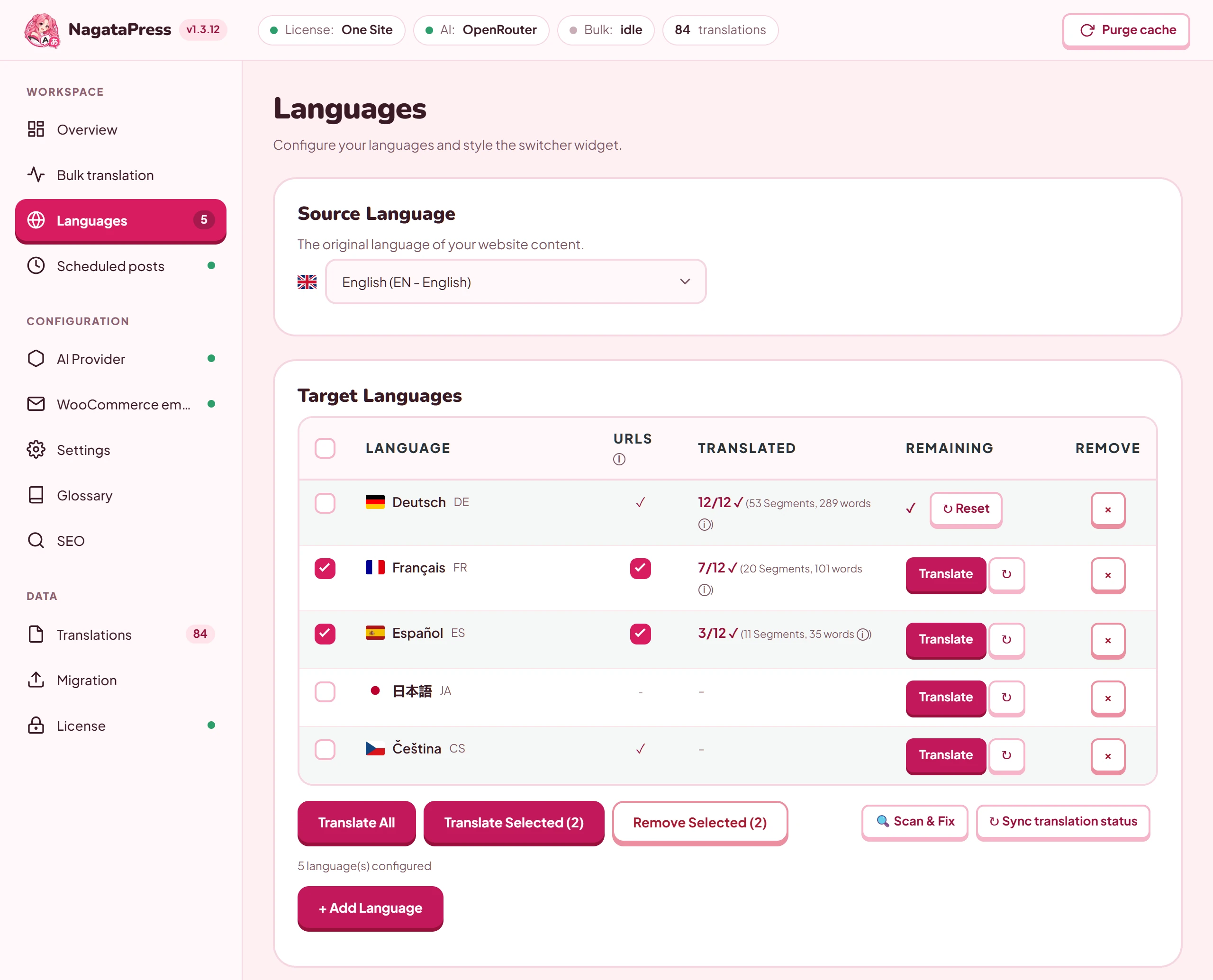
Open NagataPress > Languages. The screen has these cards, from top to bottom: Source Language, Target Languages, URL Format, URL Slugs, Content Exclusions, Settings per language, and the three language switcher cards, Widget Style, Widget Position and URL Exclusions. Above them, the card No translator connected yet, with the button Set up AI Provider, appears while neither an API key nor the MCP endpoint is set up (section 5). Until a license has been activated, the card License required replaces everything else (section 3.1).
Most controls save as soon as you use them. The exceptions have a button of their own: Save Domain Mapping, Save settings per language and Save switcher settings, which saves all three switcher cards.
4.1 Source and target languages
Source Language is the original language of your content. The list shows each language by its own name, its code and its English name. The choice is saved at once (Source language updated). NagataPress presets it from the language of your WordPress site when the license is first activated, so check it. If you pick a language that is also one of your target languages, it is removed from the targets automatically and the page reloads.
Translations are stored for a pair of languages. After you change the source language of a site that already has translations, the stored ones no longer match, and the content has to be translated again.
Target Languages are the languages you translate into. NagataPress offers 75 languages and 10 regional variants (en-US, en-GB, en-AU, es-ES, es-MX, es-AR, pt-BR, pt-PT, fr-FR and fr-CA), and there is no limit to how many you enable. Arabic, Hebrew, Persian and Urdu switch to a right-to-left layout automatically. The flags shown in the plugin and in the language switcher are bundled with the plugin, so no request goes to another site for them.
To add languages, click + Add Language, tick the languages in the list (you can search by native name, English name or code), then click outside the list. The choice is saved and the page reloads. To remove a language, click its × button and confirm Existing translations will be kept. Unticking a language in the + Add Language list removes it as well when you close the list, without asking. Removing a language does not delete its translations. To delete them, use the Translations screen or the Settings screen (section 12); deleting the translations of a language asks you to type its language code first.
The table of target languages has these columns:
| Column | What it shows |
|---|---|
| Checkbox | Select languages to translate or remove several at once. The box in the header selects all. |
| Language | The flag, the name and the code. |
| URLs | A ticked box (the default) means that a slug scan for this language is started together with its translation run (section 4.3). The slug job and the run work in the background side by side; the run does not wait for the slugs. A check mark means that translated slugs are stored for this language; it stays after a reload. A dash means that slug translation is not supported for this language. |
| Translated | Pages translated out of all pages, with the number of segments and words. While a run is active it shows a progress bar, an estimate of the time left and the page being processed. A queued language shows In queue…. On a site that translates over MCP it shows the texts stored for the language and the state of your assistant’s pass instead, with an MCP label (section 6.3). |
| Remaining | The action that fits the state: Translate (with a reset button), Cancel while a language runs or waits in the queue, Retry failed pages (N) to retry the pages that failed, or a check mark with Reset when everything is translated. On a site that translates over MCP it reads “Your assistant translates over MCP” and has no button. |
| Remove | The × button. |
Under the table you find Translate All, Translate Selected (N) and Remove Selected (N) (the last two appear when you tick languages, and N is the number of ticked languages), Scan & Fix and Sync translation status. They are covered in section 6. On a site that translates over MCP, Translate All and Translate Selected (N) are not shown.
4.2 URL format
The URL Format card decides how translated addresses look. Click a card to select it.
| Format | Example | Notes |
|---|---|---|
| Subdirectory (recommended) | example.com/de/ |
Best for SEO. Clean addresses that search engines recognize. |
| Query parameter | example.com/?lang=de |
Simple setup. Works everywhere, but less SEO-friendly. |
| Separate domains | de.example.com/ |
Each language on its own domain or subdomain. Best for international brands. |
Subdirectory and Query parameter are saved at once. When you save a format, NagataPress rebuilds the rewrite rules and updates its .htaccess block (only the Subdirectory format needs the block).
For Separate domains, a Domain Mapping table appears. Enter the domain of each language, and click Save Domain Mapping (at least one domain is required). The source language always uses the main domain of the site. Before you save, set up three things outside WordPress:
- DNS: point every domain or subdomain to this server (A record or CNAME).
- Web server: add every domain as an alias of this site (ServerAlias in Apache, server_name in Nginx, Domain Alias in CyberPanel, the listener mapping in OpenLiteSpeed). A domain the server does not know answers with the server's own 404 page before WordPress runs.
- SSL: every domain or subdomain needs a valid certificate, or a wildcard certificate for subdomains.
Good to know about separate domains:
- Enter each domain the way it should appear in links, ideally in the same form as the site address (with or without www). Both forms serve the language, so keep one of them canonical with a redirect on the server.
- After saving, empty the page cache (LiteSpeed Cache, ZiziCache and similar). Permalinks are rebuilt automatically.
- Cookies stay on their domain. The shopping cart and the login are separate on each domain. To use the visual editor on a language domain, log in on that domain.
- Translated URL slugs work on language domains too: the source slug redirects to the translated one, and a translated slug opens the right page.
- Files that other plugins link with a fixed address (an optimizer's combined CSS and JavaScript, self-hosted fonts) still load from the site address. That address must allow cross-origin font loading (
Access-Control-Allow-Origin).
NagataPress redirects (with a 301) the addresses that would otherwise duplicate a page:
- In the Subdirectory format,
?lang=degoes to/de/..., a language prefix on the source language (/en/...when English is the source) goes to the plain address, and a source-language slug under a language prefix goes to the translated slug. An old subdomain such asde.example.comof the main site goes toexample.com/de/.... - In the Separate domains format,
?lang=deand a/de/prefix go to the domain of that language. - A translated slug that changed keeps working: the old form redirects to the new one.
Changing the URL format changes every translated address, so choose it before your translated pages are indexed if you can.
4.3 URL slugs
A slug is the last part of an address, for example about-us in example.com/about-us/. With slug translation, the translated page lives at example.com/fr/a-propos/ instead of example.com/fr/about-us/.
The URL Slugs card shows Translate Slugs: Enabled. If slug translation is switched off for the site, the card says Translate Slugs: Disabled and "Slug translation is switched off for this site, so translated addresses are not used.", and it offers the button Enable slug translation. There is deliberately no switch to turn it off again, because translated addresses that search engines have already indexed would then answer 404. To translate the slugs of a language:
- In the drop-down, choose the language (shown by its code).
- Click Scan & Translate Slugs.
- Watch the progress bar (x / y segments and an estimate). You can leave the page; the job runs in the background, and Cancel stops it.
- When it finishes, the status line reads N pages, M slug paths translated and a table lists the original and translated slugs (the first 100).
What the scan does:
- It takes the address of every published post of the public post types and the archive address of every term that has content in the public taxonomies (categories, tags, product categories and so on; post formats, menus and product attributes are left out). Addresses with a query string (plain permalinks) or with non-ASCII characters are skipped. A product under
shop/category/is handled with its whole category chain. - A slug whose title or category name already has a translation becomes the slug of that translation. The remaining slug words are translated by the AI provider.
- Numbers, single characters, words with fewer than three letters (product codes such as
14c28n) and brand names from WooCommerce brand taxonomies are left alone. - A new scan does not move existing addresses. Words that were translated before keep their translation, and only new words go to the provider.
- Changing a name in the editor does not rename its slug until the next scan. Run the scan again after you translate names or add pages, products or categories. Until then, a new product gets its translated category path and keeps its own slug.
- Visitors who open the untranslated slug under a language prefix are redirected to the translated one.
The scan sends new words to your AI provider, so an AI provider with a saved key must be set up (section 5.2). Translation of slugs through an assistant over MCP is not offered. When all words are already translated, a scan only rebuilds the paths and needs no provider.
Slug translation is not available for Japanese, Chinese, Korean, Thai, Arabic, Hebrew, Hindi, Bengali, Tamil, Telugu, Georgian and Burmese, because addresses need URL-safe characters. For these languages the URLs column shows a dash. A page whose own slug has non-Latin letters (an address with percent-encoded characters, such as %C3%BCber-uns for über-uns) opens under a language prefix like any other page.
Delete Slugs removes the translated slugs and their redirects for the language chosen in the drop-down, after you confirm Delete all translated slugs for XX? URLs will revert to their original slugs. Slugs you set by hand (origin By hand) stay stored and are applied again by the next scan or by Rebuild paths; use Release to drop one.
Below the scan, Translated slugs by segment lists every part of a path in the chosen language, with where its translation came from:
| Column | What it shows |
|---|---|
| Source slug | The slug part in the source language. |
| Title / name | The title or name of the page, term or product it belongs to. |
| Translated slug | The translated slug. Type here to change it. |
| Origin | By hand, From the name, AI words or Unchanged. |
Type a slug and click Save to pin it: the paths are rebuilt at once, every address that changes keeps a redirect from its old form, and a later scan never overwrites what you set. Release returns a segment to its automatic translation. Use the search box (Search slug or name…) to find a segment, Rebuild paths to recompose all paths from the stored parts, and Load more to show more rows.
4.4 Settings per language
A tracking plugin keeps one Meta Pixel, one Google Analytics and one Google Ads ID for the whole site. A shop with a language per market usually wants one of each per language.
The Settings per language card gives a setting of another plugin its own value in each language. Pages in a language get the setting with that language's value, whatever plugin inserts the code. The settings screen of the other plugin keeps showing and saving its usual value, which the source language uses.
- Click Find tracking IDs. NagataPress searches the settings of your plugins and lists the tracking IDs it finds, with the plugin, the setting and the current value. A button Show N more settings the plugins mark as translatable reveals settings that plugins declare translatable in their
wpml-config.xml. - Click Set per language next to a setting. It is added to the table above, with a column for the source language (read-only) and one for each target language.
- Type the value for each language. An empty field means the same value as the source.
- Click Save settings per language.
For a setting that the search does not list, use Add a setting by name: enter its option name from the wp_options table and, when the option holds several values, the key of the one that differs (keys separated by /), then click + Add.
A table holds up to 100 settings, and a value can be up to 2,000 characters long. Settings that decide where the site lives or which plugins run (the site address, the active plugins and similar) are protected and cannot be given a value per language.
The checkbox Send the page language to Google Tag Manager adds dataLayer.push({language: "de"}) at the top of every page, ahead of the container. In Google Tag Manager, a Lookup Table variable on the dataLayer variable language then picks the ID of each language, for any tag.
4.5 The other cards on this screen
Content Exclusions (terms that are never translated, and sections of a page that are left alone) are described in section 7.5. Widget Style, Widget Position and URL Exclusions (the language switcher and the pages where it is hidden) are described in section 10.
5. Connect a translator
NagataPress does not translate by itself: a model has to do it. You connect one of two kinds of translator on NagataPress > AI Provider:
- Your own API key at an AI provider (Claude, OpenAI, Google Gemini, OpenRouter or Mistral AI). The plugin sends your text to the provider and stores the answers.
- Your own AI assistant over MCP (Model Context Protocol), for example Claude Code or ChatGPT. The assistant fetches untranslated text from your site in batches, translates it in its own application and sends it back. No API key is involved. As an administrator you can also let it set the plugin up with you (section 5.4). This option is marked experimental and is off until you switch it on.
The screen has three parts, from top to bottom: the Translation costs card, the Choose your AI provider card, and the Translate with your own assistant (MCP) card.
5.1 Which option to choose
| Your own API key | Your own assistant (MCP) | |
|---|---|---|
| Who translates | A model at the provider you chose, called by your server. | Your assistant, in your own application. |
| What you need | An account and an API key at the provider. | A subscription to the assistant. HTTPS (for Application Passwords and OAuth) and pretty permalinks (for OAuth). |
| Who starts the work | The plugin: translation runs, auto-translate on publish, pre-translation of scheduled posts, the AI buttons of the visual editor, WooCommerce email texts, slug translation and WP-CLI. | You do, from the assistant, by giving it a short instruction. |
| What it costs | The provider bills you for the tokens. NagataPress shows estimates and a monthly report. | NagataPress shows no price. The assistant’s plan pays: each translation counts toward the usage limits of your AI client. |
Everything that the plugin starts on its own needs the first option, because it calls a provider with your API key. With the assistant option only, those features have nothing to call, so start the work from your assistant instead. On such a site the buttons that would start a run (Translate, Translate All, Translate Selected, Reset, Retry failed pages (N), Translate missing, Refresh archives, Retry errors) and the WP-CLI translation commands refuse and say why. The row actions and the bulk action on the post lists are not shown, auto-translate on publish does nothing, and the pre-translation of scheduled posts skips the site without a log entry. Editing a translation by hand always works.
NagataPress treats a site as one that translates over MCP when no API key is saved and either Enable the MCP endpoint is on, or your assistant has already worked on the site through the WordPress Abilities of another connector (section 5.3). The screens of such a site show the assistant's work instead of runs and costs: the Translation costs card (section 5.2), the word count (section 6.2), the table of target languages (section 6.3), Bulk translation, with its table of shop texts (section 6.4), auto-translate (section 6.6) and Scheduled posts (section 6.7). The buttons that would start a run on Languages are not shown there at all.
You can set up both. When an API key is saved, the plugin uses it for its own runs, and the assistant can still add translations.
5.2 Option A: your own API key
- Open NagataPress > AI Provider.
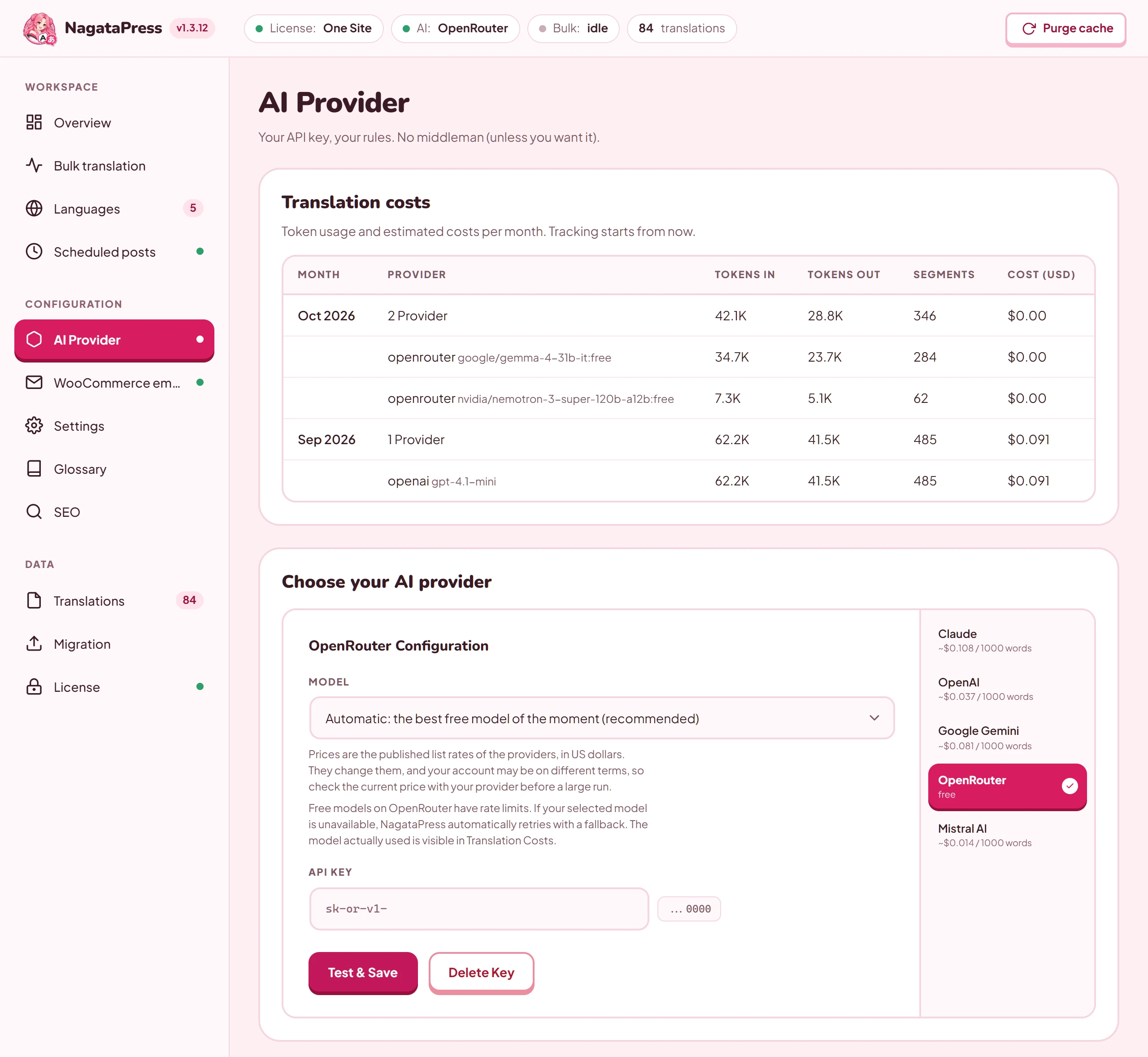
- In Choose your AI provider, click a provider tab: Claude, OpenAI, Google Gemini, OpenRouter or Mistral AI. Each tab shows an estimated price per 1,000 words for its default model.
- Under {Provider} Configuration, pick a Model. Once a key is saved, the list is read live from your own key, so it only offers models that key can use. Before that, a starting list is shown.
- Paste your API Key. The field shows how keys of this provider begin:
sk-ant-for Claude,sk-for OpenAI and Mistral AI,AIzafor Google Gemini andsk-or-v1-for OpenRouter. - Click Test & Save.
NagataPress first checks the key with the provider, then saves it, then sends a small test translation to the model you picked. The result appears under the button:
- Key tested and saved. {model} answered the test translation. Everything works.
- Saved. {model} answered the test translation. The same, when you changed only the model and left the key field empty.
- Saved, but {model} did not answer the test translation: {reason}. The key is saved and your choice is kept as you made it, but translation falls back to another model until you pick a different one.
- An error from the provider, for example when the key is wrong.
For OpenRouter, the first entry of the model list is Automatic: the best free model of the moment (recommended). With it, NagataPress picks a free model on every request, so a free model that is retired never needs a change in the setting. Free models have rate limits. If your model is unavailable, NagataPress retries with a fallback, and the model that was actually used is visible in Translation costs.
Choosing one of the most expensive models shows the warning "This is one of the most expensive models available. On a large site the difference against a Flash or Mini model is a factor of ten or more."
Delete Key removes the provider, the model and the key (after you confirm Delete your AI provider key?).
How the key is protected:
- It is stored encrypted (AES-256-GCM) with a key derived from your WordPress security keys. Only the last characters are ever shown.
- It is sent only to the provider you chose, in a request header and never in the address of the request (Google Gemini uses the header
x-goog-api-key), so it does not end up in access logs or in tools that record addresses. Your text goes from your server straight to that provider. - Error messages from the providers and from the network are checked for key pieces before they are shown, kept in the list of provider answers or written to the PHP log (section 16.2).
- If you move the database to a site with different WordPress security keys, the stored key can no longer be decrypted: enter it again.
Translation costs is a table by month with the columns Month, Provider, Tokens IN, Tokens OUT, Segments and Cost (USD), and one detail row per provider and model. NagataPress records the tokens of every call and prices them with the providers' published list rates in US dollars. If a developer sets the display currency to euros with the filter nagatapress_price_currency (section 11.4), the last column reads Cost (EUR), the figures are converted at a fixed rate, and a note says that the invoice will still be in US dollars. A model without a published price on file is costed at the highest rate known for its tier, so the real bill is the same or lower.
The card says "Tracking starts from now": earlier translations are not counted, and the card reads "No usage data yet" until the first call. Your account may be on different terms, so check the current price with your provider before a large run.
On a site that translates over MCP (section 5.1), Translation costs has no table. It says that the site translates over MCP with your own assistant, that every translation uses the plan of the AI client you connected (for example Claude or ChatGPT) and counts toward its usage limits, so there is no cost to show, and that you decide when the assistant translates. Below that it reads "Over MCP so far: N translations in N batches, last activity ...", or "The assistant has not translated anything yet.". When an API key is saved and Enable the MCP endpoint is on as well, the table stays, and a note under it says that translations made over MCP are not included, because they use your AI client's plan.
While Enable the MCP endpoint is on, Choose your AI provider starts with a note: this section is for translating through the API of an AI provider and its model instead, with your own API key and billed by the provider for the tokens used, and MCP does not need it.
5.3 Option B: translate with your own assistant (MCP)
MCP lets an AI tool that you already pay for do the translating. The plugin offers five tools for that, described here: three that run the translation and two that read and correct translations that are already stored (section 5.5). For administrators it offers eight more, which set the plugin up (section 5.4). The assistant reads and writes only through these tools.
Give your assistant the NagataPress skill and it already knows how these batches work and how to connect.
| Tool | What it does |
|---|---|
nagatapress_status |
Languages of the site, how far the pass of each language has got (pages in posts_scanned and posts_total, archive pages in terms_scanned and terms_total), what each pass covers and what is still missing (coverage), on a shop the state of the collection of shop pages (shop), how many translations are stored, and what the license allows. It also gives the plugin version (plugin_version), the names of the tools this connection can call (tools) and, after an update that re-keyed the stored translations, what that left to translate (rekey, see below). |
nagatapress_get_batch |
Returns a batch of untranslated segments for one language, with the translation instructions. Arguments: lang (required), size (1 to 100, default 40), restart (start a new pass from the first page) and instructions_hash (see “Instructions” below). The answer reports the progress of the pass like the status tool, and each item says where its text was found (source). |
nagatapress_submit_batch |
Stores the translations of a batch. Arguments: batch_id (required, from nagatapress_get_batch) and items (required). Each item carries the id of the segment, tr (the translation) and, for a text that must stay as it is, keep. The answer gives accepted, rejected (each with a reason) and remaining. |
nagatapress_get_translations |
Reads translations that are already stored, by id or by a search text (section 5.5). |
nagatapress_fix_translations |
Replaces stored translations by id, with the same checks as nagatapress_submit_batch (section 5.5). |
How a pass works. A pass of one language has these parts. It starts with the texts every page shares (menus, taxonomy names and similar): all of them, in as many batches as they need. Every call also offers the shop texts that the plugin has collected (see "Shop texts" below). Then every batch walks the published posts of all public post types except attachments, in ID order, and collects segments that have no translation yet. This list of post types is not the same as in a bulk run (section 6.1). Last, the pass visits archive pages: the blog index when the front page shows the latest posts, the archive of a post type that has no published page of its own (a shop without a shop page, for example), and the first page of the archive of every term with content (a published post, a description or, in categories and similar taxonomies, a child term with posts). The terms come from the public taxonomies of those post types: categories, tags, product categories and tags, public product attributes and other custom taxonomies, but not post formats. Pages are fetched as a visitor sees them, without your sign-in; a page that cannot be fetched is rendered locally, also as a visitor. Only when all parts are through, the shop texts are collected, nothing is missing and no batch handed out earlier is still open does nagatapress_get_batch answer done and say so. After you add new content, or after an update of the plugin, call it with restart to begin a new pass. A served batch stays valid for 24 hours. A pass that an earlier version had finished goes on at its next call with what that version did not cover (the archive pages, the shop texts), so no restart is needed after an update. On a site with very many tags or categories the archive pages take more calls; developers can narrow the taxonomies with the filter nagatapress_mcp_archive_taxonomies (section 11.4).
Shop texts. A shop shows texts that no post holds and that a walk over the pages never sees: the side cart and the mini cart with a product in them, the cart and the checkout (every step of a checkout that has several), the thank-you page, the 404 page, the search results, My account and the lost-password page for a visitor who is not signed in, and the customer emails. NagataPress collects them in one queue of texts, each marked with where it was found (section 9.1 describes the steps), and nagatapress_get_batch hands them out with the rest. A call fills its batch in this order: the texts of earlier batches whose reservation ran out unsubmitted (see "Several calls at once"), the shared texts, the queue, the collection of the shop pages, the queue again with what the collection found, the posts and the archive pages. The collection runs inside the call and takes at most 8 seconds of its time, and only while the batch still has room. It is one round for all languages: it starts with the first call after an update, or with restart when the last round began more than 30 minutes ago (a restart of another language within 30 minutes reuses the round), and later calls move it on until it is done. The cart and the checkout are read with a test cart, and the thank-you page is rendered only with the same consent (section 9.1); an administrator allows or forbids it with nagatapress_set_shop_test_cart (section 5.4). What visitors' page views found untranslated on such pages is in the queue too. A text is offered to a language only when that language lacks it, and a text that every target language has leaves the queue. The queue holds at most 2,000 texts. A text with customer data is never queued as it is (section 9.3).
What a batch tells you. Each item has a source, where its text was found: shared (menus, category and tag names on every page), post (a post, page or product), archive (a category, tag or shop page), fragment (the side cart or mini cart), cart, checkout (also its further steps), thankyou (the order received page), 404, search, account (My account for a visitor who is not signed in), lostpassword, email (a customer email), page (another page captured while visitors browsed) or queue (captured earlier, place unknown). The translation instructions explain the sources, so the assistant can choose a wording that fits the place: a button or a label stays short. One source text can stand for two different things, for example "Add to cart" on the add-to-cart button and on the link from the side cart to the cart. A text is stored once, so the assistant translates it for the more common use and tells you; you can give the other element its own wording on the site (rename the side cart button to "View cart", for example). The answer also has pending, the parts that are not through yet (shared, queue, shop, posts, archives, leases, and rekey while stored texts are re-keyed; empty when done is true), progress.queue_missing and progress.shop_done, and leased and lease_expires (see below).
Coverage. For each language nagatapress_status has a coverage object: done (the pass completed: the last answer said done, with the queue, the shop texts and the open batches covered, and nothing went missing since; pass_done shows the same, so right after the update to 1.3.18 every language reads false until a nagatapress_get_batch call answers done), pending (the parts that are open, as above; not_started before the first call, and pass when nothing is missing but no answer of this pass has said done yet), shared (missing and total), posts and archives (scanned and total), queue (missing, total and by_source, the missing texts for each source), shop (for each step missing, found, last_run, skipped and error; null when the site has no collection) and leased. The top-level shop object describes the collection round: collector, woocommerce, test_cart (whether the test cart is allowed), round (started, done, done_at, found) and a note. A language that was done is not done any more when a visitor's page view queues a text it lacks, or after a restart: call nagatapress_get_batch again.
Several calls at once. A batch call stores only the position of its own language and adds to the counters, so calls for different languages, a restart and the switches of the MCP card no longer overwrite one another. A pass that is started again while a call runs wins: that call's batch stays valid, but its old position is not stored, and its note says so. Several assistants can translate the same language at the same time. Every text that a batch hands out is reserved for that batch for 20 minutes, and a call that runs meanwhile never gets it, so parallel assistants receive different texts. An accepted translation ends the reservation; a rejected item keeps it until the batch is submitted again or the 20 minutes run out. The texts of a batch that was not submitted in time (an assistant that stopped, a lost connection) are offered again, first, by the next call. nagatapress_get_batch does not answer done while batches handed out earlier are still open: it gives the number of reserved texts (leased) and the time the first reservation ends (lease_expires), pending has leases, and the note says so.
Instructions. The translation instructions (the rules, your Never Translate terms, the glossary and the brand context) are long and the same for every batch of a language. Each answer carries instructions_hash, a short fingerprint of them. Send it back as the argument instructions_hash of the next call for that language: while the instructions did not change, the answer leaves instructions out and has instructions_omitted set to true. A changed glossary, Never Translate list or translation style changes the fingerprint, and the full instructions come again. An assistant that no longer has them calls without the argument.
Repeated passes. A pass remembers the texts of each page it fetched (the page index: a row for each page in the table meta, with the texts of that page). On the next pass a page that has not changed is not fetched again: its texts are looked up in the stored translations, up to 2,000 pages in one call, so a pass over a site that is already translated takes few calls. A page counts as changed when it was saved, when a term or the stock status it lists changed, or when something every page shows changed: the theme, a plugin or an update of it, widgets, menus and templates, the site name, the permalinks, a language pack, the alternative text of an image (other edits of a media file change nothing that a page shows). Switching Show translations to visitors on or off, the languages and the switcher do not make pages be fetched again. A row is not used after a week either. The texts every page shares (menus, term names) are not kept in the rows, because every pass hands them out first, and the index stops growing at 128 MB: pages without a row are then fetched on every pass. The pages the index cannot answer are fetched up to four at a time. Developers can switch the index off, change its age limit, its size limit and the options it watches, and the action nagatapress_mcp_rescan_pages makes the next pass fetch every page again, for a change the index cannot see (a setting of another plugin that prints a text on every page); see section 11.4.
After an update. Version 1.3.17 stores prices in a new way (section 6.1), so after the update NagataPress re-keys the stored translations once, in the background. Every nagatapress_get_batch call during that time first does a short part of the re-keying itself, so it finishes even on a site whose WP-Cron does not run. If the re-keying is then complete, the call goes on as usual; otherwise it hands out nothing, and its note reads "Stored texts are being re-keyed after the update; call again in a few minutes." Until it is complete, rekey in nagatapress_status has in_progress set to true. A batch that was handed out before the update can still be submitted, but an item whose text is now masked differently (a price or a number is cut another way) is refused with "rekeyed: the text was re-keyed after an update; call nagatapress_get_batch again": leave it and fetch a new batch, which offers the text in its current form. When stored translations were moved, the passes of every language start again from the first page, once, so that the texts that now need a translation of their own are offered. If some translations could not be kept, nagatapress_status reports in rekey how many texts need translating again and for which languages a pass is still due, for example "12 texts need translating again after the update. Run nagatapress_get_batch for de, fr until done is true."
Tools that are missing. An AI client keeps the list of tools that it received when it connected. After an update that adds tools, the instructions of the endpoint can name a tool that the client does not list. nagatapress_status gives the version of the plugin and, in tools, the tools that this connection can call. If one of them is missing in your client, reconnect the connector there, so that the client reads the list again.
What the plugin checks. Every submitted translation is checked like an answer from an API provider. It is refused when it is empty, when it is identical to the source (unless keep is set, or the source has nothing to translate, see below), when a {{#}}, {{$}} or {{@}} token or an inline marker such as <t1> is missing, changed or added, when it adds a script or a javascript: address, when it looks like damaged output, when it holds a character of a foreign script (see below), or when it drops or changes a term of your Never Translate list (section 7.5). In detail:
- Characters of a foreign script (
odd_character). A translation is refused when it holds a character that does not belong to the target language and appears neither in the source text nor in a text the plugin protects: a Cyrillic or Greek letter in a language written in Latin letters, a Latin letter that the target language does not use (æ or ă in German, for example; checked for the languages whose alphabet the plugin knows), an ideographic space (U+3000) or full-width characters outside Japanese, Chinese and Korean, and in languages written in Latin, Cyrillic or Greek letters also a zero-width space, a combining mark that does not join a letter, digits of another script, or one word written with letters of two alphabets. The letters a to z are always accepted, and so are the Latin letters of the source language (a Czech place name such as Plzeň may stay as it is in a German text) and every character of the source text, of the Never Translate list, of the texts of excluded sections and of the glossary of the language pair, also in a form that Unicode normalisation makes the same (the Greek μ for the micro sign µ of the source). The reason names the character and its code, for exampleodd_character: е U+0435for a Cyrillic е in a German word. - Text with nothing to translate. A translation identical to its source is accepted without
keepwhen the source holds only Never Translate terms (or texts of excluded sections), numbers and tokens, codes of letters and digits (such as S550 or HMT360-3), web and e-mail addresses, and punctuation. A word without a digit, such as the unit in "33 kg", still needskeep. - Protected names with a hyphen. A Never Translate term that is joined to a word by a hyphen, as in the German compound FORT-Schubkarre, counts as kept. A term glued to a word without a hyphen (FORTSchubkarre) is refused.
- Empty marker pairs. A pair with nothing between its markers, such as
<t2></t2>, stands for an element without text, usually an icon. It must stay empty, and it may also come back as<t2/>. A single marker such as<t3/>may come back as<t3></t3>. - The
{{@}}token. In a customer email, a value that belongs to the customer (a name, a user name, an email address inside a sentence) is replaced by{{@}}before the text reaches the assistant: "Hi {{@}}," instead of "Hi Jan,". Keep every{{@}}once and in the order of the text, and never write a name, a pronoun or another word in its place. The plugin puts the customer's own value there when the email is sent. A translation with another number of{{@}}is refused with the reasontokens.
Refused items come back with a reason and can be submitted again with the same batch ID (section 15.6). The instructions the assistant receives include your excluded terms, the glossary and, in Contextual mode, your brand context.
A text that you send with keep is stored like any other translation, not as a manual edit. Fix identical and the Identical count of Scan & Fix leave it alone. Purge translation cache deletes it, because it is identical to its source, and the assistant is then offered the text again. To protect such a text from that, save it by hand in the visual editor.
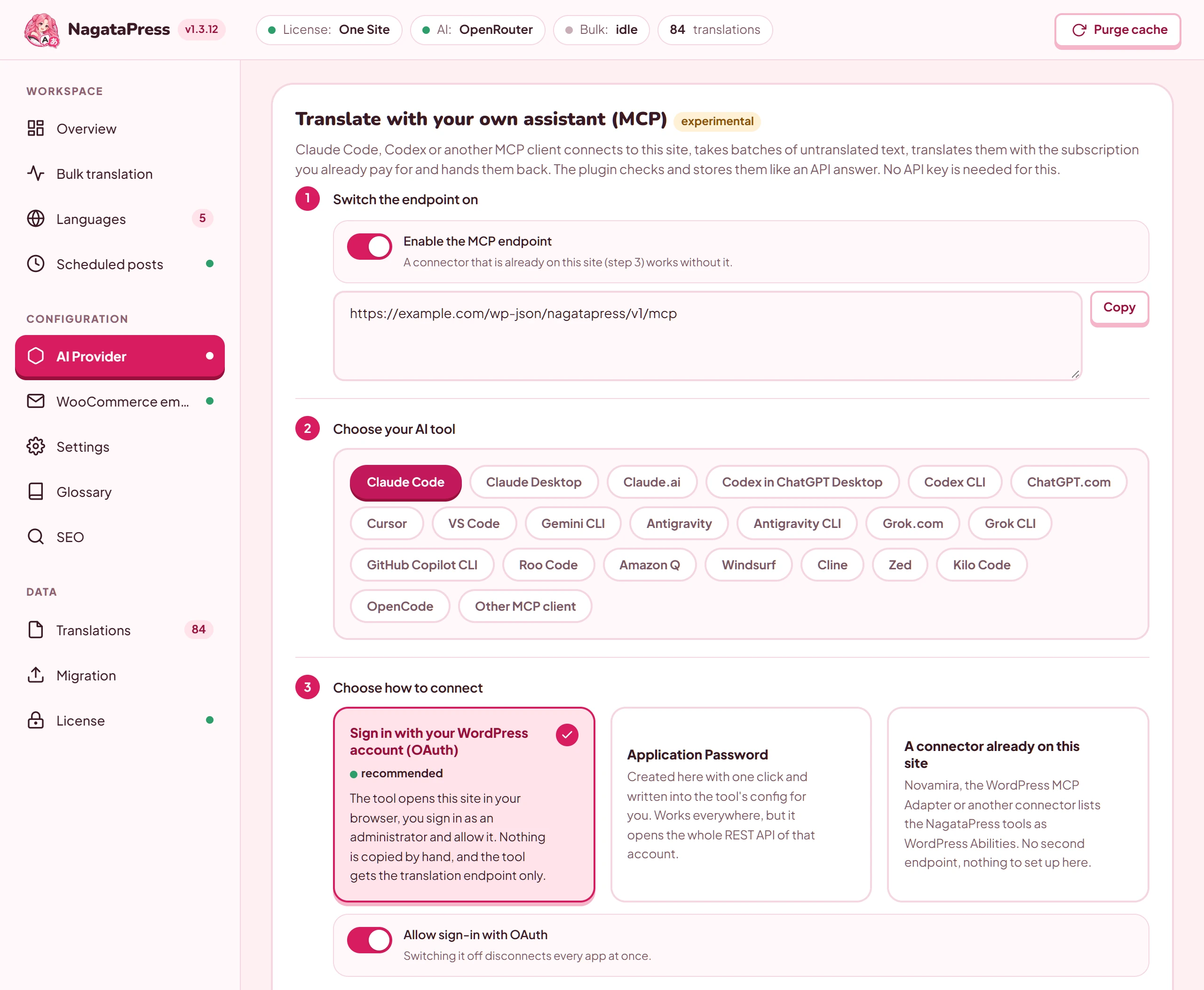
To set it up, follow the five numbered steps on the card. They are the same for every tool.
- Switch the endpoint on. Turn on Enable the MCP endpoint. The address of the endpoint appears with a copy button, for example
https://example.com/wp-json/nagatapress/v1/mcp. If the site does not run on HTTPS, a note tells you that Application Passwords and OAuth both need it. A connector that is already on the site works without this switch. Switching the endpoint off again disconnects every app that signed in with OAuth. - Choose your AI tool. Pick one of: Claude Code, Claude Desktop, Claude.ai, Codex in ChatGPT Desktop, Codex CLI, ChatGPT.com, Cursor, VS Code, Gemini CLI, Antigravity, Antigravity CLI, Grok.com, Grok CLI, GitHub Copilot CLI, Roo Code, Amazon Q, Windsurf, Cline, Zed, Kilo Code, OpenCode or Other MCP client.
- Choose how to connect. The options offered depend on the tool.
- Connect your tool. The card shows the exact commands or configuration snippet for your tool and connection type, with the address of your endpoint filled in and a copy button on each snippet. Below them a tip line reads "Tip: give your AI tool the NagataPress skill. It knows how NagataPress checks a batch, so fewer items come back rejected." The tip links to the skill box at the top of this guide. Then the card shows the sentence to give the assistant ("Then tell the assistant:"). With one target language the sentence names that language; with several it names every target language with its code and asks the assistant to translate them one language at a time. Under it, administrators find a second sentence that lets the assistant set NagataPress up with them (section 5.4).
- Connected apps. Lists the apps that signed in with OAuth and the counters of the endpoint.
Ways to connect (step 3):
| Method | What it means |
|---|---|
| Sign in with your WordPress account (OAuth) (recommended) | The tool opens your site in a browser, you sign in as an administrator and click Allow on the screen Connect an app to NagataPress. Nothing is copied by hand, and the app gets the NagataPress endpoint only. The screen lists what the app may do (section 5.4). Needs pretty permalinks. Allow sign-in with OAuth is on by default, but sign-in works only while Enable the MCP endpoint is on. Switching it off disconnects every app at once. |
| Application Password | Click Generate an Application Password (give it a name if you like). The password goes straight into the snippet of step 4 and WordPress shows it only once, so store it safely. If you already have one, use I already have one, paste it and click Use this password: it only fills the snippet in your browser and is never stored on the site. An Application Password opens the whole REST API of that account. Needs HTTPS. |
| A connector already on this site | Another MCP connector on the site (such as the WordPress MCP Adapter) lists the NagataPress tools as WordPress Abilities (nagatapress/status, nagatapress/get-batch, nagatapress/submit-batch, nagatapress/get-translations, nagatapress/fix-translations and, for an administrator, the eight setup abilities of section 5.4). Offer the tools as WordPress Abilities is on by default and does not depend on the endpoint switch; switch it off if other connectors on the site should not see the tools. Needs WordPress 6.9 or newer. |
An example for Claude Code with OAuth. Run in a terminal:
claude mcp add --transport http nagatapress https://example.com/wp-json/nagatapress/v1/mcpThen type /mcp in Claude Code, pick nagatapress, choose Authenticate, and allow the app in the browser. Finally give the assistant the sentence from the card, for example: "Translate this site with the NagataPress tools: call nagatapress_get_batch for lang de, translate every item as instructed, submit with nagatapress_submit_batch, and repeat until done is true." On a site with German and French as target languages the card says instead: "Translate this site with the NagataPress tools into all of its target languages (German (de), French (fr)), one language at a time: call nagatapress_get_batch for the language, translate every item as instructed, submit with nagatapress_submit_batch, and repeat until done is true; then continue with the next language."
Good to know:
- Signing in requires the
nagatapress_translatecapability, which administrators have. The permission to change the settings (section 5.4) is given only when an administrator allows the app. The app receives access tokens that last one hour and renews them with a refresh token that is valid for 30 days and is replaced at every renewal. The Connected apps table shows the app, the user, when it connected, when it was last used and Valid until. Disconnect removes one app, which then has to sign in again. - Some tools connect from their provider's cloud, for example Claude.ai, the connectors of Claude Desktop and Grok.com. Your site must then be reachable from the internet, and a firewall must let
/wp-json/through unchanged. Tools that run on your own machine, such as Claude Code, connect from there. - Each
nagatapress_get_batchcall fetches up to 40 of your pages, as a visitor sees them (up to four at a time), to find missing text, and keeps what it found for two minutes. Pages that the page index answers are not fetched. The plugin limits one call to about 15 seconds, and the collection of shop pages takes at most 8 seconds of that. - Keep Show translations to visitors off while the assistant translates, and switch it on when every language is done (section 6.3).
- On a shop, the pass may put one product into an anonymous test cart for a moment, to read the cart and the checkout (section 9.1). An administrator's assistant is told to ask you first and to store your answer with
nagatapress_set_shop_test_cart; until someone switches it off, the test cart is allowed. - With a domain for each language (Separate domains), connect your AI client to the endpoint on the source-language domain.
- Translations stored this way are counted in the line "Batches served ..., translations stored this way ..., last activity ...".
- For a tool that is not in the list, choose Other MCP client: the card then shows what a client needs (Streamable HTTP, OAuth 2.1 with PKCE, the discovery addresses). Some tools have notes of their own on the card. ChatGPT.com, for example, needs Developer mode and a plan that allows tools that write; with other plans use Codex in ChatGPT Desktop or Codex CLI.
Click Check the setup if something does not work. It runs a few requests against your own site and lists the result of each check as OK, note or problem: the MCP endpoint, HTTPS, pretty permalinks, OAuth sign-in, WordPress Abilities, whether the REST API answers from the server itself, whether discovery works at the domain root (/.well-known/), whether the Authorization header reaches WordPress, and the last activity. The checks of the REST API, of the discovery at the domain root and of the Authorization header run only while Enable the MCP endpoint is on, and the discovery check only while OAuth sign-in is on as well.
5.4 Let your assistant set NagataPress up
An assistant that is connected as an administrator can do the setup with you: it reads how NagataPress is set up, proposes changes and makes the ones you confirm. Instead of going through the screens yourself, you can tell it, for example, "translate my shop into German and English and keep the brand names". Eight more tools make this possible. They come with the five tools of section 5.3, over the same connection.
| Tool | What it does |
|---|---|
nagatapress_get_settings |
Reads the setup. The answer gives the site address, the source language, the target languages, whether translation is switched on for visitors, the URL format, the translation style with the brand context, the Never Translate list with its limit, and the glossary with the id of each entry (up to 500 entries). On a shop it also tells whether the pass may use a test cart (woocommerce, shop_test_cart and a note). Argument: include_available_languages (true adds the code and the name of every language the plugin can translate into). It changes nothing. |
nagatapress_set_languages |
Adds and removes target languages. Arguments: add and remove, lists of language codes such as de, fr, en-gb or pt-br. A code is skipped, with a reason in the answer, when it is not a language the plugin knows (unknown_language), when it is the source language (source_language), when it already is a target (already_a_target) or when a language to remove is not a target (not_a_target). The translations of a removed language are kept, as when you click × on Languages. Adding a language does not switch translation on (saving languages on the Languages screen does, while a license key is stored, except on a site that translates over MCP). |
nagatapress_set_translation_style |
Sets the translation style (section 7.4). Arguments: mode (neutral or contextual), brand_name, brand_description, tone (formal, relaxed, friendly, professional or creative) and special_instructions. An argument that is left out keeps its stored value. Contextual needs a brand name and a description. The description and the special instructions can each be up to 2,000 characters. The style applies to texts translated from then on. |
nagatapress_suggest_excluded_terms |
Proposes terms for the Never Translate list, taken from your shop (see below). It stores nothing. |
nagatapress_update_excluded_terms |
Adds and removes terms of the Never Translate list (section 7.5). Arguments: add and remove, one term per item, written as on the site. A term to remove is matched without regard to letter case. An item that equals a stored term is removed as that term, even if it holds a comma (such as “Terms, Conditions”); any other item is read as a pasted list. The answer lists the terms added and removed, the terms that were already listed, the terms dropped because the list is full, the terms to remove that were not found, and how many stored translations were deleted because they lost a new term. |
nagatapress_update_glossary |
Adds and removes glossary entries (section 7.3). add takes items with source_term, target_term, target_lang and, if you like, notes. A term is added for the pair of the source language of the site and that target language, which must be one of the target languages. remove takes the ids of entries, which nagatapress_get_settings lists; an id that does not exist comes back in not_found. For each added term the answer gives how many stored segments contain it. |
nagatapress_set_translation_enabled |
Switches translation on for visitors or off (enabled: true or false). It refuses to switch on while no target language is set. Anything but a clear true or false is refused with “enabled (true or false) is required.” and changes nothing. |
nagatapress_set_shop_test_cart |
Allows or forbids the test cart of the shop texts (section 9.1). Argument: enabled (true or false, required; anything else is refused with “enabled (true or false) is required.”). The answer gives shop_test_cart, changed, woocommerce and a note. Switching it on again starts a new collection round, so the next nagatapress_get_batch collects the cart and the checkout. It is the switch Allow a test cart when collecting shop texts on WooCommerce emails. |
For another connector on the site, the same eight tools are WordPress Abilities with these names: nagatapress/get-settings, nagatapress/set-languages, nagatapress/set-translation-style, nagatapress/suggest-excluded-terms, nagatapress/update-excluded-terms, nagatapress/update-glossary, nagatapress/set-translation-enabled and nagatapress/set-shop-test-cart. They need the switch Offer the tools as WordPress Abilities like the five translation abilities.
How the assistant is told to work. The instructions that the endpoint gives to an administrator's assistant tell it to read nagatapress_get_settings first, to propose changes to you and to apply them only after you agree. They list what can be set (the target languages, the terms that must never be translated, the translation style and the glossary) and say that the Never Translate list should be finished before translating. On a shop (woocommerce is true in nagatapress_get_settings) they also tell it to ask you, before the first pass, whether the pass may use a test cart: one product in an anonymous cart for a moment, deleted right after, no order and no email, although an analytics or marketing plugin may count an add to cart (section 9.1). Translation should stay switched off while the assistant translates, and the assistant should switch it on only when every language is done and you agree. NagataPress cannot check that you agreed: a tool does what the assistant asks. The sentence below tells the assistant to change only what you confirm.
The sentence on the MCP card. In step 4 of the card, under "Or let it set NagataPress up with you (administrators):", a box with a copy button holds this sentence:
Set up NagataPress on this site with me: read nagatapress_get_settings, suggest the target languages, the translation style and the terms that must never be translated (nagatapress_suggest_excluded_terms), and change only what I confirm.If you chose A connector already on this site, the sentence names the abilities nagatapress/get-settings and nagatapress/suggest-excluded-terms instead. Give it to the assistant after you have connected it, in the same way as the translation sentence.
Suggestions from your shop. nagatapress_suggest_excluded_terms looks for names that your shop uses as brands. It reads, in this order of importance:
- The brand taxonomies of the usual WooCommerce brand plugins, and the brands of WooCommerce itself, when they exist.
- The terms of product attributes whose name or label says brand or maker (the words are checked in several languages, for example brand, Marke, marque, marca, značka, výrobce and gyártó).
- Product categories filed directly under a category that is called Brands (or the same word in another language, such as Značky or Marken).
- Names that recur in the titles of your published products: names written with capital letters, such as a product line, that appear in at least three titles. It reads the newest 5,000 products and takes at most 60 names.
Terms that are already on the list are left out. The answer holds at most 200 candidates, each with the sources it came from and a count, and the number of free places in the list. It is only a proposal: the assistant should show the candidates to you and store the ones you keep. Brands, product lines and model names are usually right. Ordinary words never are.
Who can use the setup tools. Only an administrator (the capability manage_options). The endpoint lists them only to an administrator's assistant: a user who has nagatapress_translate but is not an administrator gets the five translation tools only. With an Application Password, the account must be an administrator. Through another connector, the account that the connector signed in with must be one. The setup tools start no AI work, so they answer even while a license pauses AI translation (section 3.4). Every change runs with the rights of the connected user, is cleaned in the same way as on the screens, and refreshes the cache of translated pages.
Permissions of an app that signs in with OAuth. The app is given one or two permissions (scopes): nagatapress:translate for the five translation tools and nagatapress:settings for the eight setup tools and for overwrite_manual. The screen Connect an app to NagataPress lists what the app will be able to do: read the untranslated texts and store translations for your languages, see how far each pass has got and, when the app asks for the settings permission and you are an administrator, "change the NagataPress settings: target languages, translation style, terms that must never be translated, glossary, and whether visitors see the translations" and "replace translations a person edited by hand, when you ask it to". The second line is there because overwrite_manual of the correction tool (section 5.5) needs the settings permission over OAuth. An app that names no scope gets both permissions. Only an administrator can allow the settings permission: when another user allows the app, it gets the translation permission only, and an app that asked for the settings permission alone is refused. The tokens still open the NagataPress endpoint only, and nothing else in WordPress.
Apps connected before version 1.3.15. They hold the translation permission only. They keep translating, with no change. If such an app calls a setup tool, the answer is: "This connection was allowed to translate only (it was made before NagataPress 1.3.15). To let it change the NagataPress settings, disconnect the app, connect it again and allow it while signed in as an administrator. Translating keeps working meanwhile." To fix it, click Disconnect for the app in Connected apps (step 5 of the card), connect the tool again (section 5.3) and click Allow while you are signed in as an administrator. Application Passwords and other connectors on the site have no permissions of this kind and need no new connection.
What the assistant reads. nagatapress_get_settings hands your setup to the assistant, including the brand context and the glossary, and nagatapress_suggest_excluded_terms hands it names from your shop. Section 16.2 lists what leaves your server.
5.5 Correct translations that are already stored
nagatapress_submit_batch accepts only the ids of a batch that is still open, so a translation that was accepted could not be changed through it. Two more tools close that gap. If you or the assistant notice a typo or a wrong term in a stored translation, the assistant can read it and replace it without the admin screens. Both tools belong to the translation tools of section 5.3: they need the same permission, an app connected before version 1.3.15 can use them without connecting again (only overwrite_manual needs a new connection), and they are also WordPress Abilities (nagatapress/get-translations and nagatapress/fix-translations, see section 5.3). The instructions that the endpoint gives to every assistant mention them.
| Tool | What it does |
|---|---|
nagatapress_get_translations |
Reads stored translations of one language. Arguments: lang (required) and either ids (ids that nagatapress_get_batch handed out; more than 100 give the error “At most 100 ids per call.”) or search (words to find in the source text or in the translation; it finds parts of a text, not only whole words, and needs at least 2 characters, otherwise: “The search text needs at least 2 characters.”), with offset and limit (1 to 100, default 50). With neither ids nor search it answers “Give ids (from nagatapress_get_batch) or a search text.” When ids and search are both given, search is ignored and the answer says so (“ids were given, so search was not used.”). The answer has count and items; each item gives id, text (the source text, with numbers and prices shown as tokens, as in a batch), tr (the stored translation), provider (the origin stored with the translation, for example assistant) and manual (true when a person edited it by hand). With ids it also gives not_found, every asked id that has no stored translation in this language (an id of the wrong form included). With search it gives total, offset and next_offset, which is empty on the last page. It reads the translations of the source language of the site, leaves out translations of old wording (a source text that was reworded; no page shows them any more), changes nothing, and works while a license pauses AI translation. |
nagatapress_fix_translations |
Replaces stored translations of one language. Arguments: lang (required), items (required; each item carries id, tr and, for a text that must stay as it is, keep; more than 100 give the error “At most 100 items per call; send the rest in another call.”) and overwrite_manual (administrators only, see below). The answer gives lang, fixed (how many translations were replaced) and rejected (each with an id and a reason). It needs a license that allows AI work. |
What a correction does. A replacement goes through the checks of nagatapress_submit_batch: the reasons empty, untranslated, tokens, placeholders, html, damaged, odd_character and excluded_term apply as they do there (section 15.6). The reason rekeyed concerns batches only: a correction always works on the stored text in its current form. A text is stored once for a pair of languages, so the corrected translation is used on every page that holds the text, and NagataPress refreshes the cache of translated pages. The replacement is stored as a translation of the assistant (provider is assistant). The call also sets the time of the last activity on the MCP card; the card's counter "translations stored this way" counts only submitted batches. On a site that translates over MCP, the Live log of Bulk translation lists each correction call with the number of corrections stored (section 6.4). If the database refuses the write of the automatic translations, the call fails with "The corrections could not be stored (database error); nothing was changed, try again."
Ids and items. An item whose id has no stored translation in this language comes back with the reason unknown_id. That also happens to an id that was never accepted, and to the id of a translation of old wording that no page shows any more. A text that has not been translated yet goes through nagatapress_submit_batch, not through this tool. An item without an id or without a tr comes back with bad_item. An id that appears twice in one call is used once.
Hand edits. A translation that a person edited by hand (Manual in the visual editor) is left alone: its item comes back with the reason manual_edit. An administrator can let the assistant replace it with overwrite_manual set to true. The text is then replaced, the translation gets the origin assistant and keeps its mark as a hand edit, so later runs still do not overwrite it. If the write of such a replacement fails, its item comes back with the reason store_failed. overwrite_manual needs an administrator account and, for an app that signs in with OAuth, the settings permission (section 5.4). Otherwise the call fails with an error that starts with "overwrite_manual: " followed by the reason, for example "overwrite_manual: Changing the NagataPress settings needs an administrator account." An app connected before version 1.3.15 must be connected again to use overwrite_manual.
A typical correction. The assistant calls nagatapress_get_translations with search for the wrong word (or with the ids it was given), checks the tr and the manual flag of each result, and sends the corrected texts with nagatapress_fix_translations. For a connector on the site, the connection steps on the MCP card name both abilities in a last line.
6. Translate your site
This section covers how to start a translation run, follow it, repair gaps, and keep translations current as your content changes.
6.1 What a run does
A run translates one language at a time, in the background. You can close the browser. It runs through WP-Cron, and for large sites you can run it from the command line instead (section 14). If WP-Cron or your server's requests to its own pages do not work, a job may advance only while a NagataPress screen is open (section 15.3).
A run covers all published content of the public post types: pages, posts, products and custom post types. System types are left out: attachments, menu items, product variations, Elementor library templates, Contact Form 7 forms, coupons, internal types of some themes and plugins, and the internal types of Advanced Custom Fields, WordPress fonts and global styles. The template types of other page builders are covered when they are public post types. Menus, widgets and other texts that appear on the pages are translated together with the pages, and so are the texts of the page builders listed in section 1.2.
A run has two phases:
- Translating... Each post is read directly, its text segments are looked up in the translation memory, and only segments that are new for this language are sent to the AI provider. After each batch of posts, the live pages are also requested once, so that text added by the theme (sliders, widgets, related products, footer) is caught. The row of the language shows the percentage with Translating... and the title of the page being processed.
- Verification. The archive pages are requested: the blog and its first pages, the home page, the WooCommerce shop, the most used categories, product categories and tags. This phase is quick, because most text is already stored. The Live log (section 6.4) then reads "Verifying archive pages..." and counts the archive pages.
If your server cannot request its own pages (some firewalls and localhost setups), the page requests and the verification are skipped. Text that only the theme adds to a page (widgets, footer) may then be missing. Translate this page in the visual editor (section 7.1) fills such gaps.
On a site with an API key, a finished run is followed by a collection of the texts that no post holds (section 9.1): the cart and the checkout with a test cart, the thank-you page, the 404 page, the search results, My account and the customer emails. It runs in the background, about 25 seconds per WP-Cron event, puts the texts in the queue and has the provider translate the first 200 of them; the hourly job of section 9.3 takes the rest. It is not repeated within 30 minutes. Without WooCommerce only the 404 page and the search results are collected.
A post that is already marked as translated into the language is skipped by later runs. A text that has a stored translation is not sent to the provider again, even if it appears on many pages. The one exception is a text whose stored translation is identical to its source text (a brand name that the provider returned unchanged, for example) and that you did not save by hand. NagataPress counts such a text as not translated yet: the page requests of a run and the translation of a single post (Translate, Fix translation, auto-translate on publish, pre-translation of scheduled posts) ask the provider about it again, an answer that is identical to the source is not kept there, and the provider bills each request. To stop this, save the text by hand in the visual editor with Save Translation; a text saved by hand is never sent again (section 7.2). A stored translation that is asked for again is replaced only when the provider has answered for that text, so a run that fails loses nothing.
Prices are replaced by placeholders before translation. A price is the amount together with its currency, a symbol such as € or $ or a code such as EUR, CZK or Kč, before or after the amount, also when the shop prints the currency in an element of its own, as WooCommerce does. The whole price becomes one placeholder in any currency, so a product card with a price in euros and the same card in koruna share one translation. A price written right after Japanese, Chinese or Korean text, as in 合計1 299 Kč, is one placeholder as well. A model code in front of a price stays outside it: "S550 1 299 Kč" becomes "S550 {{$}}". Numbers are replaced too when a text holds two or more of them or a single number of three or more digits, so one translation serves all their variants. A text with a single number of one or two digits keeps it and is translated on its own, unless the number is a price.
Prices are stored this way since version 1.3.17. After the update NagataPress re-keys the stored translations of texts with prices once, in the background, and logs the result in the PHP error log. Most of them are simply kept under the new key. A text whose stored translation cannot be used under the new rules has to be translated again: on a site that translates over MCP the assistant's next pass offers it (section 5.3); on a site with an API key, Deep scan (section 6.5) finds the pages whose coverage dropped, and Fix translation or Reset fills them.
6.2 Estimate the size and the cost
On the Overview, the Site Word Count card counts the words of your published content (all public post types except attachments, which can include types that a run skips).
- Click Count words.
- Read the result: the number of words, the number of pages / posts, and the estimated cost per language for the provider and model you selected. If more than one content type exists, a table lists Type, Posts and Words. After the first count, the figures refresh by themselves every 30 seconds while the page stays open.
The estimate is for one target language. It is a calculation, not a quote: it uses the published list prices of the provider and a typical number of tokens per word. Once the selected model has translated at least 200 segments on your site, its own figures are used. Otherwise, once the models you have used have translated at least 200 segments together (a model counts from 100 segments), the median of their figures replaces the typical ones. Only translations made by your AI provider are counted, not those stored by an assistant. The line under the result tells which basis was used.
Texts that are already stored are not charged again. On a site that translates over MCP, the figure per language reads MCP with the line "uses your AI client's plan limits", and the note under it says that the assistant's plan pays, so NagataPress shows no price. With a free model it shows free.
6.3 Translate a language
- Make sure a translator is connected (section 5.2), at least one target language exists (section 4) and, for URL slugs, that you want them translated (section 4.3).
- Open NagataPress > Languages.
- In the table of Target Languages, click Translate on the row of a language. The URLs box in that row decides whether a slug scan for the language is started together with the run; Translate All reads the box of every row. Translate Selected and Reset start no slug scan.
- Confirm Translate {language}? with Start translation. The text says: "This will translate all pages into {language}. Translation runs in the background."
To translate several languages, tick them and click Translate Selected (N), where N is the number of ticked languages, or click Translate All to queue every language that is not complete. A queue translates one language at a time, and the others show In queue.... If Translate All finds nothing to do, it answers "All languages are already fully translated".
The table updates as the run goes: the percentage, an estimate of the remaining time, and the title of the pages being processed. When it is done, the row shows the number of translated pages with a check mark.
When a language is done, open a translated page, look at it, and correct anything you want to change (section 7).
On a site that translates over MCP (section 5.1), the table of target languages starts no runs. The Translated column shows how many texts are stored for the language (for example "1,240 texts") with an MCP label, and under it the state of your assistant's pass: "pass done", "pass N of M pages" (with ", N of M category and tag archives" when the pass includes archive pages), "pages walked, the rest of the pass is still running" (the shop texts or the queue still have texts to bring) or "not started". Remaining reads "Your assistant translates over MCP". Translate, Reset, Retry failed pages (N), Translate All and Translate Selected (N) are not shown. Start the work from your assistant with the sentence of the MCP card (section 5.3).
Show the translations to visitors. Visitors see the translated languages only while the switch Show translations to visitors is on. It is in the card Translations for visitors on the Overview and is saved with Save changes at the bottom of that screen. When it is off, visitors see the site in the source language only. NagataPress switches it on by itself when you save target languages, or activate a license on a site that has target languages, while a license key is stored, but not on a site that translates over MCP: there the card says "Keep it off while your assistant translates; switch it on when every language is done." Saving the Overview stores the switch as it is set; until version 1.3.16 it switched translation on every time. An administrator's assistant can switch it with nagatapress_set_translation_enabled (section 5.4).
6.4 Follow, pause, cancel and retry
The Bulk translation screen shows the running job.
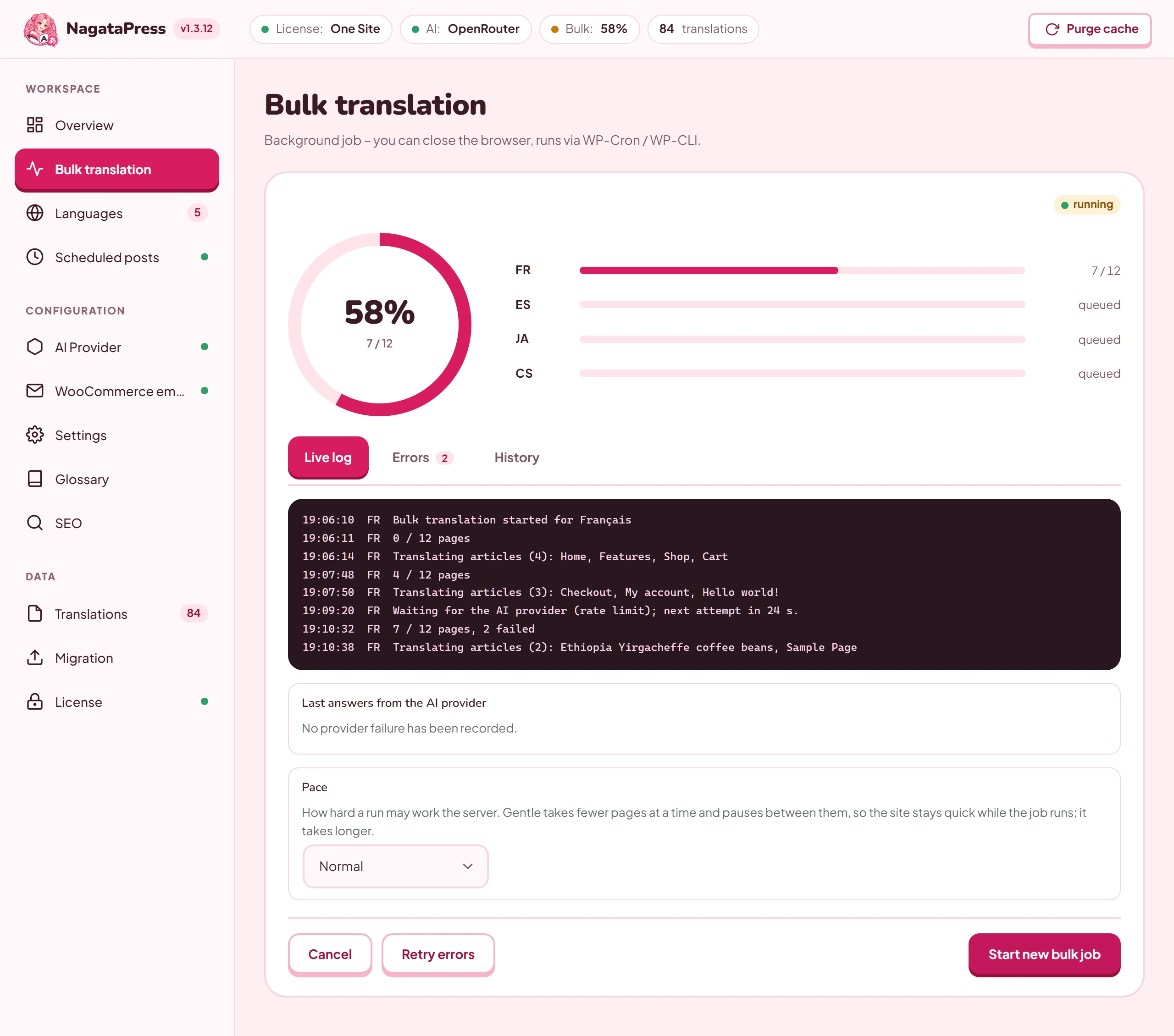
| Part | What it shows |
|---|---|
| Status badge | running, completed or idle. |
| Circle and bars | The percentage and the number of pages done out of the total for the running language, and a bar for each language that waits (queued). |
| Tabs | Live log (the default), Errors and History. |
| Live log tab | The latest steps of the runs, all languages together, one line each: the time, the language code and what happened (the start of a run, the titles of the pages in work, the progress as “N / M pages”, waits for the provider or the server, and the end). It keeps the last 120 lines and survives a reload. A new run does not clear it. |
| Errors tab | The pages that failed and why. The count is shown on the tab. Each entry shows the type and the title of the page, a short explanation (for example “Page took too long to load”) and the raw message below it. A finished job lists its failures when you open the screen. The list holds at most 100 entries. |
| History tab | One row per language, newest first: Language, Pages (the pages that bulk runs have translated for it, added up over all runs) and Last translated (date and time of the last report of a run). It is not a list of runs. |
| Last answers from the AI provider | The latest failures the provider reported (time, kind, provider and model, message; key pieces are masked). The newest eight are listed. |
| Pace | Normal or Gentle (small hosting). Gentle takes fewer pages at a time and pauses between them, so the site stays quick while the job runs. It takes longer. The setting is saved at once. |
| Cancel | Stops the running job (after Cancel current bulk job?). The translations stored so far are kept. It also empties the queue of waiting languages, and so does Cancel on the row of the running language in the language table (after Cancel translation of {language}? Progress so far is saved.). To cancel just one waiting language, use Cancel on its row. |
| Retry errors | Runs the pages that failed again. If there is nothing to retry, or no AI provider is set up, a line under the toolbar says so. |
| Start new bulk job | Opens Languages, where runs are started. |
The status bar at the top of every NagataPress screen also shows the state of the job (Bulk).
On a site that translates over MCP (section 5.1), Bulk translation starts nothing, because a bulk run calls an AI provider's API. The screen opens with the note This site translates over MCP and shows a bar for each target language with the progress of the assistant's pass (pages and archive pages together), the texts stored and the state of the pass, worded as in the table of target languages (section 6.3). The Live log tab lists the last 50 entries of the assistant's activity, newest first, each with its date and time and the name of the language: a batch handed out ("Deutsch: batch of 40 texts handed out"), the result of a submission ("Deutsch: 38 accepted, 2 rejected (untranslated: 1, odd_character: 1)"), corrections stored, a pass finished ("pass finished, nothing missing") or started again ("new pass started"), the end of a collection round of the shop texts ("Shop texts collected: 84 found, 0 errors"), and passes reopened after an update ("after an update the stored texts were re-keyed") or after a change of the Never Translate list. Only counts and reason codes are kept, never texts. Errors and History are the same tabs as above. Pace, Cancel, Retry errors, Start new bulk job and Last answers from the AI provider are not shown.
Below the tabs, the card Shop texts shows the collection of the texts that no post holds (section 9.1). Its note reads "Texts from the cart, checkout, e-mails and other shop pages that are not part of any post. They are collected during your assistant's pass; Missing counts the texts each language still lacks." The table has one row for each step (E-mails, Cart, Checkout, Checkout steps, Thank-you page, 404 page, Search, My account and Lost password) and the columns Step, Last collected (the date of the last run of the step, or "not yet"), Found (the texts it handed to the queue then), Missing (how many texts of the step each language still lacks, for example "DE: 12, FR: 12") and Note. The note says why a step was skipped or failed: "no WooCommerce", "test cart off", "no product for a test cart", "no test cart", "e-mail translation off", "no 404 page", "no checkout steps found", "no target languages", "no account page", "no lost password page", "queue full", "the test cart could not be made" or "the thank-you page could not be rendered", and "Error: ..." followed by the cause when a step failed.
A run looks after your site:
- When the server is busy it sleeps and continues. It counts as busy when the load average per CPU is above 1.5, the database needs more than 250 ms to answer a trivial query, a write to the options table takes more than a second, or the site needs more than 10 seconds to serve one of its own pages. It then waits 3 minutes.
- When the provider limits the rate, the job waits and tries again; a provider that answered with a rate limit is left alone for two minutes, or for the time it asks for. After 20 waits in a row, it pauses.
- It watches memory and time limits of your PHP configuration and splits the work into small batches. The size of the batches and the number of parallel requests adapt to the answers of the provider; the filter
nagatapress_throttle_settingschanges their defaults (section 11.4).
A run stops by itself in three cases:
- the provider reports that credits or the subscription are used up;
- the provider keeps refusing requests (rate limit, key or model);
- the license no longer allows AI work.
The language then shows its partial progress and the Translate button. The reason appears in a notice at the top of the NagataPress screens and the WordPress Dashboard (for a provider problem: NagataPress could not translate., with the provider and a button Open AI settings; for a license problem: the license notice, section 3.4) and under Last answers from the AI provider. The provider notice stays for 24 hours or until a later call to the provider succeeds.
To continue, fix the cause and click Translate on the language again. Pages that are already translated are skipped, so only the rest is processed.
Pages can fail on their own, for example when a page returns an error or takes too long to load. They are listed on the Errors tab. Retry errors, or Retry failed pages (N) on the language row, runs them again. An address that does not exist (HTTP 404 or 410) is not counted as a failure.
A page for which the AI provider answered nothing at all (no API key, a refused key, no credit, no connection) is recorded as failed, not as done. That holds for the posts and for the archive pages of the verification phase. The page appears on the Errors tab with the reason as a short code (section 15.3), and Retry errors runs it again.
6.5 Check and repair
The buttons under the table of target languages find and fix gaps.
Scan & Fix opens a Translation Health panel. For each language it shows Total, OK, Missing, Identical and Failed. Total, OK and Missing count posts: the published posts a run covers, those that are marked as translated into the language and those that are not. Identical counts stored translations (not posts) that are identical to their source text; translations you saved by hand and texts that an AI assistant sent with keep are not counted. A list of up to 50 missing pages can be opened under each language. The panel offers:
| Button | What it does |
|---|---|
| Translate missing | Starts a run for that language, the same as Translate on its row. Shown when pages are missing. |
| Fix identical | Deletes the stored translations of that language that are identical to their source text (usually text that came back untranslated), except those you saved by hand and the texts that an AI assistant sent with keep, and clears the progress of the language, so you can start a run to translate them again. It asks for no confirmation. Shown when Identical is above zero. A text that the provider returns unchanged again is stored again and counted as identical again: save such a text by hand in the visual editor to keep it. |
| Refresh archives | Schedules a background pass over archive pages and excerpts for missing translations. |
| Deep scan | Checks the real coverage of each page, segment by segment, and lists the pages with incomplete coverage. |
Translate missing and Refresh archives need an AI provider with a saved key. Fix identical, Deep scan and Sync translation status do not.
Sync translation status checks every published post of the public post types against the stored translations. It marks a post as translated into a language when at least 80 percent of its texts have a stored translation, and removes the mark when fewer have. Use it after you import translations (section 13) or restore a database. A marked post is skipped by later runs, so a post at 80 to 99 percent is not translated by a run: use Deep scan to find pages whose coverage is below 100 percent, then Reset the language or use Fix translation on the post.
The reset button (the arrow) next to Translate, and Reset on a finished language, forget which posts are done and run the language again. Stored translations are kept as a cache, so only missing or broken ones call the AI provider, and it usually finishes quickly.
6.6 New and changed content
A page that visitors open for the first time is not translated on the fly. New text has to reach the translation memory by one of these ways.
Auto-translate on publish. On the Overview, in Auto-translate New Content, switch on Auto-translate on publish. New pages, posts and products are then translated into all configured languages when they are published (and again when a published one is updated). On a site that translates over MCP (section 5.1) the switch is disabled, and the card says: "With MCP, new content is translated by your assistant, not on publish. Ask it for a new pass (nagatapress_get_batch with restart true) after you publish, or let your AI client run it on a schedule. Translation on publish needs an AI provider's API."
Each language is a separate background job: the first starts about 30 seconds later, and the next ones 60 seconds apart. A job waits while the server is busy, and it does not start while the license does not allow AI work or when no AI provider with a saved key is set up. If the AI provider answers nothing at all (no API key, a refused key, no credit, no connection), the translation counts as failed: the post stays to do for that language and is not marked as translated, and nothing stored is deleted before the provider has answered. The next run or the next click translates it. Developers can change the delays with the filters nagatapress_auto_translate_delay and nagatapress_auto_translate_spacing (section 11.4).
The post lists. On the Posts, Pages and Products screens, a NagataPress column shows how many languages a post has, with a badge for each language. A bar in amber and the word "outdated" mean that the post was changed after it was translated. For published posts, administrators get:
- the row action Translate, which translates that post into every target language, one language after another;
- the row action Fix translation, which opens a list of languages. For the language you pick, NagataPress fetches the page as it is now and asks the provider for every text on it again, including the menu, header and footer texts that other pages share. The stored translations that you did not edit by hand are replaced, text by text, as the answers arrive; texts edited by hand are never asked for again. If the provider cannot answer, the page keeps what it had. It asks for no confirmation, and the new wording of shared texts applies to all pages;
- the bulk action Translate with NagataPress, which queues the selected posts (the notice reads "N post(s) queued for translation into N language(s). Translation runs in the background.").
The row actions and the bulk action are not shown while AI translation is paused (section 3.4), or on a site without an AI provider that has a saved key.
The admin bar. On the front end, the admin bar of an administrator has NagataPress Editor, which turns the visual editor on and off (section 7.1). In the WordPress admin, the NagataPress menu of the admin bar has Purge translation cache. To pre-translate the page you are looking at, use Translate this page in the visual editor.
6.7 Translate scheduled posts before they publish
With Auto-translate on publish switched on (section 6.6), a scheduled post is translated shortly after WordPress publishes it; without it, the post is not translated at that moment. On a quiet site the publish moment depends on a visitor triggering WP-Cron, so the post can be live in the source language for a while. NagataPress > Scheduled posts translates posts shortly before they publish, whether or not Auto-translate on publish is on. Both need an AI provider with a saved API key.
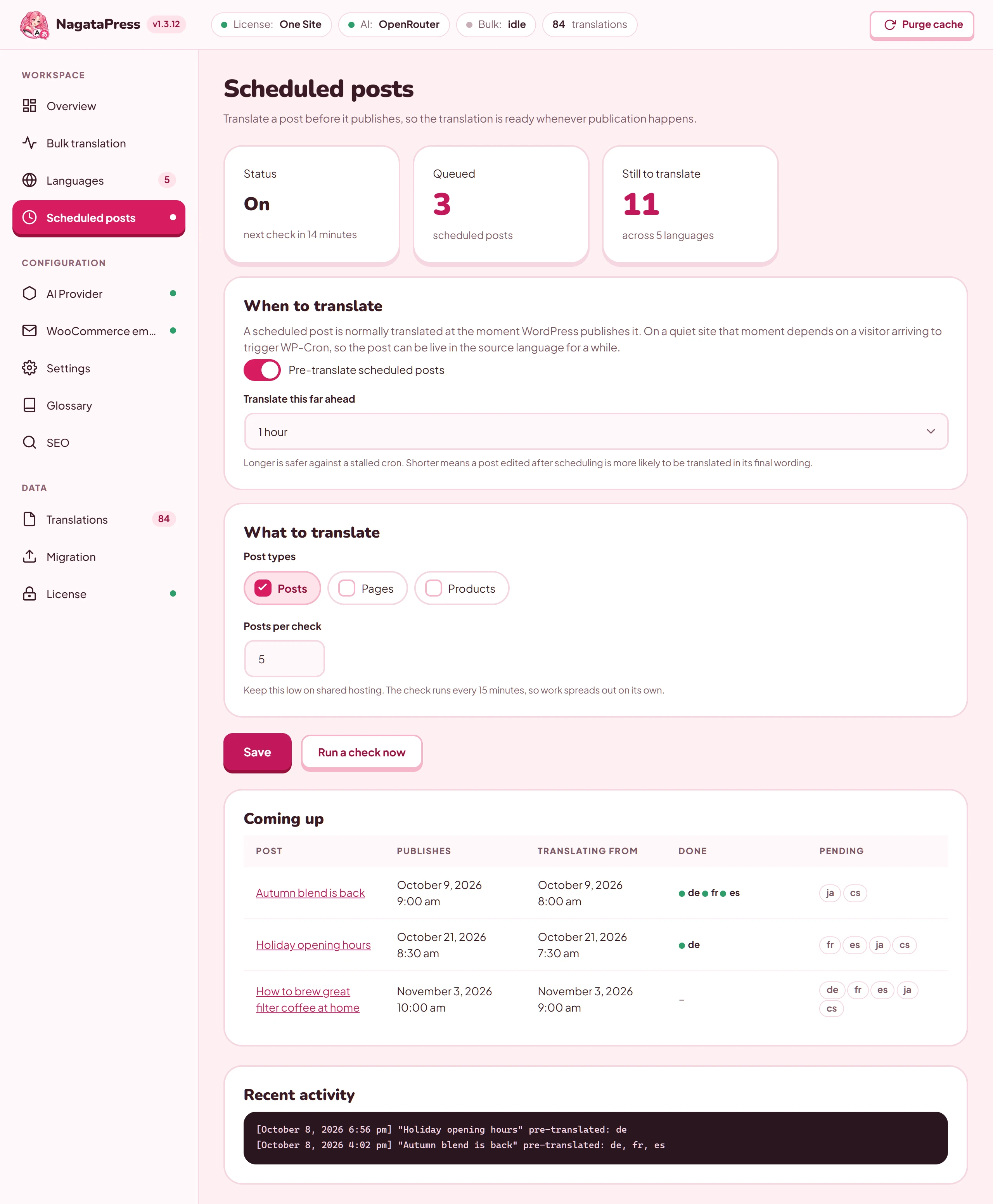
| Setting | What it does | Default |
|---|---|---|
| Pre-translate scheduled posts | Switches the feature on. A check runs every 15 minutes. | Off |
| Translate this far ahead | How long before the publish time a post is translated: 15 minutes, 30 minutes, 1 hour, 3 hours, 6 hours, 1 day or 3 days. Longer is safer against a stalled cron. Shorter means a post edited after scheduling is more likely to be translated in its final wording. | 1 hour |
| Post types | Which public post types are covered. | Post |
| Posts per check | How many posts one check takes (1 to 50). Keep it low on shared hosting. | 5 |
Click Save. Run a check now starts a check immediately. The tiles show the Status (On or Off, and when the next check is due), Queued (the scheduled posts, counted up to the next ten) and Still to translate (the languages still missing for those posts). The table Coming up lists the next ten scheduled posts with the columns Post, Publishes, Translating from, Done and Pending, and a log named Recent activity follows. Dates and times in the table and in the log use the date format, the time format and the timezone set in Settings > General of WordPress.
The post is rendered locally, so this works even though the address of a scheduled post is not public yet. The check does not run while the license does not allow AI work or while the provider is rate-limiting your key. A site without an AI provider that has a saved API key (it translates only through its own assistant, or has nothing set up) is skipped without a log entry. With nothing set up, Run a check now then answers "Nothing to do: no AI provider is set up on this site."
On a site that translates over MCP (section 5.1), the screen opens with a note that scheduled posts are not translated ahead of time: your assistant translates them after they are published, on its next run (nagatapress_get_batch with restart true), and pre-translation needs an AI provider's API. The switch Pre-translate scheduled posts is disabled there (if it was on, the setting is kept for a later return to an API key), and Run a check now answers "Nothing to do: the site translates over MCP, so your assistant translates posts once they are published."
7. Review and edit translations
Machine translation is a good first draft. This section shows how to correct it, how to keep your terms consistent, and how to keep parts of your site out of the translation.
7.1 The visual editor
The visual editor lets you fix any text on the page you are looking at.
- Log in as an administrator and open a page of your site on the front end. A translated page is best, but the source language works too.
- Click NagataPress Editor in the admin bar. (You can also add
?nagatapress_edit=1to the address of the page.) A sidebar opens and the page moves aside. The editor stays on for one hour and across pages. Click Close (×) in the sidebar, or the admin bar button again, to turn it off. - If you opened it on a page in the source language, the editor switches to the first target language. Use Translate to: at the top of the sidebar to pick another language. The page reloads in that language with the editor still on.
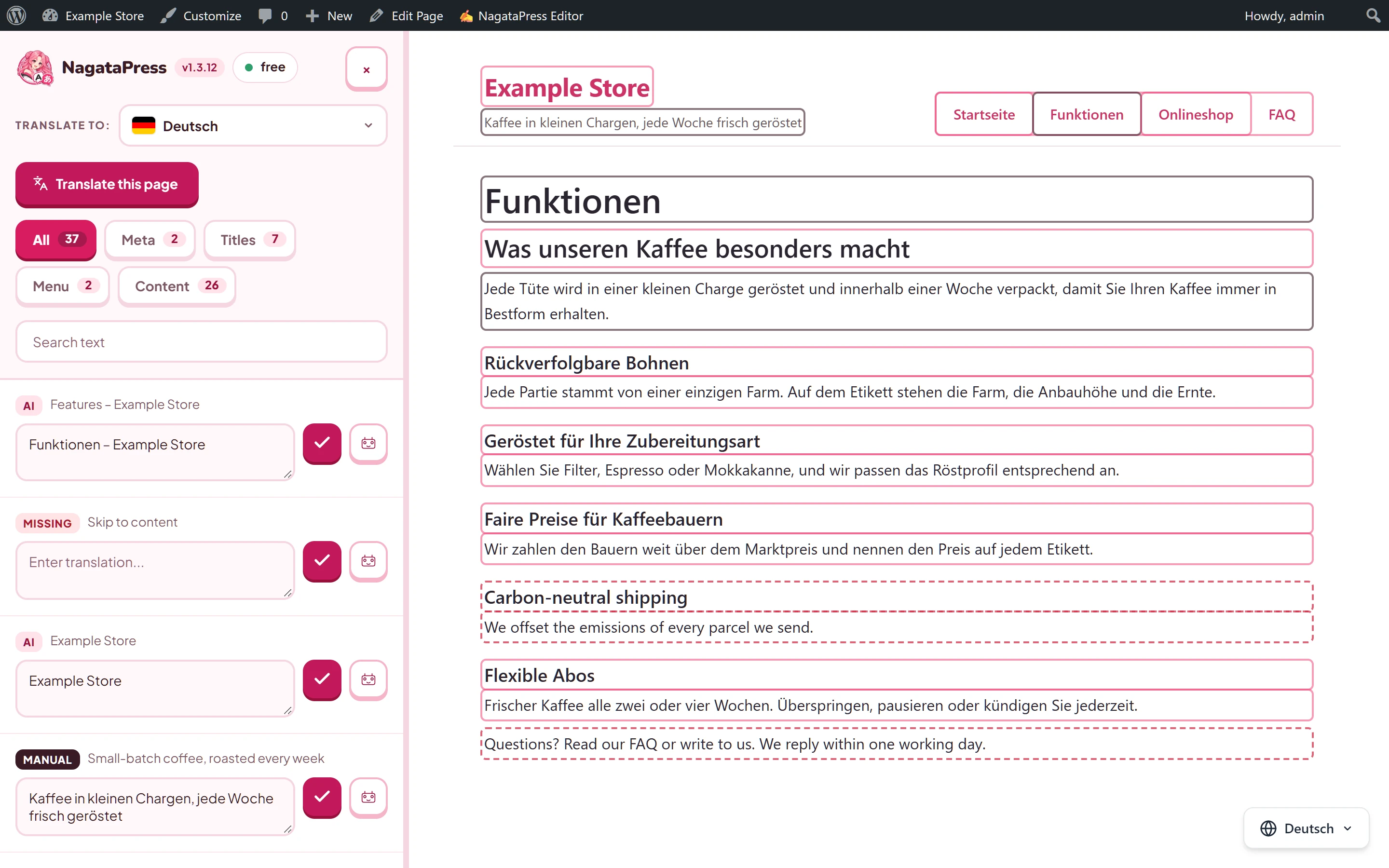
The sidebar has these parts:
| Part | What it does |
|---|---|
| Header | The logo, the version, and a small price tag: the estimated cost of translating the missing words of this page with your provider. It reads MCP when you translate with your own assistant, free for a free model, and a dash when no translator is connected. A very small estimate reads “less than $0.00010”. |
| Translate to: | The language picker. |
| Translate this page | Translates every missing text of the page with your AI provider, 20 texts at a time. A status line counts the texts done and ends with “N segments translated!”. If nothing is missing it says “All segments already translated!”. |
| Tabs All, Meta, Titles, Menu, Content | Filter the list. Meta holds the texts of the page head (title, meta description, social tags and structured data). Titles are the headings, Menu the navigation, Content everything else. Each tab shows how many texts it holds. |
| Search text | Filters the list by the source text or the translation. |
| The list | One entry for each text: a badge, the source text (the first 80 characters), a field Enter translation… and two icon buttons: a check mark with the tooltip Save Translation and a button with the tooltip Translate via AI. |
Every text has one of three states, shown by the badge and by a color on the page:
| Badge | Color | Meaning |
|---|---|---|
| Missing | Red | No translation is stored for this text yet. |
| AI | Pink | Translated by your provider or your assistant. |
| Manual | Dark (near black) | Saved by you. Automatic runs never overwrite it. |
On the page, a text without a translation has a dashed red outline, an AI translation a pink outline and a text you saved a dark outline. The badges are printed in capital letters (MISSING, AI, MANUAL).
How to edit:
- Click a text on the page, or click the header of an entry in the sidebar. The page and the sidebar scroll to each other. Clicking a text on the page also puts the cursor in its field. While the editor is on, a click on a highlighted text does not follow its link.
- Type the translation.
- Click Save Translation, or press Ctrl+Enter (Cmd+Enter on a Mac). The badge turns to Manual and the text on the page changes at once.
A translation is stored once for each text and language, so an edit changes that text on every page that contains it. Two rules protect the page.
Keep numbers and prices. A source text with prices, with two or more numbers, or with a number of three or more digits is shared by every text that differs only in those values, so your translation must carry the same values in the same order. Otherwise the editor refuses it with "Keep the same numbers and prices as the source text, in the same order (...)".
Keep the markers. A sentence that contains a link, bold text or a line break is translated as one piece, with markers: <t1>...</t1> around a link or formatting, and <t2/> for a line break or an image. A pair with nothing between its markers, such as <t3></t3>, stands for an element without text, usually an icon: keep it empty (writing it as <t3/> works too).
The editor shows the markers as small pills and offers a button for each one under the field ("Markers: keep them in your translation. Click one to insert it."). Move them where the target language needs them, but keep all of them. Without them the page cannot rebuild the tags.
Translate via AI deletes the stored translation of that text, a manual one included, and asks the provider for a new one. If the provider fails, the text becomes Missing. It needs an AI provider with a saved API key. On a site that translates only through an assistant, or has nothing set up, Translate via AI and Translate this page refuse with "No AI provider is set up on this site, so the editor cannot translate here. Translate with your own assistant (MCP), or set up a provider on the AI Provider page." and delete nothing. While the license does not allow AI work, the AI buttons are disabled and say why. Saving by hand always works.
7.2 Manual edits are protected
A translation that you saved by hand is marked as manual. Automatic work never replaces it:
| Action | What happens to manual edits |
|---|---|
| Translation runs, auto-translate, pre-translation of scheduled posts, WP-CLI, the MCP tools that translate, Translate this page | Kept. They are never overwritten. |
nagatapress_fix_translations of an assistant |
Kept, and its item is refused with manual_edit. Only an administrator can allow the replacement with overwrite_manual (over OAuth the app also needs the settings permission); the translation then stays marked as a hand edit (section 5.5). |
| Fix translation on a post | Kept. Only the automatic translations of that page are replaced, text by text, as the provider answers. |
| Delete page translations | Kept. |
| Adding an excluded term | Kept. Only the automatic translations that lost the new term are deleted (section 7.5). |
| Cleaning up old and unused translations | Unused translations are kept, unless you tick When cleaning up now, also remove unused translations edited by hand. A translation of a source text that you reworded is removed with the old wording (section 12.4). |
| Translate via AI on a text | Replaced. |
| Fix identical | Kept. Only the automatic translations that are identical to their source are removed. |
| Delete all translations for this language, Delete all translations | Removed. |
7.3 Glossary
The Glossary fixes how specific terms are translated. The AI must use your wording instead of deciding on its own.
- Open NagataPress > Glossary.
- Enter the Source term and its Translation.
- Pick the language pair: the source language and the target language.
- If you like, add a note for the translator in Notes (optional), for example "product name, never inflect".
- Click Add term.
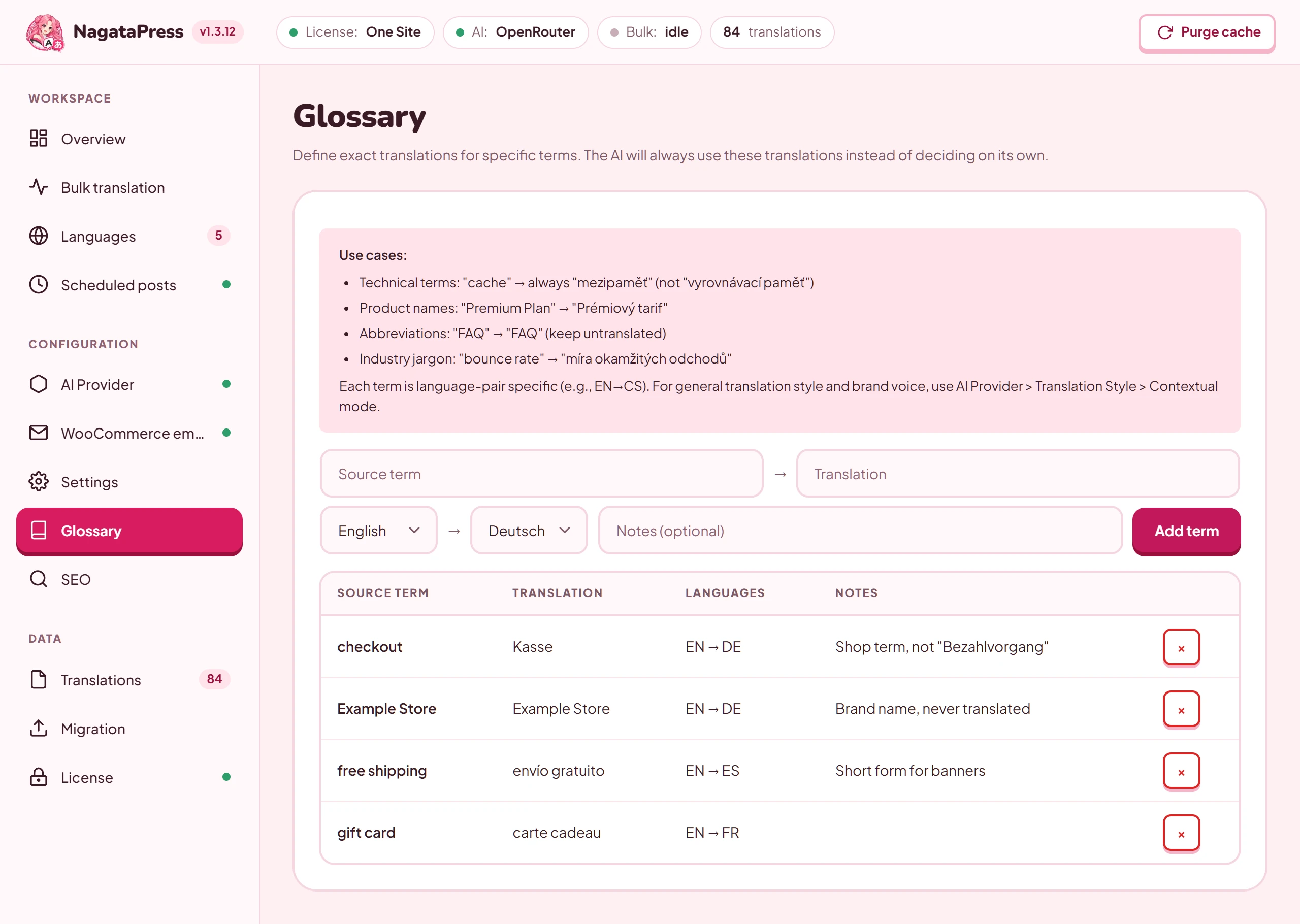
The list shows Source term, Translation, Languages (for example EN → CS) and Notes, with a × button that deletes the term after you confirm.
Good to know:
- A term belongs to one language pair. The same term in another pair needs its own entry. Adding a term that already exists for the same pair replaces it.
- Typical uses are technical terms, product names, abbreviations that stay as they are, and industry jargon.
- The glossary goes into the instructions that your provider or your assistant receives with every batch.
- A new term affects translations made from then on. Texts that are already stored are not changed. When you add a term, the message tells how many stored segments contain it ("N existing segments affected"). To apply the term to a page, use Fix translation on the post list, or delete the translations of the page (section 12.1) and translate it again.
7.4 Translation style and brand context
The Translation Style card on the Overview decides what the provider is told about your site.
| Mode | What it does |
|---|---|
| Neutral / Corporate (default) | The AI translates faithfully, adapting idioms, humor, cultural references and units to the target language. No brand-specific instructions are sent. It works for most sites. |
| Contextual | In addition, every request carries your brand name, a description of your company, the tone and special instructions. The translations are more consistent and closer to your voice. |
When you choose Contextual, fill in the brand context and click Save. Both Brand name and What does your company do? are required.
| Field | What to enter |
|---|---|
| Brand name | The name of your business or site. |
| What does your company do? | One or two sentences about your business. |
| Tone | Formal, Relaxed, Friendly, Professional or Creative. The default is Formal. |
| Special instructions | Anything else the translator should respect, for example how to address the reader. |
Choosing Neutral / Corporate is saved at once. The setting applies to translations made afterwards. The brand context is also part of the instructions of the MCP tools. For single terms, the glossary is the stronger tool.
An assistant that is connected as an administrator can read and change the style as well: the mode, the brand name, the description of the company, the tone and the special instructions (section 5.4). It must give a brand name and a description for Contextual, and the description and the special instructions can each be up to 2,000 characters.
7.5 Exclude terms and sections
The Content Exclusions card on Languages has two lists. Both save as soon as you add or remove an entry.
Never Translate holds exact terms that must stay as they are: brand names, product names and technical terms. Type a term and click + Add, or press Enter. A term keeps its original spelling in every language.
You can also paste a whole list into the field. A pasted list is split into terms at every new line, at every semicolon and at every comma that is followed by a space. A comma stays inside a term when what follows it is only a legal form (a.s., s.r.o., GmbH, Ltd, Inc, LLC and similar), so "Example, a.s." is one term. A comma without a space after it, as in a number such as 2,5MgO, never splits. In the field, the line breaks of a pasted column are turned into semicolons.
Good to know:
- A term is plain text. One that is longer than 100 characters is cut to 100. A term that is already in the list, in any letter case, is ignored.
- The list holds up to 100 terms. Terms that do not fit are not saved, and the card names them: "N terms were not saved, the list holds at most 100: ...".
- A term is protected wherever it stands as a whole word, in any letter case. It is not protected inside a longer word: a digit, an underscore or a letter of the same writing system (Latin, Cyrillic, Greek, Armenian, Georgian, Arabic, Hebrew or Devanagari) next to the term makes it part of a longer word. Japanese, Chinese or Korean text next to a Latin term does not, so Aquatrols® is found in Aquatrols®の製品. A term that ends in a symbol or a dot, such as Brand® or "Example, a.s.", is protected as well.
- When you add terms, NagataPress checks the automatic translations that are already stored. Only a translation whose source holds a new term as a whole word and whose translation no longer has it is deleted, so that it is made again with the term protected. Other translations stay, and so does every text you saved by hand. When translations were deleted, the passes of an assistant (section 5.3) start again from the first page, so that those texts are offered again. Removing a term deletes nothing.
- If an earlier version saved a pasted list as one term, its parts already count as separate terms, and the list is split the next time you save it. This applies to a stored term that falls into three or more parts, so a term such as "Terms, Conditions" stays as it is.
- When an assistant translates, a translation that drops or changes a term of this list is refused with the reason
excluded_term(section 15.6). The texts that NagataPress remembers from Exclude Sections are not checked in this way. - An assistant that is connected as an administrator can suggest terms from the brands, categories, attributes and product titles of your shop, and add or remove terms for you (section 5.4).
Exclude Sections holds CSS selectors for parts of a page that must never be translated, such as user-submitted content or directory listings. Accepted forms are .class, #id, [attribute] and a tag name. You can list up to 50 selectors. Elements with the class notranslate are always excluded, without any entry.
The text found inside an excluded section is also remembered as an excluded term, so the same text is not translated where it shows up elsewhere on the site (up to 500 such texts are kept).
The scripts, styles, code, pre and textarea elements are never translated, whatever you list.
8. SEO
NagataPress rewrites the SEO tags of a translated page and publishes a sitemap, with no setting to switch on. The SEO screen shows what is running.
8.1 What happens automatically
| Item | What NagataPress does on a translated page |
|---|---|
| Language of the page | Sets the lang attribute of the html tag to the language of the page. For right-to-left languages it also sets dir="rtl" on the body and adds layout corrections. |
canonical, og:url, twitter:url |
Changed to the language version of the address that your SEO plugin (or WordPress) printed for the page, with the language prefix, ?lang= or language domain and the translated slug. Campaign arguments such as utm_source, fbclid or gclid in the visitor’s address are never copied into them, and an address outside your site is left as it is. Only a tag that exists is changed: NagataPress never adds a canonical tag to a page that has none. |
og:locale |
Set to the locale of the language, always in the form language_REGION (for example de_DE, pt_BR for pt-br, nb_NO for Norwegian). Changed only when the page already has an og:locale tag with a property attribute. |
hreflang |
A link rel="alternate" for the source language and for every target language that has at least one stored translation, plus x-default, which points to the source language. The addresses are the language versions of the canonical address of the page. A page that prints no canonical address of your site gets them from its own path, with only the arguments that identify the page (p, page_id, cat, s, paged and similar); developers can extend that list with the filter nagatapress_hreflang_query_args (section 11.4). NagataPress does not remove hreflang tags that another plugin prints. |
| Title and meta tags | Translates the title tag and these meta tags: description, og:title, og:description, og:image:alt, twitter:title, twitter:description and twitter:image:alt. |
| Images and forms | Translates alt, title, aria-label and placeholder attributes and the captions of buttons. |
| Structured data (JSON-LD) | Translates the text values of the keys name, alternateName, description, headline, alternativeHeadline, caption, text, abstract, articleSection, disambiguatingDescription, slogan, title and reviewBody. Keys that hold an address of your site (url, item, target, urlTemplate, mainEntityOfPage) point to the language version, and inLanguage follows the page. Types, identifiers (@id), dates, prices and codes are never touched. A block whose inLanguage names a language other than your source language and the language set in WordPress (Settings > General > Site Language) is left alone. Comments and reviews are not translated. |
| Addresses | Translated slugs (section 4.3) and the 301 redirects of section 4.2. |
| Sitemap | /nagatapress-sitemap.xml (section 8.3). |
robots.txt |
A Sitemap: line for it, added after your SEO plugin has written the file. It is added only when WordPress generates robots.txt and the site is visible to search engines; a physical robots.txt file in the web root is left as it is. |
The texts of the page head and the structured data also appear in the Meta tab of the visual editor, where you can correct them.
8.2 The SEO screen
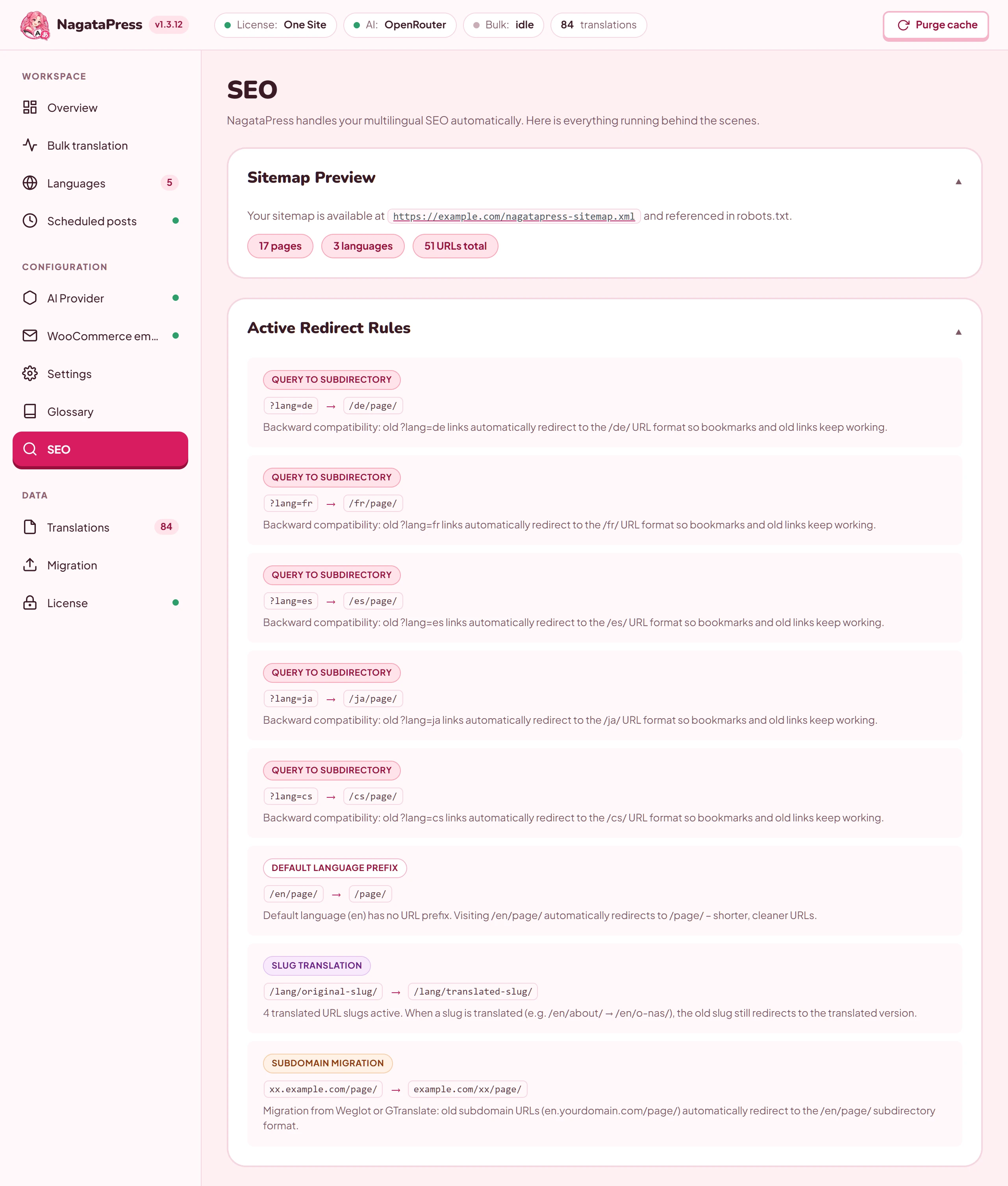
The SEO screen has two collapsible cards.
Sitemap Preview shows the address of the sitemap, "referenced in robots.txt", and three figures: the number of pages, the number of languages and the total number of URLs. The figures are those of the real sitemap (section 8.3): the pages it lists, with the exclusions honoured, the languages that have at least one stored translation, and pages times languages. A figure starts with a tilde (~) only on a very large site, where the count had to be estimated. Until a language has translations, the card says "No translated languages yet. Translate some pages first."
Active Redirect Rules lists the redirects that apply to your URL format. Each rule shows a type, the source and the destination, and a short description. With the Subdirectory format the types are:
- Query to subdirectory:
?lang=delinks go to/de/. The list has one such rule for each target language. - Default language prefix: the source language needs no prefix, so
/en/page/goes to/page/when English is the source. - Slug translation: an untranslated slug goes to the translated one. Shown only while slug translation is on and at least one slug is stored.
- Subdomain migration: an old
de.example.comaddress goes toexample.com/de/. - WPML slug cleanup: old translated slugs of WPML go to the right address. Shown only after a WPML cleanup stored redirects (section 13.4).
With Separate domains the list has Query to domain (a ?lang=de link goes to the domain of that language, one rule for each target language), Prefix to domain (a language prefix such as /de/page/ goes to the page on the domain of that language) and Slug translation (the original slug goes to the translated one). It needs at least one language domain. With Query parameter there are no redirect rules, and the card says "No redirect rules active."
8.3 The translated sitemap
The sitemap lives at https://example.com/nagatapress-sitemap.xml. It lists the pages in every language that has at least one translation. While no language has a stored translation, the address answers 404. Each entry carries the last modification date of the post, when it is known, and the xhtml:link alternates for all languages and x-default. The addresses of the source language are not entries of this sitemap. They stay in the sitemap of your SEO plugin or of WordPress, and they appear in the alternates.
- A sitemap file holds up to 5,000 source pages, and each page appears once for every translated language. A larger site gets an index with several files (
nagatapress-sitemap-1.xmland so on). - It lists the home page, the published posts and pages of the public post types, and the terms of public taxonomies that have content. Attachments, block templates and template parts, the libraries and templates of page builders, and post types without a page of their own are left out. On a site with plain permalinks, every post is listed with its
?p=address. - Password-protected posts and content that an SEO plugin marks as noindex stay out as well. NagataPress reads these markers from The SEO Framework, Yoast SEO, Rank Math and SEOPress, both for whole post types and for single posts. Terms are never checked: they are listed even when an SEO plugin marks them noindex.
- The sitemap files are served with an
X-Robots-Tag: noindexheader.
You can submit the sitemap to the search engines like any other. If a sitemap plugin captures the address first, NagataPress still answers for its own file name.
Developers can change what the sitemap lists with the filters nagatapress_sitemap_post_types and nagatapress_sitemap_exclude_post (section 11.4).
8.4 SEO plugins
| Plugin | How NagataPress works with it |
|---|---|
| Yoast SEO, Rank Math | The titles and descriptions these plugins print in the page head are translated like any other text of the page. For a post that has no public page yet (a scheduled post), NagataPress reads the SEO title and meta description fields of the two plugins directly. |
| The SEO Framework, Yoast SEO, Rank Math, SEOPress | A post type or a post that the plugin marks as noindex stays out of the translated sitemap. |
| Any SEO plugin | The canonical, og:url, twitter:url and og:locale tags are corrected by NagataPress after the plugin has printed them, and only if the plugin printed them. The Sitemap: line is added to robots.txt after the plugin has written that file. |
9. WooCommerce
WooCommerce support is built into NagataPress, so there is nothing extra to install. When WooCommerce is active, NagataPress translates the shop together with the rest of the site, remembers the language of each order, and can send customer emails in the customer's language. The WooCommerce emails screen appears in the menu only while WooCommerce is active.
9.1 The storefront
Products are a public post type, so a translation run covers them: product names and descriptions, short descriptions, attributes and their values, and the categories, tags and other product taxonomies. The shop page, the product category and tag archives, the cart and the checkout are translated like any other page.
Text that WooCommerce redraws without reloading the page (the mini cart, the checkout update, the add-to-cart answer) is translated from the stored translations, and so are REST API answers requested from a translated page, which the block cart and checkout use. A redrawn text that has no stored translation yet stays in the source language for that visitor; NagataPress adds it to the same queue as the email texts, and the background job of that queue translates it (section 9.3 says when it runs). A text that carries the visitor's own data is never queued: the name, the address, the phone number or the e-mail address in the cart and the checkout, the shipping destination and the options a customer typed for a product. The REST answers only use the translations that exist. Prices and counters are replaced by placeholders before translation, so "Showing 1-48 of 26,108 results" costs one translation for all its variants, and a product card costs one translation whatever the currency of its price. With Separate domains, these updates are recognized by the language domain of the page that sent them (until version 1.3.17 they came back in the source language on a language domain, and queued nothing).
Links that WooCommerce builds in its AJAX answers (the cart, the checkout, the order-received page) keep the language of the visitor.
Texts that no post holds. Some texts of a shop appear only in the middle of a purchase, so a run or a pass over the pages never meets them: the side cart and the mini cart with a product in them, the cart and the checkout (and every step of a checkout that has several), the thank-you page, the 404 page, the search results, My account and the lost-password page for a visitor who is not signed in, and the customer emails. Since version 1.3.18 NagataPress collects them in the queue of texts (section 9.3), each marked with where it was found, and has them translated with the rest: by your assistant on a site that translates over MCP (section 5.3), by your provider on a site with an API key (section 6.1). Only texts that at least one target language still lacks are queued, none longer than 300 characters (1,000 for a customer email), at most 400 for each step, and a text is never pushed out of a full queue to make room. The text of a cart line is never collected (from the cart, the checkout, the side cart or an order table), because a customer can type into it: a gift message, an engraving, the lines that a product add-on plugin prints under a product name.
The collection works in steps, which are the rows of the table Shop texts on Bulk translation (section 6.4):
| Step | What it collects | Skipped or failed when |
|---|---|---|
| E-mails | The texts of every customer email, rendered with the sample order and the sample user (section 9.3). | Translate customer emails is off. |
| Cart | What WooCommerce answers when a product is added (the side cart and the mini cart), then the cart page, both with the test cart. | The test cart is off, or no product can be used. |
| Checkout | The checkout page, with the test cart. | The same. |
| Checkout steps | Up to five further pages of a checkout that has several steps, found as links on the checkout page. | The test cart is off, or no such links are found. |
| Thank-you page | The page shown after an order, rendered with a sample order that exists only in memory (never a real order) in a sandbox: no thank-you or order hook of another plugin runs and no email is sent. It covers the payment methods, a failed payment and the order details of a paid and an unpaid order. | The test cart is off (the same consent), or the page cannot be rendered. |
| 404 page | A page at a random address that does not exist. | The site shows no 404 page. |
| Search | The search results for a word from your newest products or posts (in the shop and on the site) and for a word nobody has. | It is never skipped. |
| My account | The page that a visitor who is not signed in sees. | The shop has no account page. |
| Lost password | The page to ask for a new password. | The shop has no such page. |
Without WooCommerce only 404 page and Search run, and the other steps report "no WooCommerce".
The test cart. To see the cart and the checkout as a customer does, the collection puts one product into an anonymous cart, with the add-to-cart call of the shop itself. It takes a published, visible, in-stock simple product with a price, one that ships if there is one. No customer, no order and no email are involved: the requests carry a token that turns email off for them and keeps the block checkout from creating a draft order (where WooCommerce still makes one, it is removed and its stock released). The session of the cart is deleted as soon as the checkout steps are done, and again about two minutes later in case a late write brought it back; a cart that an interrupted round left behind is deleted by the next round, or about 11 minutes after it was made when no round comes. An analytics or marketing plugin on your site may count the add to the cart. The switch Allow a test cart when collecting shop texts on WooCommerce emails (section 9.3) turns the test cart off, and so does an administrator's assistant with nagatapress_set_shop_test_cart (section 5.4). It is on until someone switches it off. Without it the steps Cart, Checkout, Checkout steps and Thank-you page report "test cart off", and the texts of those pages come only from what visitors see (below). Deactivating or deleting the plugin deletes test carts that were left behind. Developers can decide for each case with the filter nagatapress_shop_test_cart (section 11.4).
What visitors show. The collection cannot reach everything: the payment and shipping methods of another country, messages, steps that a script builds. So when a visitor opens the cart, the checkout, a 404 page, the search results, My account (not signed in) or the thank-you page of an order, the texts of that page that have no translation in its language are queued too, at most 50 new texts for a page and 300 in an hour, and only while the queue has room. The account of a signed-in customer and the page to pay an order are never read. Nothing is queued that the visitor typed or that belongs to the customer: the visitor's own values, the parts of the page that show an address or an order, the text typed for a cart line, the words of a search, the address of a 404 page and the quoted parts of a notice. The thank-you page is read only when its address carries the key of the order, and then without that order's values.
9.2 Orders remember their language
When an order is placed, NagataPress records the language the customer shopped in on the order, the source language included. This works for the classic checkout and for the block checkout, and it does not depend on the email switch.
- The addresses of the thank-you page and of the payment page of an order are built in the language of the order. A customer who returns from a payment gateway lands on the page in the right language. If an order page is opened in another language, the visitor is sent to the language of the order.
- A payment gateway that follows the WordPress locale gets the locale of the order's language while it sets up the payment and while the payment page is drawn. This does not apply to orders placed in the source language, or to the offline methods (bank transfer, cheque, cash on delivery). For Comgate (WPify Woo Comgate), NagataPress also sets the language of the payment page to the language of the order, where Comgate offers it. Developers can adjust the locale with the filter
nagatapress_payment_locale(section 11.4).
9.3 Customer emails
WooCommerce sends order confirmations and shipping notices in the language of the site, whatever language the customer shopped in. NagataPress > WooCommerce emails sends them in the customer's language.

The screen opens with three tiles: Status (On: "customer emails are translated", or Off: "emails go out in the source language"), Emails covered (how many customer emails WooCommerce has registered) and Translation coverage (the number of strings still waiting to be translated).
Switches, in the card How it works:
| Setting | What it does | Default |
|---|---|---|
| Translate customer emails | Sends the customer emails of WooCommerce in the language of the order. Emails to you, the shop owner, are never translated. | Off |
| Show a language selector at checkout and in the account area | Adds Language for order emails to the classic checkout form (the block checkout has no selector) and to the account details of the customer. Optional: without it, the language is the one the customer was browsing in. For a signed-in customer, a choice at checkout is saved to the profile and used for account emails and for orders that have no language of their own; guests have no profile. | Off |
The card Shop texts has one more switch, Allow a test cart when collecting shop texts. It is on by default. It decides whether the collection of shop texts may put a product into an anonymous cart to read the cart and the checkout and to render the thank-you page (section 9.1), and it is the setting that an administrator's assistant changes with nagatapress_set_shop_test_cart. Its hint reads "An anonymous cart with one product is created and deleted right away, without an order or e-mail, so the texts of the cart and checkout can be translated. Analytics plugins may count it as an add to cart." It applies on a site with an API key as well as under MCP.
Click Save at the bottom of the screen after changing a switch or a wording override. The Save buttons inside the editor store translations of single lines and do not store overrides.
NagataPress picks the language of an email in this order:
- The language recorded for the emails of that order: the one chosen at checkout (when the selector is on), or else the one the customer was browsing in.
- The language the order was placed in.
- The saved language of the customer. This is the rule for emails that have no order, such as a password reset, and for an order that has no recorded language (an order made in the admin, for example).
An order placed in the source language gets its emails in the source language.
Sending an email never waits for your AI provider, because a slow provider must not slow down the checkout. At the moment of sending, only stored translations are used. A text that is not translated yet goes out in the source language and is put in a queue of at most 2,000 texts (texts that differ only in their numbers or prices are queued once). On a site with an API key, a background job takes up to 60 queued texts, translates each of them into the target languages that do not have it yet, and removes it from the queue once every language has it. It runs every hour while Translate customer emails is on; texts queued from the storefront (section 9.1) also get a run about a minute after they arrive, and further runs while texts are left. If a translation fails, or AI translation is paused, the texts stay queued for the next run. An email that is sent after its texts were translated is complete. On a site without an API key no job runs and no provider is called: the texts stay in the queue, and on a site that translates over MCP your assistant is handed them in its next pass (section 5.3).
Customer data stays out of the queue. A text that carries the data of the customer is never queued as it is, so the data never reaches an AI provider or an assistant: the names, the company, the addresses, the phone number and the e-mail address of the order, the customer's note, the values of other order fields (custom checkout fields, for example) and of the options typed for a product, the names of the customer's account, and any e-mail address or phone number that is not the shop's own. Earlier versions could queue such texts; the queue is emptied once after the update to 1.3.17, and the texts it held are collected again as emails are sent.
The name in a greeting. A sentence that only contains such a value is translated as a template. Since version 1.3.18 the value is replaced by the placeholder {{@}}: "Hi Jan," becomes "Hi {{@}}," and is queued and translated once, for every customer. When an email is sent, NagataPress looks the template up and puts the customer's own value back where the placeholder stands, so the greeting arrives in the customer's language with the right name. The same holds for a user name ("Username: {{@}}") and for the sentence of the message that asks the customer to confirm the email address. The values themselves never leave your server. The translation has to keep every {{@}}, once each and in the order of the text: the first {{@}} gets the first value of the sentence, the second the second. A provider or an assistant whose answer drops, adds or fills one in is refused (the reason tokens, section 15.6), and so is a translation that you save by hand in the email editor, with the message "Keep every {{@}} of the source text in your translation. It stands for the customer's name or another personal value, filled in when the e-mail is sent." A sentence stays out of the queue, and goes out in the source language, when it is nothing but data (an address block, a name on its own), holds more values than words, or still holds personal data after the replacement (a phone number or an email address that is not a known value, a piece of the customer's note). The replacement works on whole words, so a name that is also an ordinary word of the sentence is replaced wherever it stands, and a language that bends names by case (a vocative, for example) gets the name as the order wrote it.
To prepare everything before the first real order, click Translate email templates now in the card Translation coverage. NagataPress renders every customer email with a sample order and a sample user (never with a real order or with your own account), also the invoice of a paid order and the instructions of the enabled payment methods, puts their texts in the queue (a line with the sample's name goes in as a template with {{@}}, a line that is nothing but the sample's data is left out), translates the first 200 queued texts at once, and leaves the rest to the background job, which takes 60 per run. On a site that translates over MCP the button reads Collect e-mail texts now, with the text "Collect the texts of every e-mail template now, so your assistant translates them in its next pass instead of waiting for the first real e-mail.", nothing is translated, and the notice reads "Found N strings: the site translates over MCP; your assistant gets these texts in its next pass." The assistant receives them in its next pass with the source email (section 5.3), so the first real email can already arrive complete. A pass collects them by itself as well, as long as Translate customer emails is on. The same card reports "N strings are waiting to be translated" or "Every string seen so far has been translated."; under MCP it adds "Your assistant translates them over MCP in its next pass."
Email texts go through the same translation memory as the storefront. When an email is sent, a product name or a button label that is already translated is reused, and only new text is queued. Translate email templates now queues every text of the templates, but a text is sent to the provider only for the languages that do not have a translation of it yet, as in the hourly job, so nothing is billed twice.
E-mail editor. The editor is available as soon as the screen is open, even before you switch emails on, so you can prepare translations first. It needs at least one target language and the customer emails that WooCommerce has registered. While Translate customer emails is off, the preview and the test email do not translate the subject line and ignore wording overrides.
- Pick an E-mail and a Language.
- The preview loads by itself when the screen opens and whenever you change E-mail or Language; Load preview loads it again. The preview shows the email as a customer receives it. It is rendered with a made-up sample order that exists only in memory, never with a real order: nothing is saved, sent or deleted, and no order number is used. The sample holds one of your products and, where the shop has them, a shipping method and the first enabled payment method, for a customer called Sample Customer at a sample address. Emails that are not about an order (new account, password reset, Confirm your email address) are rendered for a sample user (Sample Customer, [email protected]), not for your own account, with sample codes and links. Developers can hand another order to the previews, the test email and Translate email templates now with the filter
nagatapress_wc_email_sample_order(section 11.4); its customer data is left out in the same way. The tabs Translated and Source switch between the two versions. - Beside the preview, a list holds every text the email is made of (a line with the sample customer's name is listed as a template with
{{@}}, such as "Hi {{@}},", and a line that is nothing but the sample's data, an address block for example, is left out), with a search box (Search segments...) and a filter: All, Missing, AI, Manual, Subject, Heading, Body and Footer. Edit a line and click Save to store your wording (it becomes Manual; in a line with{{@}}keep every{{@}}, or the save is refused), or click Reset to delete the saved translation of the line and have your AI provider translate it again. That is one request to the provider, and it needs a license that allows AI work and an AI provider with a saved key. If the provider does not answer, the line becomes Missing. - Click Translate missing with AI to let your provider translate what is still missing. The button is available while the email has at least one Missing line.
- To check the result in a real mailbox, click Send test. Send a test to already holds the administrator email of the site (Settings > General); replace it if the test should go to another mailbox. The message goes out through WooCommerce and your site's mail setup. The test email is built from the same sample order or sample user as the preview, so it holds no data of a real customer. If it fails, the editor says that WordPress could not send the email and asks you to check the mail configuration.
Wording overrides. For exact wording of a subject or a heading, open an email in the card Wording overrides and fill the Subject or Heading of a language. Leave the field blank to use the translation; saving rewrites the overrides from the fields on screen, so a blank field removes that override. A row reads "using the translation", "1 custom line" or "N custom lines".
Old translations with customer data. Before version 1.3.17, a site with an API key could store the texts of customer emails as translations, names and addresses included, because the queue held whatever the emails said. Version 1.3.17 stopped that and emptied the queue, but the rows already stored stayed in the translations table, and an assistant can find them with nagatapress_get_translations. The card Old translations with customer data, at the bottom of WooCommerce emails, finds and removes them:
- Scan compares the translations that the queue job stored with the names, addresses, phone numbers and email addresses of your orders and of your user accounts. It works in steps of about 20 seconds while the page is open, and shows a progress bar and the step it is on ("Checking the orders", "Checking the customer accounts", "Checking the stored translations"). If you leave the page, a scan started with Scan pauses ("The check is paused. Scan to continue it."). Check in the background does the same through WP-Cron, so you can leave the screen ("The check runs in the background. Reload this page to see its progress."); it only starts a scan and never deletes.
- A scan deletes nothing. It reports how many rows hold customer data, how many only hold a value that many customers share (a first name or a city used by 40 or more customers), and how many you edited by hand, with the date of the last check and the number of rows deleted so far. Examples, personal parts masked shows a few of them with the personal parts hidden.
- Delete found rows removes exactly the rows of the last finished scan, after you confirm "Delete N rows with customer data? This cannot be undone.", and checks each row again before it goes. Rows that hold only a common value and rows you edited by hand stay.
NagataPress writes no customer value into an option, a table or the log: the scan keeps keyed hashes in a temporary table, which it drops when the scan ends, and the ids of the matching rows in a second table. WP-CLI has the same cleanup, with options for the common values and for hand edits (wp nagatapress privacy-cleanup, section 14.1).
10. Language switcher
The language switcher is the control that lets visitors change language. NagataPress adds it automatically as a floating widget, and you can also place it yourself with a shortcode. It lists all the languages you configured, the source language included, and it links each entry to the same page in that language, with the translated slug.
NagataPress never redirects a visitor by the language of the browser. The visitor chooses, or arrives on a link in a language.
10.1 Style and position
Open NagataPress > Languages and scroll to the cards Widget Style, Widget Position and URL Exclusions. This section describes the first two; URL Exclusions is in section 10.3.
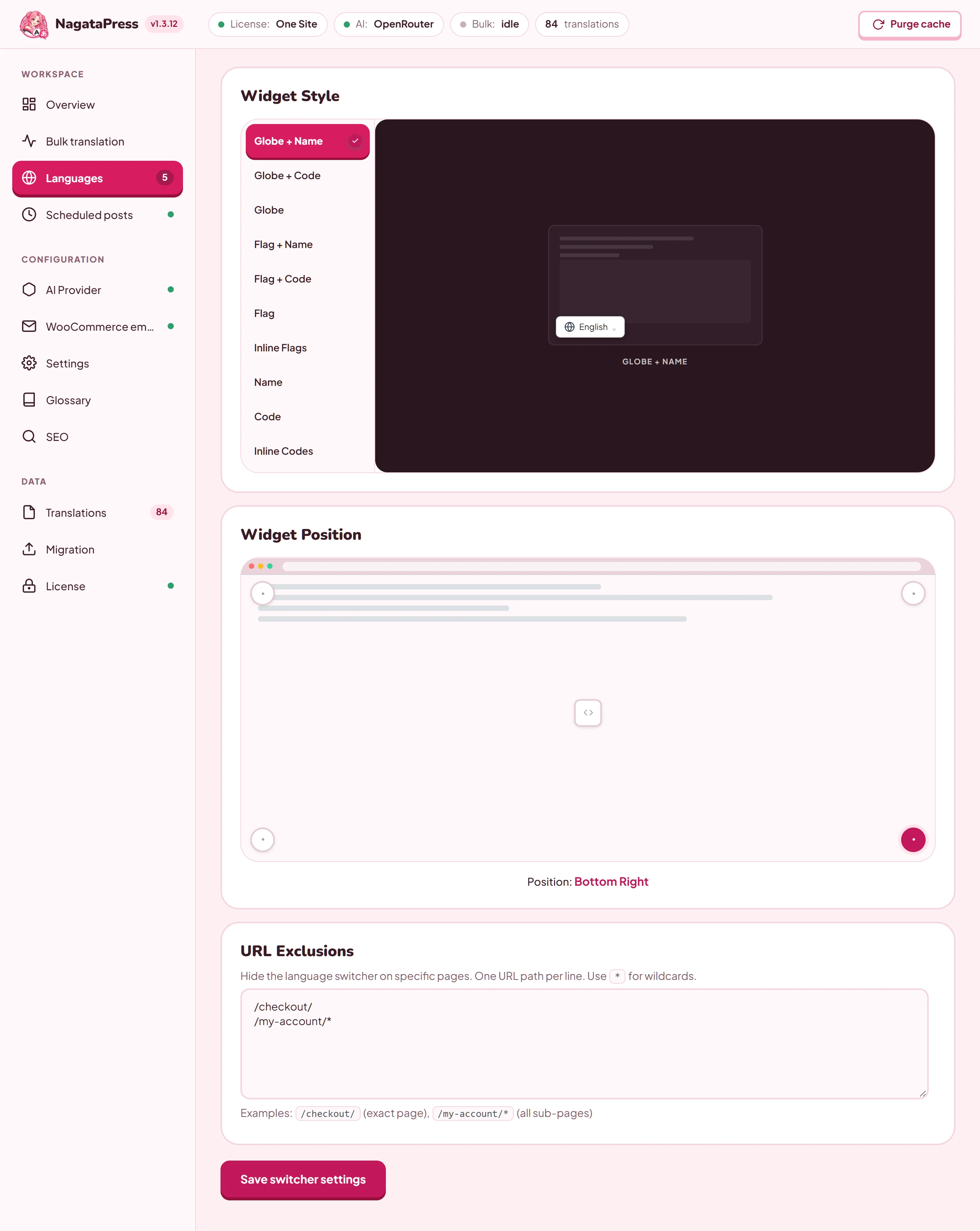
Widget Style offers ten styles. Click one in the list to see it in the preview.
| Style | What the visitor sees |
|---|---|
| Globe + Name (default) | A globe icon and the name of the current language, with a drop-down for the others. |
| Globe + Code | A globe icon and the code of the current language (for example DE), with a drop-down. |
| Globe | Only a globe icon, with a drop-down. |
| Flag + Name | The flag and the name of the current language, with a drop-down. |
| Flag + Code | The flag and the code, with a drop-down. |
| Flag | Only the flag, with a drop-down. |
| Name | The name of the current language, with a drop-down. |
| Code | The code of the current language, with a drop-down. |
| Inline Flags | The flags of all languages side by side, with no drop-down. |
| Inline Codes | The codes of all languages in a row, separated by vertical bars, with no drop-down. |
The names are written in the language they stand for. The flags come with the plugin, so no request goes to another site to draw them. With more than six languages, the drop-down becomes a wider panel with two columns and a search box.
Widget Position is chosen on a small browser window diagram. Click a hotspot:
| Position | Result |
|---|---|
| Bottom Right (default) | A floating widget in the bottom right corner of every page. |
| Bottom Left | The same, bottom left. |
| Top Right | The same, top right. |
| Top Left | The same, top left. |
| Shortcode | No floating widget. You place the switcher yourself (section 10.2). |
Click Save switcher settings to apply the style, the position and the exclusions. If you use a caching plugin, purge its cache afterwards.
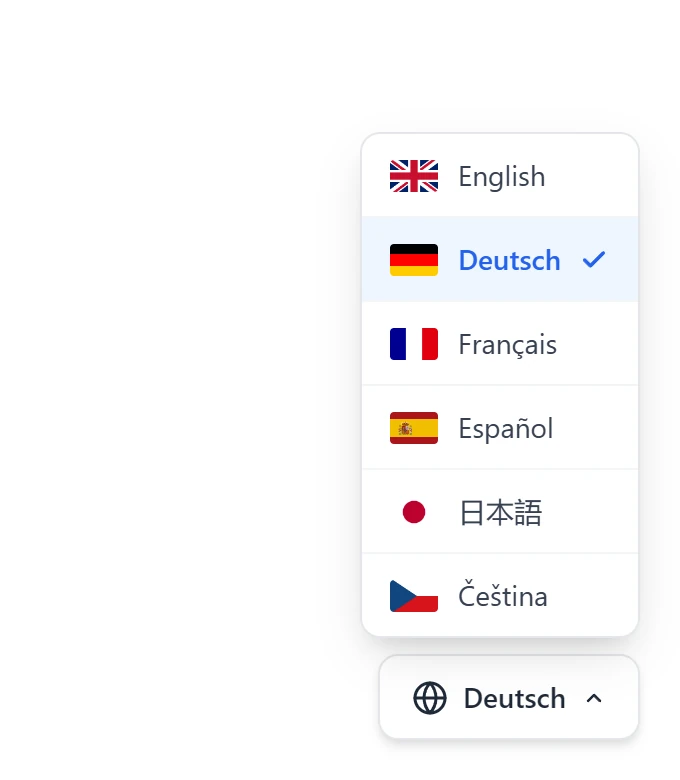
10.2 The shortcode
With the position Shortcode, the card shows the shortcode and a Copy button:


Paste it into a page, a text or HTML widget, a header or footer element of your page builder, or a template. The style attribute is optional; without it, the style chosen in Widget Style is used. The value changes in the card when you pick another style. These are the values of style: classic (Globe + Name), globe-code, globe-only, flags-name, flags-code, flags-only, inline-flags, name-only, code-only and inline.
The shortcode works with any position. With a corner position, it adds a second switcher at the place of the shortcode, next to the floating one. An inline switcher is not positioned on the page: it sits where the shortcode is, and the drop-down opens below it.
10.3 Hide the switcher on some pages
The URL Exclusions card, below Widget Position, hides the language switcher on the pages you list: the floating widget and every switcher placed with the shortcode. It is useful for a checkout or an account area, for example. The list is saved with Save switcher settings, together with the style and the position.
- Enter one path per line, starting with
/, for example/checkout/. Only the path counts, not the host or the query string. A trailing slash and the letter case do not matter. - An asterisk is a wildcard for any text.
/my-account/*hides all pages below/my-account/, but not/my-account/itself, so list that path on a line of its own. - NagataPress compares the path without the language prefix. A translated address such as
/de/kasse/is compared as/kasse/, so write the translated slug in your list. - A path with non-ASCII characters (an address such as
/übersicht/) is not matched.
10.4 Good to know
- The switcher is not translated: its container has the class
notranslate. - The container of the floating widget has the ID
nagatapress-switcher. The containers of shortcode switchers have the IDsnagatapress-inline,nagatapress-inline-2and so on. You can use these in your own CSS, for example to hide the floating widget on a page. - A language appears in the switcher as soon as it is configured, before its translations exist. A visitor who opens a language that is not translated yet sees the original text, because stored translations are what NagataPress shows.
- The switcher appears on all pages of the front end, in every language, except on pages that match a line of URL Exclusions (section 10.3), and not in wp-admin.
11. Settings reference
This section lists every setting with what it does and its default. The screens are listed in the order of a first setup, not in the order of the navigation. Where a setting has a section of its own, the table points to it.
11.1 The Settings screen
NagataPress > Settings holds two cards, under the header "Delete stored translations and choose the look of the screens."
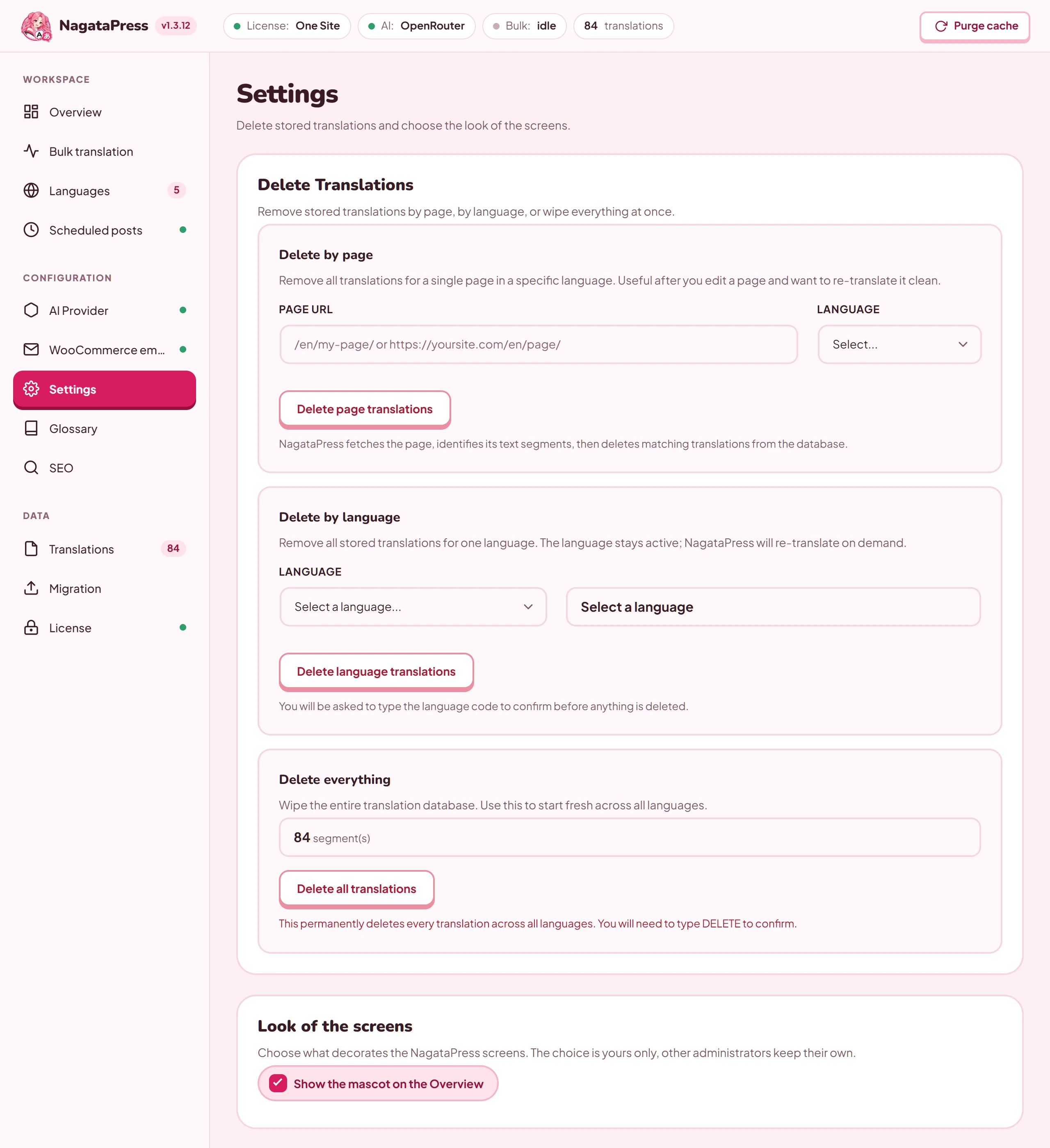
- Delete Translations: three cards, Delete by page, Delete by language and Delete everything, with the buttons Delete page translations, Delete language translations and Delete all translations. They do the same as the first, second and fourth card of the Translations screen (section 12). The card for old and unused translations is only on Translations.
- Look of the screens: the checkbox Show the mascot on the Overview. The choice is yours only, and other administrators keep their own. It is saved as soon as you tick or untick the box. The mascot is on by default.
11.2 Settings by screen
Overview
| Setting | What it does | Default |
|---|---|---|
| License key, Activate License, Deactivate | Activates or releases the license (section 3). | No key |
| Show translations to visitors | In the card Translations for visitors: shows the translated languages to visitors, or only the source language when it is off (section 6.3). Saved with Save changes at the bottom of the screen. | Off; switched on by itself when target languages are saved while a license key is stored, except on a site that translates over MCP |
| Auto-translate on publish | Translates new pages, posts and products into all configured languages when they are published (section 6.6). Needs an AI provider with a saved API key. Disabled on a site that translates over MCP. | Off |
| Purge translation cache | Clears the cache of translated pages and asks known caching plugins to clear theirs (section 11.3). It also deletes stored translations that are identical to their source text, unless you edited them by hand, so that a later run translates them again. | Button |
| Translation Style | Neutral / Corporate or Contextual (section 7.4). | Neutral / Corporate |
| Brand name, What does your company do?, Tone, Special instructions | The brand context of the Contextual mode. The first two are required. Saved with the Save button of the Translation Style card. | Tone: Formal |
| Count words | Counts the words of your published content and estimates the cost per language (section 6.2). | Button |
| Save changes | Saves Show translations to visitors, and nothing else: Auto-translate on publish and Neutral / Corporate are saved the moment you use them, and the brand fields of Contextual are saved with the Save button of the Translation Style card. Until version 1.3.16 this button was called Save & launch and switched translation on every time. | Button |
Languages
| Setting | What it does | Default |
|---|---|---|
| Source Language | The original language of your content (section 4.1). Saved at once; a language that was a target is removed from the targets. | Language of your WordPress site |
| Target Languages | The languages you translate into (section 4.1). | None |
| URL Format | Subdirectory, Query parameter or Separate domains (section 4.2). | Subdirectory |
| Domain Mapping | The domain of each language, for Separate domains. | Empty |
| Row URLs of a language | Start a slug scan for that language together with its run (section 4.3). | Ticked, where supported |
| Translate Slugs | Shows whether slug translation is on. When it is off, the button Enable slug translation switches it on; there is no switch to turn it off again. | Enabled on a new site |
| Never Translate | Terms that stay as they are (section 7.5). Up to 100. | Empty |
| Exclude Sections | CSS selectors of parts of a page that are left alone (section 7.5). Up to 50. | Empty |
| Settings per language | Values of other plugins’ settings, such as tracking IDs, for each language (section 4.4). Up to 100. | None |
| Send the page language to Google Tag Manager | Adds the page language to the dataLayer. | Off |
| Widget Style | The look of the language switcher (section 10). | Globe + Name |
| Widget Position | Bottom Right, Bottom Left, Top Right, Top Left or Shortcode (section 10). | Bottom Right |
| URL Exclusions | Paths on which the language switcher is hidden, one per line (section 10.3). | Empty |
AI Provider
| Setting | What it does | Default |
|---|---|---|
| Provider tab | Claude, OpenAI, Google Gemini, OpenRouter or Mistral AI (section 5.2). | None |
| Model | The model that translates. | The default of the provider. For OpenRouter: Automatic: the best free model of the moment (recommended) |
| API Key | The key of your provider account. Stored encrypted. | None |
| Enable the MCP endpoint | Lets an AI assistant connect to the site (section 5.3). Switching it off disconnects every app. | Off |
| Allow sign-in with OAuth | Lets tools sign in with a WordPress account. Needs pretty permalinks. | On (works while the endpoint is on) |
| Offer the tools as WordPress Abilities | Registers the tools as WordPress Abilities: the five translation tools and, for administrators, the eight setup tools (section 5.4). Does not depend on the endpoint switch. Needs WordPress 6.9 or newer. | On |
| Application Password | Created in the MCP card for one tool. | None |
Bulk translation
| Setting | What it does | Default |
|---|---|---|
| Pace | Normal or Gentle (small hosting) (section 6.4). | Normal |
Scheduled posts
| Setting | What it does | Default |
|---|---|---|
| Pre-translate scheduled posts | Switches the feature on (section 6.7). Disabled on a site that translates over MCP. | Off |
| Translate this far ahead | How long before publication a post is translated. | 1 hour |
| Post types | Which post types are covered. | Post |
| Posts per check | How many posts one check takes, 1 to 50. | 5 |
WooCommerce emails (only while WooCommerce is active)
| Setting | What it does | Default |
|---|---|---|
| Translate customer emails | Sends customer emails in the language of the order (section 9.3). | Off |
| Show a language selector at checkout and in the account area | Lets the customer choose the language of order emails. | Off |
| Allow a test cart when collecting shop texts | Lets the collection of the texts that no post holds put one product into an anonymous cart to read the cart and the checkout, and to render the thank-you page (sections 9.1 and 9.3). | On |
| Wording overrides | Your own subject and heading for an email and language. | Empty |
Translations
| Setting | What it does | Default |
|---|---|---|
| Remove unused after | Removes translations that no page has used for 90 days, 180 days, 1 year or never (Never) (section 12.4). | 1 year |
| When cleaning up now, also remove unused translations edited by hand | Applies to Clean up now only. | Off |
Settings
| Setting | What it does | Default |
|---|---|---|
| Show the mascot on the Overview | Shows or hides the mascot, for your account only. | On |
Glossary, SEO, Migration and License keep lists, tools and status rather than settings. See sections 7.3, 8, 13 and 3.
11.3 The translation cache
NagataPress keeps a cache of translated pages, so a page that has not changed is served without being processed again. NagataPress starts a fresh cache on its own when translations change through the plugin: when translations are stored by a run or by the visual editor, when you delete translations, and when you change the excluded terms or the translation style. The glossary is the exception: a new term affects only translations made afterwards (section 7.3).
Purge translation cache clears it by hand. It is on the Overview, in the status bar of every NagataPress screen (Purge cache, which asks you to confirm first) and in the admin bar inside the WordPress admin. Use it when a page still shows old text after you edited a translation or changed a setting. The buttons also delete the stored translations that are identical to their source text, unless you edited them by hand, so that a later run translates them again.
Besides its own cache, NagataPress asks these caching plugins and services to clear theirs: WP Rocket, LiteSpeed Cache, W3 Total Cache, WP Super Cache, WP Fastest Cache, Cache Enabler, SiteGround Optimizer, Autoptimize, Swift Performance, Nginx Helper, Breeze, WP-Optimize, Hummingbird, Comet Cache, FlyingPress, ZiziCache (its cached pages only), WP Engine, Kinsta Cache, the official Cloudflare plugin, and Varnish through a local purge request. The Purge cache button in the status bar then shows a message that names the caches that were cleared. The button on the Overview only reports Cache purged!, and the admin bar item reports Done! and reloads the page. Other caches can listen to the action nagatapress_after_purge_cache.
The page cache of another plugin can keep a copy of a page that was saved before it was translated. After the first run of a language, and after you edit translations by hand, purge the cache once.
NagataPress also asks these caches to clear themselves, and fires the action nagatapress_after_purge_cache, after it deletes translations, after you save Exclude Sections or a change to the settings per language, after Enable slug translation, after Reset of a language or Fix translation on a post, and once after an update of the plugin. It does not do this after a bulk run, after Translate on a post or after you edit a translation in the visual editor; purge the cache once after those.
11.4 Hooks for developers
NagataPress offers these filters. Add them from a small plugin or from your theme's functions.php. The column Arguments lists what each filter receives; "The value" means that the filter gets one value, the one it changes.
| Filter | What it changes | Arguments | Default |
|---|---|---|---|
nagatapress_inline_grouping |
Whether sentences are grouped across inline tags such as links and bold text. | $on (bool) |
true |
nagatapress_max_runtime_segments |
The most text segments a page may have. A page with more is served untranslated. 0 removes the limit. |
$limit, $lang, $html |
1200 |
nagatapress_translate_structured_data |
Whether JSON-LD is translated. | $on, $lang (or null) |
true |
nagatapress_localized_script_handles |
Script handles whose localized data (texts passed to JavaScript) is translated. | $handles (array) |
WooCommerce scripts |
nagatapress_builder_json_attributes |
Page builder elements that keep readable text in a JSON attribute. | $config (array: a CSS class mapped to attribute and keys) |
Bricks animated typing |
nagatapress_js_map_max_segment_length, nagatapress_js_map_max_bytes, nagatapress_js_map_max_pairs |
The limits of the small script that swaps texts drawn by JavaScript: the length of a text, the size of the map and the number of pairs. | The value | 160, 40960, 500 |
nagatapress_js_masked_max_segment_length, nagatapress_js_masked_max_bytes, nagatapress_js_masked_max_pairs |
The limits of the list that lets the same small script match texts whose price or number a script rewrites after the page has loaded (section 1.2): the length of a text, the size of the list and the number of entries. | The value | 160, 8192, 100 |
nagatapress_ajax_translation_skip_actions, nagatapress_ajax_translation_skip_prefixes, nagatapress_ajax_translation_skip_wc_ajax |
The admin-ajax.php actions (and name prefixes, and wc-ajax values) whose answers are not run through the general translation of AJAX answers. The fragments of the mini cart and the checkout review are translated by their own filters and are not affected. |
The list (array) | Checkout, coupons, form submissions, NagataPress’ own actions |
nagatapress_sslverify_url |
Whether a request the site makes to itself verifies TLS. | $verify (bool), $url, $host |
true, except on local hosts and local or development environments |
nagatapress_cors_allowed_origins |
Origins that may read fonts, styles and AJAX answers of the site (separate domains). | $origins (array, entries such as https://example.com) |
The site’s own domains and the domains of your languages |
nagatapress_auto_translate_delay, nagatapress_auto_translate_spacing |
Seconds before the first language of a published post is translated, and between languages. | The value (seconds) | 30, 60 |
nagatapress_bulk_max_load_per_cpu |
Load average per CPU above which a run sleeps. | The value | 1.5 |
nagatapress_bulk_max_db_ping_ms |
Milliseconds the database may need for a trivial query. | The value | 250 |
nagatapress_bulk_max_options_write_ms |
Milliseconds a write to the options table may take. | The value | 1000 |
nagatapress_bulk_max_page_fetch_ms |
Milliseconds the site may need to serve one of its own pages. | The value | 10000 |
nagatapress_bulk_busy_pause |
Seconds a run sleeps when the server is busy (at least 60). | The value (seconds) | 180 |
nagatapress_cli_max_wait |
How long wp nagatapress translate waits for a rate-limiting AI provider, in seconds, in all for one batch. 0 means it does not wait and stops at once (section 14.2). |
$seconds, $provider (the ID of the provider) |
900 |
nagatapress_batch_token_budget |
Input tokens put into one request. | $budget, $provider |
12000 for Google Gemini and OpenAI, 8000 for the others |
nagatapress_throttle_settings |
Pace, batch size and parallel requests per provider. | $settings (array: pace, batch, parallel), $provider |
Per provider |
nagatapress_token_profile |
Tokens per source word used by every estimate. | $profile (array: in, out, basis, segments), $provider, $model |
Typical figures, replaced by figures measured on your site |
nagatapress_price_currency |
USD or EUR: the currency of the prices shown. A converted figure is marked as converted, and the header of the cost column in Translation costs follows it (Cost (USD) or Cost (EUR)). |
$currency |
USD |
nagatapress_usd_to_eur |
The rate used for the conversion to euros. | $rate |
0.92 |
nagatapress_license_renew_url |
The address of the Renew or upgrade link. | $url, $state |
The pricing section of nagatapress.com |
nagatapress_sitemap_post_types |
The post types listed in the translated sitemap. | $types (array) |
Public, viewable types, without page builder templates and types that an SEO plugin marks as noindex |
nagatapress_sitemap_exclude_post |
Whether a single post is left out of the translated sitemap. It runs only for posts that are not already excluded because of a password or a noindex setting of an SEO plugin, so it can add exclusions but not bring one back. | $excluded (bool), $post_id |
false |
nagatapress_hreflang_query_args |
The query arguments that stay in the hreflang and x-default addresses of a page that prints no usable canonical address of the site. Every other argument (utm_source, fbclid, sort order, filters) is dropped. |
$args (array of argument names) |
p, page_id, attachment_id, name, pagename, post_type, cat, category_name, tag, taxonomy, term, author, author_name, m, year, monthnum, day, s, page, paged, cpage, and the query variable of every public taxonomy and post type |
nagatapress_payment_locale |
The locale a payment gateway sees while it sets up the payment of an order. | $locale, $order (WC_Order), $gateway_id, $lang |
The locale of the order’s language |
nagatapress_wc_email_sample_order |
The order that the previews of the email editor, the test email and Translate email templates now render with (section 9.3). Return a WC_Order; the data of its customer is left out of the queue like that of a real customer. |
$order (WC_Order or null: the sample built in memory) |
The sample order, which is never stored |
nagatapress_lang_options_language |
The language whose values of the settings per language are used. | $lang |
The language of the request |
nagatapress_cleanup_post_type, nagatapress_cleanup_taxonomy |
Whether edits of a post type or a taxonomy are compared with their earlier wording. | $tracked (bool), $post_type or $taxonomy |
Public post types (not attachments) plus the types for reusable blocks, templates and product variations; viewable taxonomies plus the WooCommerce product attributes |
nagatapress_is_builder_request |
Whether NagataPress leaves a request alone as the editor of a page builder: no translation, no rewritten links, no hreflang, switcher or front editor. It runs for the pages of an editor and for the AJAX and REST calls of an editor (section 15.7). | $is (bool: whether NagataPress recognized an editor) |
The result of the recognition built into NagataPress |
nagatapress_mcp_archive_taxonomies |
The taxonomies whose term archive pages the pass of an assistant visits (section 5.3). Remove some to shorten the pass on a site with very many terms. | $taxonomies (array of taxonomy names) |
The public, queryable taxonomies of the post types the pass walks, without post formats |
nagatapress_mcp_fetch_parallel |
How many pages the pass of an assistant fetches from the site at the same time, 1 to 10. 1 fetches one page after another; a small host may want 2. |
The value | 4 |
nagatapress_mcp_page_index |
Whether the pass of an assistant keeps the texts of the pages it fetched and takes an unchanged page from that index on the next pass instead of fetching it (section 5.3). | The value (bool) | true |
nagatapress_mcp_page_index_max_age |
Seconds an index row is trusted after its page was fetched, when nothing it watches changed. 0 turns the index off in effect. |
The value (seconds) | One week |
nagatapress_mcp_page_index_max_bytes |
Size of the whole page index (the bytes of its rows) above which no row is written any more. A page fetched meanwhile loses its row, so the index shrinks back under the limit, and pages without a row are fetched on every pass. 0 means no limit. |
The value (bytes) | 128 MB |
nagatapress_mcp_page_index_options |
The options whose change makes the next pass fetch every page again. Add the option of a plugin that prints a text on every page (a notice bar, a footer). | $names (array of option names) |
The site name and tagline, the reading and permalink settings, the widgets, the customizer settings of the theme, the options of common themes, the pages and the currency of WooCommerce |
nagatapress_mcp_page_index_layout_types |
The post types that the index watches as part of every page (menus, block templates, reusable blocks, page builder templates, forms): a change to a post of one of them makes the next pass fetch every page again. | $types (array of post types) |
The registered types that the pass does not walk, without orders, logs, sessions and the like |
nagatapress_mcp_page_index_listing |
Whether the page of a post shows other posts (the latest posts, the products of a category), so that its index row is taken again whenever a published post changed, not only when this post did. | $listing (bool), $id (post ID), $type (post type) |
true for pages |
nagatapress_shop_test_cart |
Whether the collection of shop texts may put a product into a test cart (section 9.1). The filter has the last word: it can forbid the cart although the switch is on, and allow it although the switch is off. | $allowed (bool: the switch) |
The switch, on unless it was switched off |
nagatapress_privacy_cleanup_common |
How many customers must share a value (a first name, a city) for the cleanup of old translations (section 9.3) to call it common and leave the row alone. 0 or less switches the idea off. |
The value | 40 |
nagatapress_privacy_cleanup_providers |
The origins (provider names stored with a translation) that the cleanup scans. | $providers (array) |
bulk_fix, the origin of the queue job |
nagatapress_privacy_cleanup_pages |
How many orders, users and translation rows one step of the scan reads. | $pages (array: orders, users, rows) |
100, 200, 250 |
The action nagatapress_after_purge_cache has no arguments. It runs after Purge translation cache and after the other actions listed in section 11.3, and it is the place to clear a cache that NagataPress does not know.
NagataPress also listens for an action: do_action('nagatapress_mcp_rescan_pages') (no arguments) makes the next pass of an assistant fetch every page again instead of using the page index (section 5.3). Use it after a change that the index cannot see, such as a setting of another plugin that prints a text on every page.
12. Managing translations
Translations are the most valuable data of the plugin. They are stored in your database, one row for each text and language, and they stay there when you deactivate or delete the plugin. NagataPress > Translations shows how many there are, in the tab of the navigation and in the status bar, and lets you delete them.
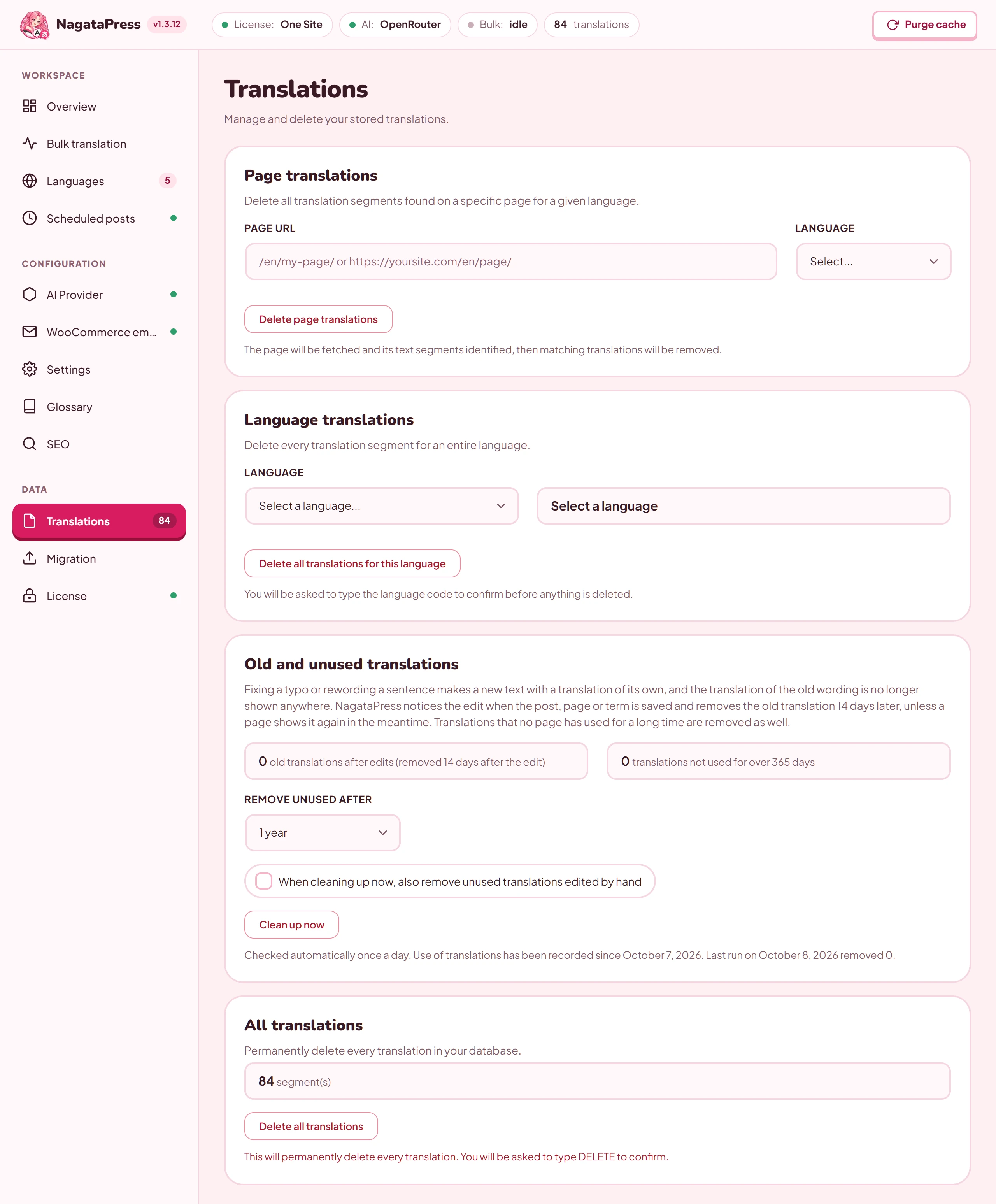
Four cards cover four cases. Deleting is permanent. Translating the same text again calls your provider again, and the provider bills you again.
12.1 Delete the translations of one page
Use this after you rewrote a page and want it translated again from scratch.
- In Page translations, enter the Page URL. A path such as
/de/my-page/or a full address such ashttps://example.com/de/page/both work. If the address starts with the two-letter code of one of your target languages, or has?lang=, the Language is filled in and the prefix is removed from the field. For a language with a regional code such aspt-br, enter the address without the prefix and choose the Language yourself. - Choose the Language.
- Click Delete page translations. NagataPress fetches the page, finds its text segments and counts them.
- Read the dialog: "N text segments found, M translated in {language}." and click Delete M translation(s).
The translations that you saved by hand are kept. A text that other pages share is deleted for them too, because a text is stored once. NagataPress also removes the mark "translated" from the page for that language, so the next run translates it again.
12.2 Delete a language
In Language translations, pick a language. The card shows how many segments it holds. Click Delete all translations for this language and read the dialog Delete all {language} translations?. Type the language code of the language (in any letter case, for example DE) in the field of the dialog: Delete all stays disabled until the code matches, and the server checks it again. Then click Delete all. The Settings screen has the same tool (Delete language translations). A large language is deleted in steps of about ten seconds while the card counts down; you can click the button again if a step stops.
This removes the translations of the language, those edited by hand included. The language stays configured, and its progress and history are reset. Its pages show the original text until you translate the language again.
12.3 Delete everything
All translations shows the total. Click Delete all translations, type DELETE in the dialog and click Delete everything. Every translation in every language is removed, and so are the progress and history of all languages. Glossary terms, excluded terms and slugs are not touched.
12.4 Old and unused translations
A translation is stored for an exact wording. When you fix a typo or reword a sentence, the new wording is a new text with a translation of its own, and the translation of the old wording is shown nowhere. NagataPress cleans up after such edits:
- Edits. When a post, a page, a template or a term is saved, the wording before and after the save is compared. A text that disappeared and has a close successor (a typo fixed, a word or a number changed) is marked as old wording, in every language. Very short texts (under 12 characters) are not paired, and neither are texts that changed a lot.
- Removal after 14 days. The translation of old wording is removed 14 days after the edit, unless a page shows that text again in the meantime. It then loses its mark.
- Unused translations. Translations that no page has used for a long time are removed as well: a sentence that was deleted rather than edited, a page that is gone. You choose the time in Remove unused after: 90 days, 180 days, 1 year or Never. The default is 1 year. Use is recorded from the day the feature started; the card says since when.
- Edited by hand. A translation that you edited by hand is never removed because it is unused. Only Clean up now with the box When cleaning up now, also remove unused translations edited by hand ticked does that. A hand-edited translation is removed, however, together with the old wording when you reword its source text: the daily run removes it 14 days after the edit, and Clean up now removes it at once. The new wording is then translated again.
The card shows two counts: the old translations after edits that wait for removal, and the translations not used for longer than the chosen time. The line below says that the check runs once a day, since when use is recorded, and what the last run removed.
Clean up now runs the cleanup at once. It removes old wording without the 14-day wait and removes the unused translations. The dialog Remove old and unused translations now? explains: if a page still shows a removed text, the next run translates it again, and your provider charges for it. Confirm with Clean up.
12.5 What is stored
Translations live in the table {prefix}nagatapress_translations. A row holds:
- a hash of the source text and the language pair;
- the source language and the target language;
- the original text and the translated text;
- how the translation was made (
bulkfor a run,aifor a single request,manualfor hand edits,assistantfor MCP,migration_wpml,migration_translatepressormigration_polylangfor an import; the name of the AI service is not stored with a row) and whether it was edited by hand; - the dates of creation, change and last use, and the date on which the text was marked as old wording.
A text with numbers or prices is stored once for all its variants, with placeholders in place of the values (a price in any currency). Other tables hold the glossary, the translated slugs, the usage of the AI providers (tokens only), the sign-ins of MCP apps, and the state of the plugin.
Version 1.3.17 adds three options to the options table of WordPress:
nagatapress_mcp_log: the recent activity of your assistant that Bulk translation shows on a site that translates over MCP (section 6.4). It keeps the last 150 entries, each with the time, the language, the kind of step and its counts and reason codes, never a text.nagatapress_mask_rehash_last: the result of the last re-keying of the stored translations after an update (the generation of the rules, how many translations were re-keyed, merged and left to be translated again, and when it finished).nagatapress_statusreads it forrekey(section 5.3).nagatapress_wc_queue_purged_1317: the time at which the queue of WooCommerce texts that earlier versions filled was emptied, so that this happens only once (section 9.3).
Deleting the plugin removes all three (section 16.5).
Version 1.3.18 adds these:
nagatapress_mcp_lease_<code>: one option for each language, not loaded on every request. It reserves the texts that batches handed out to an assistant (section 5.3): for each text the batch, the end of the reservation (20 minutes), the source and the text itself, so that a batch that was never submitted can be offered again. An accepted translation ends its entry, and an entry that was never offered again is forgotten after a day.nagatapress_shop_sources: what each step of the collection of shop texts found the last time it ran (the time, the counts, why it was skipped, the last error; no texts).nagatapress_shop_test_sessions: the test carts that were made, so that they can be deleted, also when the plugin is deactivated or deleted (section 9.1).nagatapress_shop_sources_bulk: the progress of the collection that follows a bulk run on a site with an API key (section 6.1).nagatapress_privacy_cleanup: the state of the cleanup of old translations with customer data: counters, positions and up to eight masked examples, never a customer value. The cleanup also uses two tables for the time it needs them:{prefix}nagatapress_pc_hashes(keyed hashes of the values to look for, dropped when a scan ends) and{prefix}nagatapress_pc_matches(the ids of the rows the last scan found).nagatapress_mcp_fetch_time,nagatapress_mcp_index_layoutandnagatapress_mcp_index_content: how long a round of page fetches of an assistant's pass took on average, and two tokens of the page index. The page index itself is rows with the key prefixmcpidx:in the table{prefix}nagatapress_meta, a row for each page that a pass fetched, with the texts of that page (not the shared texts, which every pass hands out first); the rows of pages that no longer exist go when a pass ends.- In
nagatapress_optionsthe keyshop_test_cart, the switch of the test cart.
The queue of WooCommerce texts (nagatapress_wc_email_queue) keeps its texts as before, and each entry now also records where the text was found. Two short-lived transients belong to the collection: nagatapress_shop_crawl_token (the token that its own requests carry) and nagatapress_shop_runtime (how many texts were captured from visitors this hour). Two single WP-Cron events can be scheduled: nagatapress_shop_sources_bulk (the collection after a bulk run) and nagatapress_privacy_cleanup_step (a scan in the background).
13. Migration
If your site is translated by another plugin, NagataPress can take over the translations that exist, so you pay your provider only for what is missing. It reads the data of WPML, TranslatePress and Polylang. It also recognizes Weglot and GTranslate, but there is nothing to import from them: the screen explains that Weglot stores its translations on its own servers and that GTranslate translates on the fly. NagataPress translates your content again with your own provider.
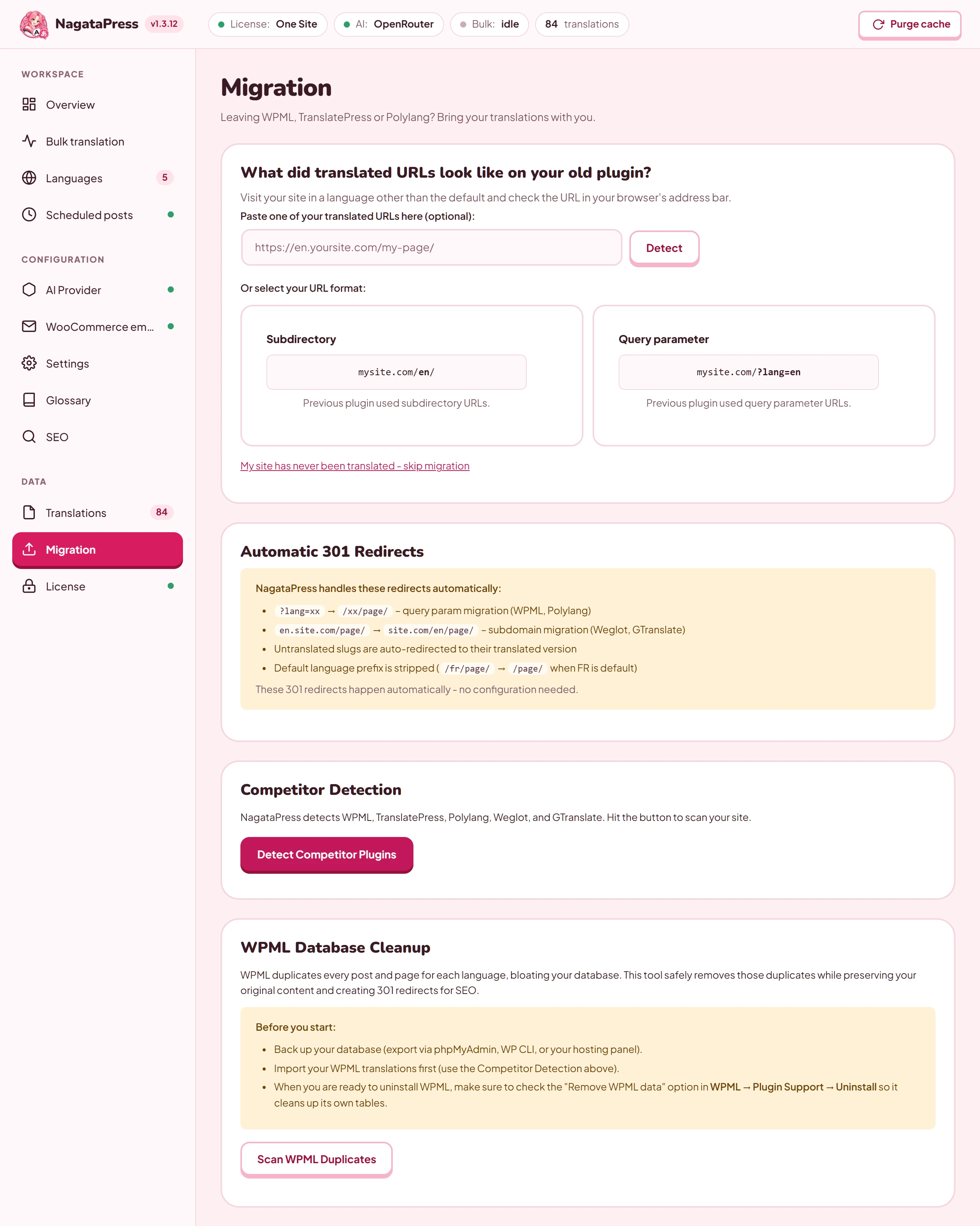
13.1 Before you start
- Make a backup of your database. The import only adds translations, but the WPML cleanup deletes posts.
- Activate your NagataPress license and connect a translator (sections 3 and 5). Import itself needs no provider, but you will need one to translate what the old plugin did not.
- Keep the old plugin installed and its data in place until the import is finished. The importer reads the tables and the translated posts of that plugin.
13.2 Import the translations
- Open NagataPress > Migration. Until you have chosen a URL format in step 2, the screen opens with No import needed ("Your site has no prior translations to import. NagataPress will translate everything from scratch."). Click I am migrating from another translation plugin... to show the tools. They stay visible after a reload once you have clicked a URL format. If your site was never translated, click My site has never been translated - skip migration to hide them again; that answer is stored.
- In What did translated URLs look like on your old plugin?, paste one of your translated addresses and click Detect, or choose Subdirectory (
example.com/en/) or Query parameter (example.com/?lang=en). Visit your site in a language other than the default to see which one it is. Detect selects one of the two cards. For an address on a subdomain (en.example.com), or on a host that starts withwww., it only reports "Detected: subdomain" and selects nothing: choose a card yourself, or leave the question open, because the redirects work without an answer. A card you click is remembered (Migration format saved) on this screen only; the answer decides which cards and tools are shown, and nothing else. The card Automatic 301 Redirects below it shows what NagataPress redirects without any setting, whatever you answered. - In Competitor Detection, click Detect Competitor Plugins. For every plugin it finds, it shows how many translations it found and in which languages, and notes the URL format of the old plugin ("Uses subdirectory format - redirects handled automatically"). If you have no target languages yet, the languages of the first plugin found are filled in for you.
- For WPML, TranslatePress and Polylang, choose a language in the list next to the plugin and click Import. The result reads, for example, "1204 translations imported (EN -> DE)". Repeat for each language.
- For Weglot and GTranslate, no import is offered. The card explains that NagataPress will translate your content with your own provider.
- Translate what is still missing with a normal run for each language (section 6.3). Texts that were imported are reused, and only the gaps go to your provider.
What is imported:
| Plugin | What NagataPress reads |
|---|---|
| WPML | The translated posts of every post type (up to 5,000 pairs for one language pair), matched with their originals, and the strings of WPML String Translation that are marked complete (up to 50,000). |
| TranslatePress | The dictionary of the language pair: the entries that were translated automatically or reviewed by a person, up to 50,000. |
| Polylang | The published posts and pages that have a published translation. |
The title, the content blocks and the excerpt of a translated post are matched paragraph by paragraph with those of the original, in the order they appear. Import works best when the translated post has the same structure as the original. Texts that are identical in both languages are skipped. Imported translations are stored like any automatic translation, so you can improve them in the visual editor.
13.3 Redirects
Visitors and search engines that use the old addresses keep working. NagataPress redirects with a 301 in these cases (Subdirectory format):
?lang=xxaddresses of a target language go to/xx/page/(query-parameter plugins such as WPML and Polylang).en.example.com/page/goes toexample.com/en/page/(subdomain plugins such as Weglot and GTranslate). This works only while the old subdomain still reaches this site (DNS record and server alias, as in section 4.2) and its first part is one of your language codes. The domain it is compared with is the one stored when the license was first activated.- An untranslated slug goes to the translated one.
- The prefix of the source language is removed:
/fr/page/goes to/page/when French is the source language.
The SEO screen lists the rules that are active (section 8.2).
13.4 WPML database cleanup
WPML keeps a separate WordPress post for every language of every page, which makes the database large. After you have imported the translations, WPML Database Cleanup removes those copies. It removes the translated copies of every post type that WPML manages (pages, posts, products, custom types and media entries) in every WPML language, not only in the languages you imported. Compare the list by post type and language with what you expect before you type DELETE.
- Make a backup, and import the WPML translations first (section 13.2).
- Click Scan WPML Duplicates. The card lists how many duplicate posts it found by post type and language, or says "No WPML duplicates found. Your database is clean."
- Read the warning: "This will permanently delete N duplicate posts and create 301 redirects for their URLs. Only translated copies will be removed. Your original posts are safe."
- Type
DELETEinto the field and click Clean Up Duplicates. The posts are deleted in batches of 50, together with their comments, meta data and term relationships, and the card counts them. If the connection breaks, click Resume Cleanup. - The card ends with "Done! N duplicate posts deleted, M 301 redirects created."
For every translated page whose slug differed from the original, NagataPress keeps a redirect from the old translated address to the original one (Subdirectory format). When you later remove WPML itself, tick Remove WPML data in WPML's own Plugin Support > Uninstall settings so that it cleans up its tables.
14. WP-CLI
For large sites, translate from the command line. A command has no time limit and does not depend on WP-Cron, and an interrupted run can be resumed. The commands are available when WP-CLI is installed.
14.1 Commands
| Command | What it does |
|---|---|
wp nagatapress translate --lang=<code> |
Translates all published content into one target language. A code that is not one of the configured target languages is refused, and the command lists the configured ones. |
wp nagatapress translate --lang=all |
Translates it into every target language, one after another. |
wp nagatapress translate --lang=<code> --batch=<n> |
The same, with n posts per batch. The default is 25. |
wp nagatapress translate --lang=all --resume |
Continues a run that was interrupted, or that stopped at a problem (section 14.2). |
wp nagatapress status |
Shows a table with the progress of each language: Language, Total, Translated, Errors, Percent and Words. It also tells you when a run was interrupted and how to resume it. |
wp nagatapress cancel |
Removes the data of the bulk job, the saved progress of the command line and the locks. Use it to clean up after an interrupted or stalled run. |
wp nagatapress license |
Shows what the stored license allows: key (stored or none), status, type, valid until, last verified, last attempt, failed checks, how long the last answer holds, and whether AI translation is available. A Warning row appears when the license is ending (with the days left) or in its grace period. |
wp nagatapress license --check |
Asks the license server first, prints a line Check: with the result (answered, unreachable, no_key or legacy), then shows the same table. |
wp nagatapress privacy-cleanup |
Counts the stored translations that hold customer data (section 9.3) and shows a few examples with the personal parts masked. It deletes nothing. |
wp nagatapress privacy-cleanup --delete |
Deletes the rows it found. Options for both forms: --lang=<code> (only translations into one language), --extended (also short translations made by an AI provider or an assistant), --include-common (also rows that hold only a value many customers share) and --include-manual (also rows that a person edited by hand). |
Examples:
wp nagatapress translate --lang=de
wp nagatapress translate --lang=all --batch=50
wp nagatapress translate --lang=all --resume
wp nagatapress status
wp nagatapress privacy-cleanup
wp nagatapress privacy-cleanup --delete --lang=de
14.2 How the command works
- It stops with a message when the site is not configured, has no target language, or the license does not allow AI work. It also stops when no AI provider with a saved key is set up (section 5.2), and says why, with the same two messages as the buttons of the admin screens (section 15.3).
- It covers the same post types as the admin screen. It walks the published posts in the order of their IDs, in batches, and sends only the segments that have no stored translation to the provider. Each batch prints one line: the percentage, the posts done, the segments newly translated and taken from the translation memory, the errors, the speed, the time left and the title of the first post.
- Progress is saved every three batches. After an interruption (a dropped SSH connection, for example), run the same command with
--resume. Languages that were completed are skipped, and the current language continues after the last post that was saved, with the numbers it had reached (posts done, segments translated, errors, words), sowp nagatapress statusshows the whole language and not only what the last run did. Run long jobs insidescreenortmux. - A lock records that a run is active. If you start the command while the lock is set, it warns that another process may be running. Use
--resumeto continue an interrupted run, orwp nagatapress cancelto clear the lock. - Three problems stop the command: the provider reports that credits are used up, the license no longer allows AI work, or the translations of a batch cannot be written to the database (the PHP error log gives the reason). The command prints a message that says which of them it is, saves its position at the start of that batch and ends. The batch is not counted as translated, so
--resumedoes the same batch again. After you fix the cause (top up the credit, renew the license, repair the database), continue with--resume. - A provider that is rate-limiting is waited for. The command prints a line that says how many seconds it waits, sleeps until the limit is due to end and asks again for the same batch. For one batch it waits at most 900 seconds (15 minutes) in all. The filter
nagatapress_cli_max_wait(section 11.4) sets that limit in seconds;0means the command does not wait and stops at once. If the provider is still refusing when the time is used up, the command stops as described above: it saves its position at the start of that batch, does not count the batch and says so. Continue with--resumeonce the limit has cleared. wp nagatapress statuscounts as translated only what was translated. When the command stops at a batch, that batch is not counted at all, and the language stays below 100 percent. When a batch fails but the run goes on, the posts that failed are counted under Errors;--resumedoes not redo them, so run the command for that language again to try them (segments that are stored are not sent to the provider a second time).- The command translates the text that is stored in the posts (title, excerpt, content, page builder data and ACF fields). It does not fetch the rendered pages or the archive pages, as the admin run does. Text that only the theme or WooCommerce draws (menus, header, footer, widgets, buttons such as Add to cart, related products) and the archive pages (blog index, shop, product category and tag pages) are therefore not covered by the command: run the language in the admin as well, or use Translate this page in the visual editor, for those. The command processes posts even when the admin screen already marks them as translated; the segments that are already stored are not sent to the provider again, so this costs little. The progress it records appears on the Languages screen.
wp nagatapress privacy-cleanuphas no time limit. It reads orders, users and translations in steps of about 25 seconds and prints a line for each step ("phase rows, 40%, N rows to remove so far"), then "N rows hold customer data, M more only hold a value many customers share, K are hand-edited." and up to five masked examples. Without--deleteit ends with "Dry run: nothing deleted."; with--deleteit removes the rows and prints "N rows deleted." (a scan that ended with an error deletes nothing). If another scan, from the card or in the background, holds the lock, it waits up to two minutes and then gives up. Run it without--deletefirst and read the examples.
15. Troubleshooting and FAQ
Find the symptom you see. Where a cause list has an order, check the items in that order.
15.1 A language address does not open
You open example.com/de/ and get an error page from the web server, or a "not found" page.
| Cause | What to do |
|---|---|
Subdirectory format on Apache or LiteSpeed, and the rewrite block is missing from .htaccess. NagataPress writes it when WordPress can write the file, and shows no message when it cannot. |
Make .htaccess writable, then switch the URL Format to another format and back to Subdirectory (clicking the format that is already selected does nothing), or add the block yourself: see below. |
| Subdirectory format on Nginx. | Keep the standard WordPress routing (try_files $uri $uri/ /index.php?$args;). Nginx needs no extra block. |
| Separate domains: the domain is not an alias of this site on the server, or has no DNS record or certificate. | Complete the three steps of section 4.2. A domain the server does not know answers with the server’s own 404 page before WordPress runs. |
| The rewrite rules of WordPress are out of date. | Open Settings > Permalinks and click Save Changes once. |
The block that NagataPress keeps in .htaccess (only for the Subdirectory format):
# BEGIN NagataPress
<IfModule mod_rewrite.c>
RewriteEngine On
RewriteCond %{REQUEST_FILENAME} !-f
RewriteCond %{REQUEST_FILENAME} !-d
RewriteRule ^([a-z]{2}(-[a-z]{2,4})?)(/.*)?$ /index.php [L,QSA]
</IfModule>
# END NagataPress
15.2 A translated page still shows the original text
Go through this list in order.
- Is the language translated? A language without stored translations shows the original text. Check the Translated column on Languages.
- Is a license key stored and translation switched on? Translated pages are built only while a key is stored. After Deactivate, visitors see the original language, and the floating switcher and the hreflang tags disappear. A switcher that you placed with the shortcode stays on the page, and its links lead to pages in the original language. On the Overview, check that Show translations to visitors is on in the card Translations for visitors, then click Save changes (section 6.3). On a site that translates over MCP it is not switched on by itself.
- Is the page cached? A page cache can keep a copy from before the translation. Click Purge translation cache and clear the cache of your caching plugin.
- Look at the page source. Search for
NagataPress. A comment such as<!-- NagataPress Translation: cache=... lang=de segments=... cached=... api=... skip=... -->says what happened: how many texts the page has (segments), how many were found in the database (cached), how many are missing (api) and how many have a stored translation that is identical to the original (skip). Missing texts stay in the original language until they are translated. Other comments of the formNagataPress Translate: SKIP ...explain why a page was not translated; they are listed in the table below this list. - Is the text translatable? These are never translated: text nodes shorter than three characters, numbers, symbols, a text of exactly three capital letters (such as
EUR,FAQorNEW), addresses and email addresses at the start of a text, and everything in scripts, styles,noscript,code,pre,textareaandsvgelements, the WordPress admin bar, the banner of a cookie consent plugin (Complianz, CookieYes, Cookie Notice, Cookiebot, Borlabs Cookie, Cookie Law Info, iubenda, OneTrust, Usercentrics and similar) and the list of comments. Values of attributes such asaltandplaceholderare translated from two characters. Anything insidenotranslateor in a section you excluded (section 7.5) is left alone, and so are your Never Translate terms. - Is the text drawn by JavaScript after the page loads? A small script swaps short whole texts it knows, but it cannot reach everything. Open the page with the visual editor and click Translate this page, or translate the text in the list.
- Is the text new? Texts added after the last run are translated by auto-translate on publish, by Translate on the post, or by the visual editor (section 6.6). On a site that translates over MCP, ask your assistant for a new pass (
nagatapress_get_batchwithrestart). - Is it a text of the cart, the checkout, the thank-you page, the 404 page, the search results, My account or a customer email? Such texts appear only in the middle of a purchase and are not part of any page, so a run over the pages does not meet them. NagataPress collects them separately (section 9.1). On a site that translates over MCP your assistant's next pass brings them, and the table Shop texts on Bulk translation shows what is missing and why a step was skipped. On a site with an API key they are translated after a bulk run and by the hourly job. A visitor who opens such a page also queues what he finds untranslated there.
The comments that explain why a page was not translated:
| Comment | Meaning |
|---|---|
NagataPress Translate: SKIP segment-limit |
The page has more text segments than the limit (1,200 by default), so it is served untranslated. |
NagataPress Translate: SKIP no-lang |
The address is not in a configured target language. Every page in the source language shows this comment, so on its own it is not an error. |
NagataPress Translate: SKIP no-segments |
The page has no translatable text. |
NagataPress Translate: SKIP step-failed=... |
A step of the translation could not process the page because it is very large (a regular expression reached a PHP limit). The name of the step follows the equals sign. The page is served untranslated instead of empty, and nothing is cached, so the next view tries again. |
15.3 A run does not finish, pauses or reports errors
Most of the messages in quotes below appear as lines of the Live log on the Bulk translation screen.
| What you see | What it means and what to do |
|---|---|
| The language shows partial progress with the Translate button again, and the Dashboard shows NagataPress could not translate. | The provider refused the requests. Read the message and the Last answers from the AI provider on the Bulk translation screen. Fix the key, the credit or the model, then click Translate. |
| “Insufficient credits or expired subscription. Add credits and resume.” | The provider account has no credit left. Add credit, then click Translate. |
| “The AI provider refused every attempt for a long time (rate limit, key or model). Check the AI settings and resume.” | After 20 waits in a row the run paused. Check the provider account and the Model, then click Translate. |
| “Waiting for the AI provider (rate limit); next attempt in N s.” | The provider limits the speed. The run waits and continues by itself. |
| “The server is busy (…); continuing in N s.” | The run sleeps while the load, the database or the site is slow. Set Pace to Gentle (small hosting) or run from the command line at a quiet hour. |
| “Translations could not be written to the database; trying again in N s. See the PHP error log.” | The database refused the write. Check the PHP error log and the free space of the database. |
On the Errors tab, a page shows “Page returned an error” (raw message HTTP 403, HTTP 500 or another HTTP code), “Page took too long to load” (cURL error 28), “Page returned empty content” (Empty response) or “No URL found for this page” (No permalink) |
The run could not read the page. Open it in a browser. Check password protection, a maintenance-mode plugin, a firewall or bot protection that blocks requests from your own server, and the HTTP authentication of a staging site. Then click Retry errors. |
| On the Errors tab, a page shows a short code (see below) | The provider could not deliver the translation of part of the page. |
| “AI translation is paused: …” | The license does not allow AI work (section 3.4). |
| The progress does not move | Background work needs WP-Cron or a system cron that calls it, and a site that can request its own pages. Keep the Languages or the Bulk translation screen open: both check the job regularly and restart one that has stalled. Or run wp nagatapress translate --lang=all --resume (section 14). |
| The run says it cannot translate | Without an AI provider with a saved key, the plugin has nothing to call. The buttons and WP-CLI refuse with “This site translates with your own assistant (MCP), so a bulk run has nothing to call. Connect your assistant as shown on the AI Provider page: it fetches the untranslated text and stores the translations itself.” or with “Set up an AI provider, or switch on translation with your own assistant (MCP) on the AI Provider page, before you translate.” Check the AI Provider screen (section 5). |
The short codes on the Errors tab and in Last answers from the AI provider:
| Code | Meaning |
|---|---|
unconfigured |
No AI provider with a saved key. Check the AI Provider screen. |
auth |
The provider rejected the key. |
quota |
The credit or the quota of the account is used up. |
model |
The provider does not serve the model. Pick another one. |
transport |
The provider could not be reached, or answered with an error. |
parse |
The answer could not be read. This code appears in Last answers from the AI provider. |
blocked |
The provider blocked the request or returned nothing usable. |
misaligned |
The answer did not match the request (a different number of items). NagataPress refuses such an answer instead of storing it. |
truncated |
The answer was cut off because it was too long for the model. |
translation_failed |
No usable translation came back for part of the page. |
failed |
The provider call failed without a more precise reason. Read Last answers from the AI provider on the Bulk translation screen. |
empty |
Google Gemini returned nothing, or no usable answer. |
malformed |
The answer of Google Gemini could not be read. |
15.4 A translation is wrong
| Problem | What to do |
|---|---|
| One text is wrong. | Correct it in the visual editor (section 7.1). Your edit is protected. |
| A term is translated differently on every page. | Add it to the Glossary (section 7.3) and use Fix translation on the pages that already have the old wording. |
| A brand or product name is translated. | Add it under Never Translate (section 7.5). With many names, paste the whole list, or let your assistant suggest them from your shop (section 5.4). |
| The tone does not fit your business. | Switch Translation Style to Contextual and describe your brand (section 7.4). |
| A text is identical to the original. | Use Scan & Fix and Fix identical (section 6.5), then run the language again. Texts you saved by hand are kept. If the text must stay as it is (a brand name, for example), save it by hand in the visual editor, so that it is not sent to the provider again. |
| A text shows numbers or prices wrongly. | Numbers and prices are replaced by placeholders and refilled from the source text of each occurrence. Edit the text in the visual editor and keep the same values in the same order. |
| A page mixes two languages. | Use Fix translation on the post list, or Delete page translations (section 12.1), then translate the page again. |
15.5 The provider rejects the key or the model
- The key is refused. Check that the key belongs to the provider tab you selected, that it was copied whole, and that the account has credit. The message under Test & Save quotes the reason of the provider.
- "Saved, but {model} did not answer the test translation." The key works but the model does not answer. Pick another Model. Providers withdraw models, and Google grants different models to different keys. Until you pick another, NagataPress substitutes a reachable model for each request without changing your setting, and it tells you.
- "Your provider no longer offers {model} to this API key." NagataPress checks the model list of your provider once a day with your saved key, so this notice can appear without any action from you. It reads: "Your provider no longer offers {model} to this API key. Your setting has been left alone; translations are running on {replacement} until you pick a new model in the AI settings." It shows on the Dashboard and on the NagataPress screens, under NagataPress could not translate., with the button Open AI settings. Your saved model stays as it is and translation keeps running on {replacement}, a model that the provider still offers, until you pick a new Model.
- The key worked before a move. A site copy with different WordPress security keys cannot decrypt the stored API key. Enter it again; a notice says that the stored API key can no longer be read. The license key is affected in the same way (section 15.7).
- Cost is higher than expected. Open Translation costs to see tokens and cost per month and model. Check the model: the warning "This is one of the most expensive models available" marks the top price band. Use Count words before a large run.
15.6 Translating with your assistant (MCP)
Click Check the setup on the MCP card first. It names what is wrong, with a row for each check and a last row, Last activity, that shows the batches served, the translations stored through MCP and the connected apps.
| Check | Problem and fix |
|---|---|
| MCP endpoint | Switched off. Turn on Enable the MCP endpoint. This row is a warning only: a connector on the site that uses WordPress Abilities works without the endpoint. |
| HTTPS | The site does not run on HTTPS. Application Passwords and OAuth both need it. Only a client on the same machine can connect without it. |
| Pretty permalinks | OAuth is not offered with plain permalinks. Open Settings > Permalinks and choose anything but Plain. |
| OAuth sign-in | Switched off. Turn on Allow sign-in with OAuth, or connect with an Application Password. |
| WordPress Abilities for other connectors | Needs WordPress 6.9 or newer. |
| REST API answers from the server itself | A cache, a firewall or a plugin that disables the REST API is in the way. Let the REST API (/wp-json/) through unchanged. |
| Authorization header reaches WordPress | On Apache, make sure the .htaccess rule that passes HTTP_AUTHORIZATION is present. On Nginx or behind a proxy, do not strip the Authorization header. |
| Discovery at the domain root (/.well-known/) | A note, not an error. Clients fall back to the copy under the REST API. Let /.well-known/oauth-* reach WordPress if a client insists on it. |
The checks REST API answers from the server itself, Authorization header reaches WordPress and Discovery at the domain root (/.well-known/) run only while the endpoint is on, and the discovery check only while OAuth sign-in is on as well.
When the assistant submits a batch, an item can be refused. The answer names the reason:
| Reason | Meaning |
|---|---|
empty |
The translation is empty. |
untranslated |
The translation is identical to the source. Send keep for a text that must stay as it is. A source that holds nothing to translate (only protected terms, numbers, codes, web and e-mail addresses and punctuation) is accepted without keep (section 5.3). |
tokens |
A {{#}}, {{$}} or {{@}} token was missing, changed or added. |
placeholders |
An inline marker such as <t1> was missing, changed or added. An empty pair such as <t2></t2> (an icon) may also come back as <t2/>, and the other way round. |
html |
The assistant added a script or a javascript: link. |
damaged |
The answer looks like broken output. |
rekeyed: the text was re-keyed after an update; call nagatapress_get_batch again |
Only for nagatapress_submit_batch: the batch was handed out before an update, and the text is now masked differently. Leave the item and call nagatapress_get_batch again; the new batch offers the text in its current form. |
odd_character: <character> U+XXXX |
The translation holds a character of another script or alphabet that neither the source nor a protected text has, usually a typo of the model: a Cyrillic letter in a Latin word, a letter the target language does not use, a full-width space. See below. |
unknown_id |
The item does not belong to the batch. For nagatapress_fix_translations: no translation is stored under that id in this language, or only one that no page shows any more (section 5.5). |
manual_edit |
Only for nagatapress_fix_translations: the stored translation was edited by hand, and overwrite_manual is not set. Leave it as it is, or ask an administrator to allow the replacement (section 5.5). |
bad_item |
Only for nagatapress_fix_translations: the item has no id or no tr. |
store_failed |
Only for nagatapress_fix_translations with overwrite_manual: the database refused to write the replacement of a hand edit. Try that item again. |
excluded_term: keep ... exactly as written |
The translation drops or changes a term of your Never Translate list. The reason names the terms. It is checked after the other reasons. |
The assistant fixes the item and submits it again with the same batch ID. A batch that is older than 24 hours is unknown: call nagatapress_get_batch again.
The excluded_term reason. A term of the Never Translate list that stands as a whole word in the source text, in any letter case, must stand as a whole word in the translation too. A digit, an underscore or a letter of the same writing system glued to the term counts as a change, so a case ending or a word attached to the term (an inflected form, a compound) is refused. A compound joined with a hyphen, such as FORT-Schubkarre for the term FORT, keeps the term and is accepted. Japanese, Chinese or Korean text right next to a Latin term is allowed. The same check applies to nagatapress_fix_translations. To fix the item, write each named term exactly as in the source, standing on its own, and reword the sentence if the target language wants to bend the term. If a term should be translated after all, remove it from Never Translate (section 7.5) and submit the item again. The terms are compared with the text as the assistant received it, in which numbers can be replaced by {{#}} tokens, so a term that contains such a number is not checked. The texts that NagataPress remembers from Exclude Sections are not checked either.
The odd_character reason. The reason names the character and its Unicode code, for example odd_character: е U+0435 for a Cyrillic е that a model wrote inside a German word. It is checked after the other reasons except excluded_term, and for nagatapress_fix_translations as well. To fix the item, write the word with the letters of the target language and submit it again. A character that is right on purpose is accepted when the source text holds it, or when it is part of a term of the Never Translate list, of the texts of excluded sections or of the glossary of the language pair, so a foreign name that has to stay as written can be added there (section 7.5). The Latin letters of the source language are always accepted, and so is a character that Unicode normalisation makes the same as one of the source (the Greek μ for a micro sign µ). The check has no switch.
Other things the assistant may meet:
| What the assistant sees | What it means and what to do |
|---|---|
nagatapress_get_batch hands out nothing, with the note “Stored texts are being re-keyed after the update; call again in a few minutes.” |
After an update NagataPress re-keys the stored translations (section 5.3). Each nagatapress_get_batch call does a part of it first, so it finishes without WP-Cron too; nagatapress_status shows rekey with in_progress true until it is done. Call again after a few minutes. |
nagatapress_status reports in rekey “N texts need translating again after the update. Run nagatapress_get_batch for … until done is true.” |
The re-keying left texts that need a new translation. Run a pass of each language named there; the passes were started again from the first page. |
| The note “The pass of this language was started again while this call ran (…)” | Another call restarted the pass, or the passes were reopened, while this call ran. Translate and submit the batch if there is one, then call again. |
The instructions name a tool, such as nagatapress_fix_translations, that the AI client does not offer |
The client keeps the list of tools from the moment it connected. tools in nagatapress_status lists what the connection can call. Reconnect the connector in the client, so that it reads the list again. |
nagatapress_get_batch hands out nothing, done is false, pending has leases and the note says that texts of this language “are in batches handed out earlier and not submitted yet” |
Batches that were handed out earlier, to this assistant or to another, are still open. Submit them if they are yours. The texts of a batch that is not submitted are offered again when their reservation ends, 20 minutes after the batch was handed out (lease_expires gives the first time), and done waits until then. |
pending has shop or queue, and the note says that the shop pages (cart, checkout, e-mails and the like) are being collected |
The collection of the shop texts is under way, or the queue still holds texts that this language lacks. Keep calling. |
In nagatapress_status, a step under coverage.shop has skipped “test cart off” or “no product for a test cart”, or an error |
“test cart off”: the texts of the cart, the checkout and the thank-you page are not collected until someone allows the test cart (nagatapress_set_shop_test_cart, or the switch on WooCommerce emails); ask the user. “no product for a test cart”: the shop needs a published, in-stock simple product with a price. The other reasons are listed in section 6.4. |
A language that was done is not done any more (pass_done or coverage.done is false again) |
A visitor’s page view queued a text this language lacks, or a new pass was started. Right after the update to 1.3.18 every language reads false, because pass_done now means that the pass completed including the queue, the shop texts and the open batches. Call nagatapress_get_batch until it answers done. |
instructions is empty and instructions_omitted is true |
You sent the instructions_hash of the current instructions, so they were left out. Go on with the ones you have; call without the argument to get them again. |
| Nothing visible, but the site runs MySQL 5.6 or MariaDB before 10.0.2 | These databases hold one named lock for each connection, so the lock of the shop round and the state lock of an assistant call do not nest: taking one releases the other. It is harmless (at worst two calls collect the same shop page at the same time) and needs no action. |
| “The translations could not be stored (database error); nothing was changed, submit them again.” | nagatapress_submit_batch could not write to the database, and no item of the call was stored. Check the PHP error log and the database, then submit the same items again with the same batch ID. |
The tools of sections 5.4 and 5.5 report a failure as a tool error with one of these messages (the license message belongs to nagatapress_get_batch, nagatapress_submit_batch and nagatapress_fix_translations):
| Message | Meaning and fix |
|---|---|
| “This connection was allowed to translate only (it was made before NagataPress 1.3.15). To let it change the NagataPress settings, disconnect the app, connect it again and allow it while signed in as an administrator. Translating keeps working meanwhile.” | The app signed in with OAuth before version 1.3.15 and holds the translation permission only. Click Disconnect for it in Connected apps, connect the tool again and click Allow as an administrator (section 5.4). Translating needs no change. |
| “Changing the NagataPress settings needs an administrator account.” | The account of the connection is not an administrator. Connect with an administrator account. |
| “This connection was not allowed to translate. Disconnect the app and connect it again.” | The app was allowed to change the settings only, and it called a translation tool. Disconnect it, connect it again and allow both permissions. |
| “overwrite_manual: Changing the NagataPress settings needs an administrator account.” | nagatapress_fix_translations was called with overwrite_manual by an account that is not an administrator. Leave the argument out, or connect with an administrator account. |
| “overwrite_manual: This connection was allowed to translate only (it was made before NagataPress 1.3.15). …” | The app has the translation permission only, which is not enough for overwrite_manual. Disconnect it, connect it again and allow it as an administrator (section 5.4). The other uses of the correction tools are not affected. |
| “Give ids (from nagatapress_get_batch) or a search text.” | nagatapress_get_translations was called with neither ids nor search. |
| “The search text needs at least 2 characters.” | search was shorter than 2 characters. |
| “At most 100 ids per call.” | nagatapress_get_translations got more than 100 ids. Send the rest in another call. |
| “At most 100 items per call; send the rest in another call.” | nagatapress_fix_translations got more than 100 items. |
| “The corrections could not be stored (database error); nothing was changed, try again.” | The database refused the write of the automatic translations of a nagatapress_fix_translations call. Check the PHP error log and the database, then send the call again. |
| “AI translation is paused:” followed by a reason | nagatapress_fix_translations (like the batch tools) needs a license that allows AI work (section 3.4). |
15.7 Frequently asked questions
What happens if I deactivate NagataPress? Visitors see the original language only. NagataPress builds every translated page while it serves it, from the translations in your database, so with the plugin inactive there are no translated pages.
A language address shows the original page or a "not found" page, depending on the URL format and on whether the slug was translated. The language switcher, the hreflang tags and the translated sitemap are gone, and a page with the [nagatapress] shortcode shows the shortcode as plain text. Search engines drop the translated addresses if the plugin stays off for long.
Nothing is deleted. The translations and your settings stay in the database, and the site is translated again as soon as you activate the plugin. Deleting the plugin keeps the translations as well. It removes the settings and the sign-ins of the MCP endpoint.
What happens when my license expires? Visitors notice nothing, because the stored translations are still shown. New AI translation pauses until you renew (section 3.4).
Can I use NagataPress without an API key? Yes, with your own AI assistant over MCP (section 5.3), which is experimental. OpenRouter also offers free models, with rate limits (section 5.2).
Can my AI assistant fix a translation after it was accepted? Yes. nagatapress_get_translations finds the stored text by id or by a search, and nagatapress_fix_translations replaces it, with the same checks as a new translation. A translation that a person edited by hand is refused with manual_edit unless an administrator allows overwrite_manual (section 5.5).
Can my AI assistant set the plugin up for me? Yes, when it is connected over MCP as an administrator. It can add target languages, choose the translation style, suggest and add Never Translate terms from your shop, edit the glossary and switch translation on. Give it the setup sentence from the MCP card, which tells it to change only what you confirm (section 5.4). An app that was connected before version 1.3.15 must be disconnected and connected again first.
Does NagataPress create an order or send an email when it collects shop texts? No. The thank-you page and the emails are rendered with a sample order that exists only in memory. The cart and the checkout are read with a test cart: an anonymous cart with one product, deleted right after, whose requests carry a token that turns email off and keeps the block checkout from making a draft order (section 9.1). An analytics or marketing plugin on your site may count the add to the cart. Switch the test cart off with Allow a test cart when collecting shop texts on WooCommerce emails.
Can I remove old translations that hold customers' names? Yes, with the card Old translations with customer data on WooCommerce emails, or with wp nagatapress privacy-cleanup (sections 9.3 and 14.1). Scan first and read the examples, then delete.
How long does a translation take? It runs in the background, so you can close the browser. The time depends on the size of your site, the model and the rate limits of your provider: minutes for a small site with a fast paid model, longer for a large site or with free models.
Does NagataPress slow down my site? A page view looks up stored translations in your database and calls no AI provider. A translated page is also cached by NagataPress. A run of the bulk translation takes server resources while it works, and it pauses when the server is busy (section 6.4).
Can I replace WPML or Polylang with it? Yes, when every language has the same structure. NagataPress translates your content one to one. If you need pages that exist only in some languages, or different content in each language, it is not the right fit. Section 13 describes the import.
Does it translate page-builder content and dynamic data? Yes. NagataPress translates the final page, so text from builders such as Bricks, Elementor, Breakdance, Oxygen, Beaver Builder, Divi and WPBakery, Gutenberg blocks and ACF fields is translated at render time as soon as that text has a stored translation. New text is picked up by the next run, by auto-translate on publish, or in the visual editor.
Why is there no translation, language switcher or NagataPress editor inside the editor of my page builder? NagataPress leaves the editors of page builders alone on purpose: Bricks, Elementor, Divi, Beaver Builder, Oxygen, Breakdance, Brizy, Thrive Architect, WPBakery, Visual Composer, Zion Builder, SiteOrigin, Live Composer, Pagelayer, Avada, Cornerstone and Themify. It recognizes the editor, its canvas, the previews it renders, and the AJAX and REST calls that the editor makes. In them there is no translation, no language prefix in links, no hreflang tag, no language switcher and no visual editor, and the NagataPress items of the admin bar are not shown, so you edit the page in the source language. If you are logged in and open an editor on a language address, for example example.com/de/?bricks=run, you are sent on to the source address, example.com/?bricks=run. The links to an editor in the admin bar, such as Edit with Bricks, carry no language. With the Subdirectory and Query parameter formats this redirect works as described. With Separate domains there is no redirect: the editor opens on the domain you used and is left untouched, so log in on that domain. Developers can mark further requests as an editor with the filter nagatapress_is_builder_request (section 11.4). Visitors see the translated pages as before.
What is not translated? The WordPress admin area, comments of visitors, scripts and styles, and the emails sent to you as the shop owner. Among emails, only the customer emails of WooCommerce are translated.
Why does the greeting of a customer email stay in the source language? Only until its template is translated. A line that holds the customer's name, such as "Hi Jan,", is translated as the template "Hi {{@}}," and the name is put back when the email is sent (section 9.3). The name itself is never sent to an AI provider or an assistant. If the greeting still comes in the source language, the template has no translation yet (click Translate email templates now, or on a site that translates over MCP let your assistant make its next pass), or the line cannot be made into a template because it is nothing but data or holds personal data that is not a known value.
Can I leave a page out? There is no switch per page. Exclude the parts you want to keep with Never Translate and Exclude Sections (section 7.5), or the class notranslate.
Can I change the provider later? Yes. Stored translations stay and keep being served. New text is translated by the provider you have selected at that time.
How do I move the site to another server or from staging to production? Copy the database and files. The translations travel with the database, and addresses and hreflang follow the new domain, because the primary domain is whatever WordPress serves.
Enter the API key again if the WordPress security keys differ. Each site where the license is active counts toward the activations of your license, so deactivate it on the old site first (section 3.5), then move, then activate it on the new site. If you copy the database without deactivating, keep the WordPress security keys (AUTH_KEY and AUTH_SALT in wp-config.php) the same on the copy: with other keys the stored license key cannot be read, the License screen shows an empty key field, Deactivate answers "No license to deactivate", and AI translation pauses after 7 days.
Does it support right-to-left languages? Yes. Arabic, Hebrew, Persian and Urdu get a right-to-left layout automatically.
Is there a limit on languages, pages or words? NagataPress does not limit the number of languages you enable or the number of pages. A page with more than 1,200 text segments is served untranslated unless you raise the limit (section 11.4). Your AI provider may limit requests.
16. Privacy and data
This section describes what NagataPress stores, and what leaves your server and where it goes. It is a technical description, not legal advice. Check it against your own privacy notice.
16.1 What stays on your server
- The translations, the glossary, the translated slugs and the redirects of slugs, in tables of your WordPress database.
- The settings of the plugin, in the options table: languages, URL format, exclusions (including the text found in your excluded sections, up to 500 entries), brand context, the encrypted API key and the encrypted license key, and the details of your license that the license server returns (plan, status and dates, the identifiers of your order, customer and subscription, and the email address of the license holder).
- The usage of the AI providers: tokens in and out and the number of segments for each call, with the provider and the model. No text is kept in this table.
- Records of the work, in the options table: the progress of each language, the history and the live log of the bulk runs (the last 120 lines, including the titles of the pages in work), the activity log of your assistant (the last 150 entries, counts and reason codes only, no texts), the texts that batches handed out to an assistant are reserved for (20 minutes, with the text of each), what the collection of shop texts found (counts and reasons, no texts) and the test carts still to delete, the state of the cleanup of old translations (counters and masked examples), and the last 30 error messages of your AI provider, which are also written to the PHP error log. Key pieces in these messages are masked.
- Temporary copies: translated pages (up to 12 hours, one hour while texts are missing), the untranslated texts of an MCP batch (24 hours), the texts of the pages that an assistant's pass fetched (two minutes), the page index of that pass (in the table
meta, the texts a visitor sees on each page, until the page changes) and the wording of a post from before it was saved, until it is compared with the new wording. - The sign-ins of MCP apps: the name, the redirect addresses and the user of each app, and the IP address of an app that registered itself. Their secrets are stored as SHA-256 hashes only.
- Per user: the choice to show the mascot, a dismissed license notice, and for customers the language they chose for order emails. Orders carry the language they were placed in.
NagataPress has no cloud storage of its own. The keys are encrypted with AES-256-GCM using a key derived from your WordPress security keys, and the screens show only the last four characters.
16.2 What leaves your server
| Destination | What is sent | When |
|---|---|---|
| The AI provider you chose | The texts to translate, with instructions: the language pair, your glossary and, in Contextual mode, your brand context. Your excluded terms are replaced by placeholders in the texts and put back afterwards, so the list itself is not sent. Your API key goes with the request, in a header. With OpenRouter each translation request also carries the address of your site. | Only when a run, an auto-translation, a scheduled pre-translation, the WooCommerce email queue (which also holds the texts of the cart, the checkout and the other shop pages that the collection or a visitor’s page view found untranslated; a sentence with a customer’s value goes with the value replaced by {{@}}, never the value itself), a slug scan or an editor button translates text. No provider is called while a visitor’s page is built. Saving a key also sends a small test translation of one word, and a saved key is used to read the list of models. |
| Your AI assistant (MCP) | The untranslated texts of your pages as a visitor sees them, and of the shop pages (section 9.1), in batches, with the instructions for the language pair (your glossary, your excluded terms and, in Contextual mode, your brand context), and the answers it sends back. The assistant can also read stored translations (the source texts and their translations, with a flag for hand edits) when it asks for them (section 5.5). An administrator’s assistant can also read your setup (languages, translation style with the brand context, Never Translate list, glossary) and ask for suggestions for the Never Translate list, which NagataPress takes from the brands, categories, attributes and product titles of your shop (section 5.4). | Only when an assistant asks for a batch or for the setup: through the MCP endpoint, if you switched it on, or, while Offer the tools as WordPress Abilities is on, through another MCP connector on the site that is signed in as a user allowed to translate. |
| The NagataPress license server | Your license key and the address of your site; on activation also the host name; in later requests also the instance ID of the activation; every check also sends the plugin version. | When you activate or deactivate; once a day; when you click Check again; when you open the License screen and the last check is more than an hour old; three hours after a check that could not reach the server; and before AI work when the stored answer is negative or older than 36 hours. |
| The NagataPress update server | The license key, the instance ID of the activation, the address of your site and the installed version. | When WordPress checks for plugin updates. The answer is kept for up to 12 hours. WordPress accepts a package only from the trusted update host over HTTPS. |
| The address of an app that signs in over OAuth | A request for the metadata document of the app. The request carries the address of your site and the plugin version in its User-Agent. |
When an app that identifies itself by an https address starts to sign in. |
No other site is contacted for the language flags, the fonts of the screens or the switcher: they are bundled with the plugin.
Your API key travels in a request header to every provider (to Google Gemini in x-goog-api-key), never in the address of a request, so it does not appear in access logs, proxy logs or tools that record addresses. Error texts from the providers and from the network are checked for key pieces before they are shown, kept in the list of provider answers or written to the PHP log; the history that earlier versions stored is cleaned once on update.
Customer emails deserve a note. For a translated email, NagataPress takes the texts of the email as it is rendered. A text that has no translation yet is stored in a queue in your database and sent to your provider by a background job, on a site with an API key only.
A text that belongs to one customer never leaves your server as it is: the names, the addresses, the phone number and the e-mail address of the order, the customer's note, the values of other order fields and of product options, the names of the customer's account, and any e-mail address or phone number that is not the shop's own (section 9.3). A sentence that only contains such a value is queued with the value replaced by {{@}} ("Hi {{@}},"), and the value is put back when the email is sent; a text that is nothing but customer data is not queued at all. The same holds for the texts of the cart and the checkout that reach the queue from a visitor's page view or from the test cart. The previews, the test email and Translate email templates now use a sample order and a sample user that exist only in memory, never a real order or your own account. Because the queue of earlier versions could hold such texts, version 1.3.17 empties it once after the update. Translations that earlier versions stored from such texts stay in the translations table until you remove them with the cleanup of section 9.3 (the card Old translations with customer data, or wp nagatapress privacy-cleanup); NagataPress does not remove them by itself.
16.3 Visitors
NagataPress sets no cookies for your visitors and collects no visitor data. It does not redirect visitors by the language of their browser, and it does not track them. The only cookie is nagatapress_edit, which an administrator receives for one hour when turning the visual editor on. The test cart of the shop texts (section 9.1) creates one anonymous WooCommerce session of its own, which is deleted right after; it is not a visitor.
16.4 Who can do what
- Changing settings, translating and deleting translations needs the capability
manage_options, which administrators have. - The MCP tools that translate (the three of section 5.3 and the two of section 5.5) need the capability
nagatapress_translateormanage_options. Administrators have both: the plugin addsnagatapress_translateto administrators when it is activated or updated. A user or role that hasnagatapress_translatecan use these tools without being an administrator. Onlyoverwrite_manualofnagatapress_fix_translationsneedsmanage_optionsand, for an app that signs in with OAuth, the scopenagatapress:settings. - The setup tools (section 5.4) need
manage_options. An app that signs in with OAuth also needs the permissionnagatapress:settings, which only an administrator can allow. An app connected before version 1.3.15 has the translation permission only and must be connected again to get it. - The card Old translations with customer data and the switch Allow a test cart when collecting shop texts (section 9.3) need
manage_options.wp nagatapress privacy-cleanupruns in the shell. - An OAuth sign-in gives an app access to the NagataPress endpoint only, and nothing else in WordPress opens with that permission. An Application Password opens the whole REST API of its account.
- The visual editor is for users who can manage options.
16.5 Removing the plugin and its data
Deactivating the plugin stops translated pages and removes the rewrite rules, but keeps everything in the database. Deleting the plugin removes its settings, the license data, the values of the settings per language, the scheduled events, the live log, the activity log of the assistant, the records of earlier runs (the progress of each language, the bulk history, the queues, the error messages of the provider and the internal markers), the records of the collection of shop texts (test carts still listed are deleted), the reservations of texts handed out to an assistant, the page index of an assistant's pass, the state and the work tables of the cleanup of old translations, the user meta nagatapress_ui, the post meta _nagatapress_translated_langs and the sign-in table of MCP apps, together with the capability nagatapress_translate. The translations and the other data tables are kept on purpose, because the translations belong to you. While the translations table holds translations, two small options stay with it, nagatapress_db_version and nagatapress_mask_rules: they tell a later installation how the stored translations were saved, so it uses them again without translating anything twice.
To remove all data, make a backup and drop the tables whose names start with the prefix of your WordPress database followed by nagatapress_ (translations, meta, glossary, slugs, slug_parts, slug_redirects and ai_usage) before you delete the plugin; deleting it then removes the two options as well. If you dropped the tables after deleting the plugin, delete those two options by hand. The order meta keys _nagatapress_lang and _nagatapress_email_lang stay, because they are part of the WooCommerce orders.
Deleting the plugin does not release the activation of the license at the license server. Click Deactivate on the License screen before you delete the plugin (section 3.5), otherwise the site keeps counting toward the activations of the license.
Your API keys at the provider are not removed by the plugin. Revoke them in your provider account if you stop using them.